How to Use Arpeggiator in Logic Pro
Turn held chords into a controlled rhythm, then capture the result as editable MIDI instead of leaving the part trapped inside a plug-in.

To use Arpeggiator in Logic Pro, select a software instrument track, open Smart Controls, turn on Arpeggiator, and hold a chord. Start with the rate, note order, and octave range. To keep the result as editable MIDI, drag the lower capture button for the current pattern, or use Record MIDI to Track Here to record a performance over time.
What Arpeggiator does
An arpeggiator receives one note or a held chord and outputs a timed sequence of MIDI notes. It doesn't change the recorded audio. In Logic Pro it's a MIDI effect placed before the software instrument, so the same chord can drive a synth, sampler, electric piano, or any other instrument on that channel strip. Apple's current MIDI plug-in guide confirms that this part of the signal path processes or generates MIDI before the instrument produces sound.
A normal MIDI recording keeps your input notes rather than automatically printing every note the plug-in produces. Record MIDI to Track Here changes where the notes are recorded in the MIDI FX chain. That distinction matters when you want a whole chord progression in the Piano Roll, not just a copy of the current pattern. If you switch to Scripter, the same distinction between input notes and MIDI FX output still matters.
Turn on Arpeggiator in either of two ways
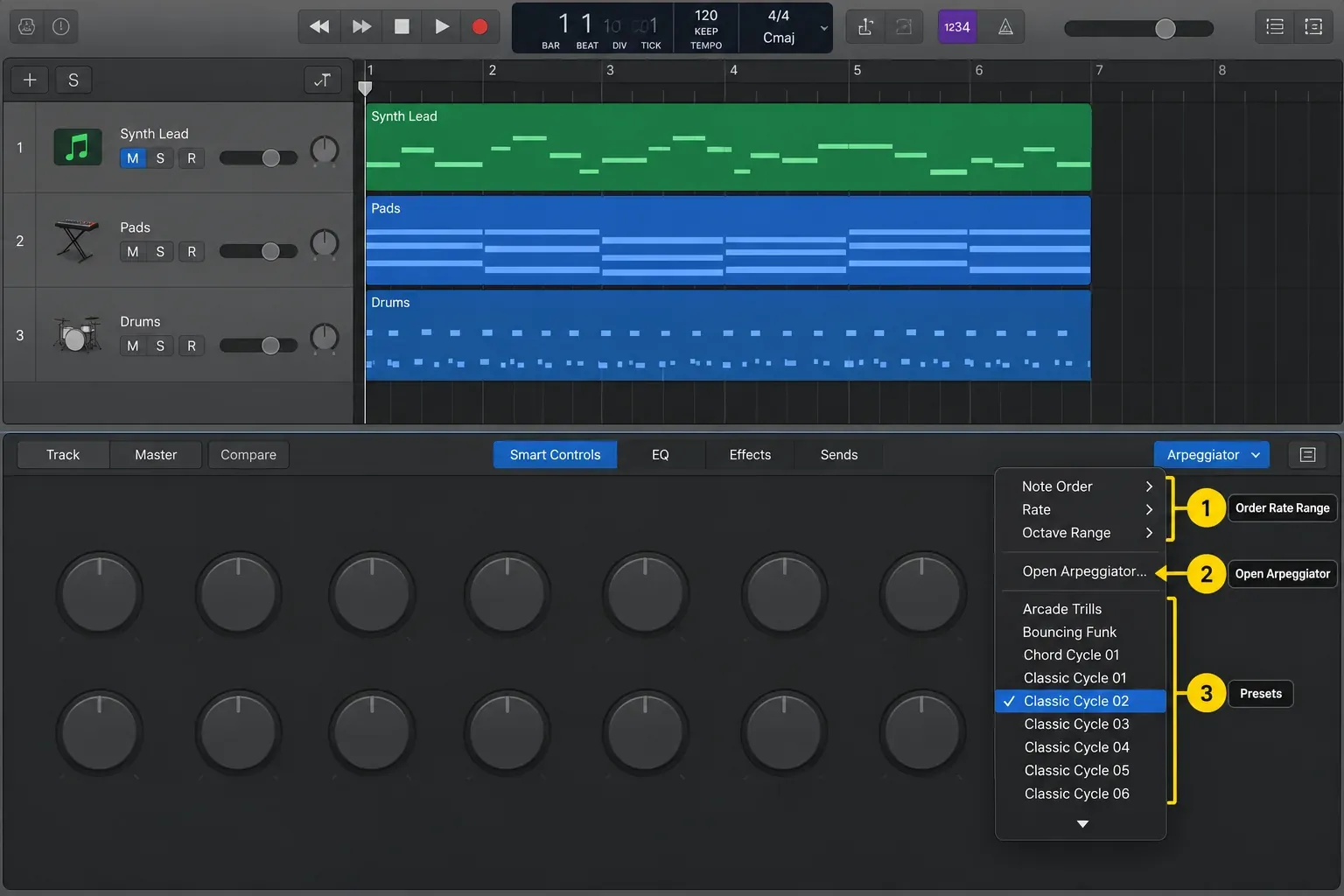
Quick route: Smart Controls
- Select a software instrument track.
- Choose View > Show Smart Controls, or press B with the default key commands.
- Click the Arpeggiator button in the Smart Controls menu bar.
- Hold a chord on a MIDI keyboard or play a MIDI region.
- Choose a preset, note order, rhythmic division, and octave range from the Arpeggiator menu.
- Choose Open Arpeggiator when you need Latch, capture, velocity, note length, scale, or controller settings.
Turning the Smart Controls button on inserts the Arpeggiator on the channel strip. The same button then bypasses it. Apple's current Smart Controls instructions document this route.
Full route: MIDI FX slot
Open the Inspector or Mixer and find the software instrument channel strip. Load an instrument and check that a played note produces sound. Click the MIDI FX space between the EQ graphic and the Instrument slot, then choose Arpeggiator. MIDI effects run in series before the instrument, so placing Chord Trigger before Arpeggiator feeds its chords into the arpeggio.
Build a pattern that supports the song
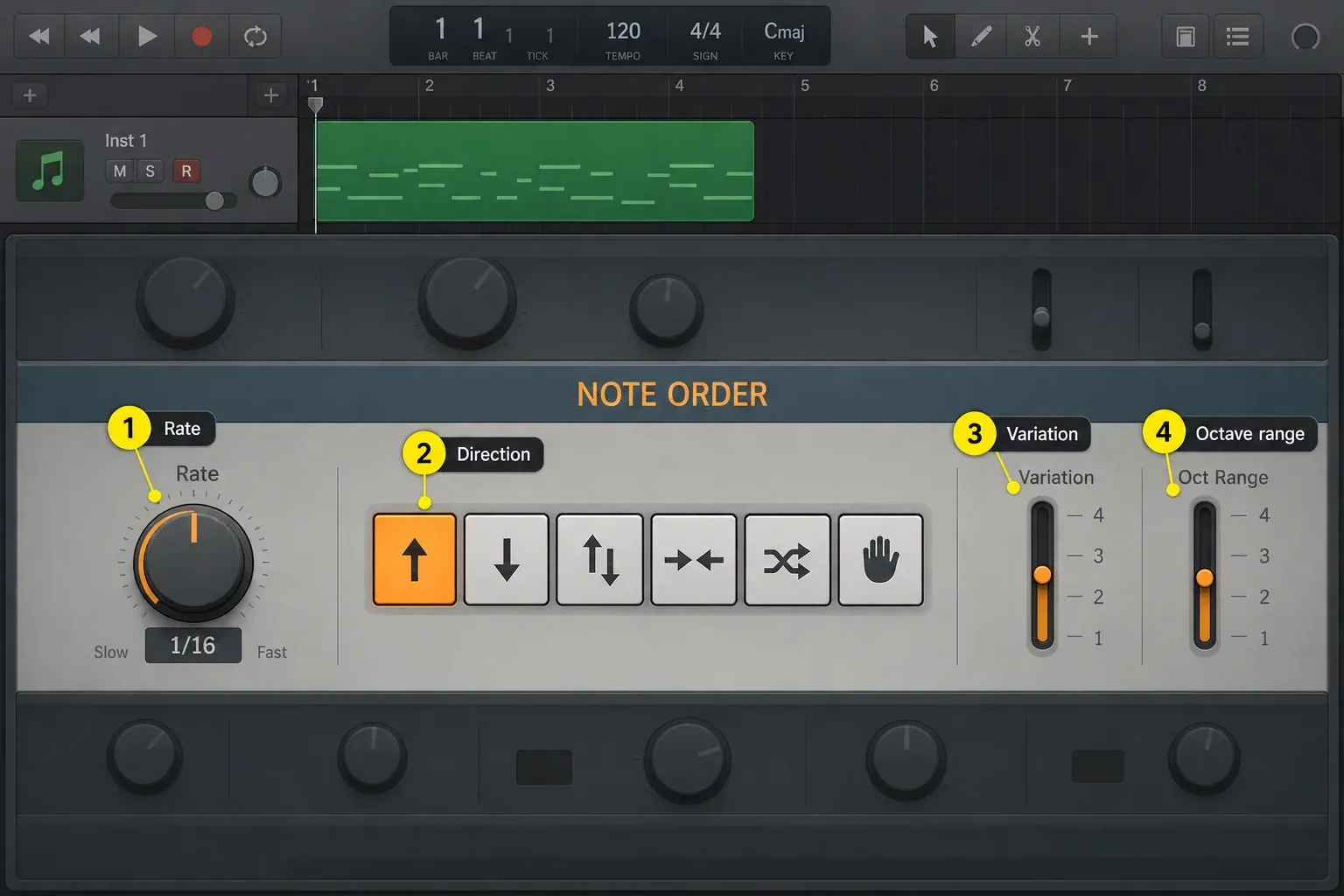
Start with Rate at 1/8 for more space or 1/16 for a busier line. Try Up note order and set Octave Range to 1 before extending the register. I'd keep the range at one octave until the line sits well against the bass and vocal.
Open Options for Note Length and Velocity. Shorten Note Length for a clipped part, or lengthen it for overlap; the instrument envelope also affects what you hear. Apple documents Velocity at 100% as retaining the input velocities and at 0% as making the output velocity constant. Adjust it while listening to the phrase, rather than adding random variation by default.
Rate follows the project tempo. The note-order controls offer 1/4, 1/8, 1/16, their dotted and triplet values, and 1/32. If a fast synth pattern competes with the hi-hat, try a slower division or add rests before changing the sound.
Up runs from the lowest held note to the highest; Down reverses that order. Up/Down repeats the top and bottom notes at the turns. Outside-in starts at the top, then bottom, and works inward. Random changes the order. As Played follows the order in which you trigger the notes.
With As Played selected, its Lock button can keep the note order and feel for the next chord. Unlock it to follow a new trigger order. Check that Oct Range, not Inversions, is selected when changing the octave setting. Position 1 repeats without octave transposition. Listen to the highest and lowest notes before extending the range.
Latch modes and how to stop the pattern
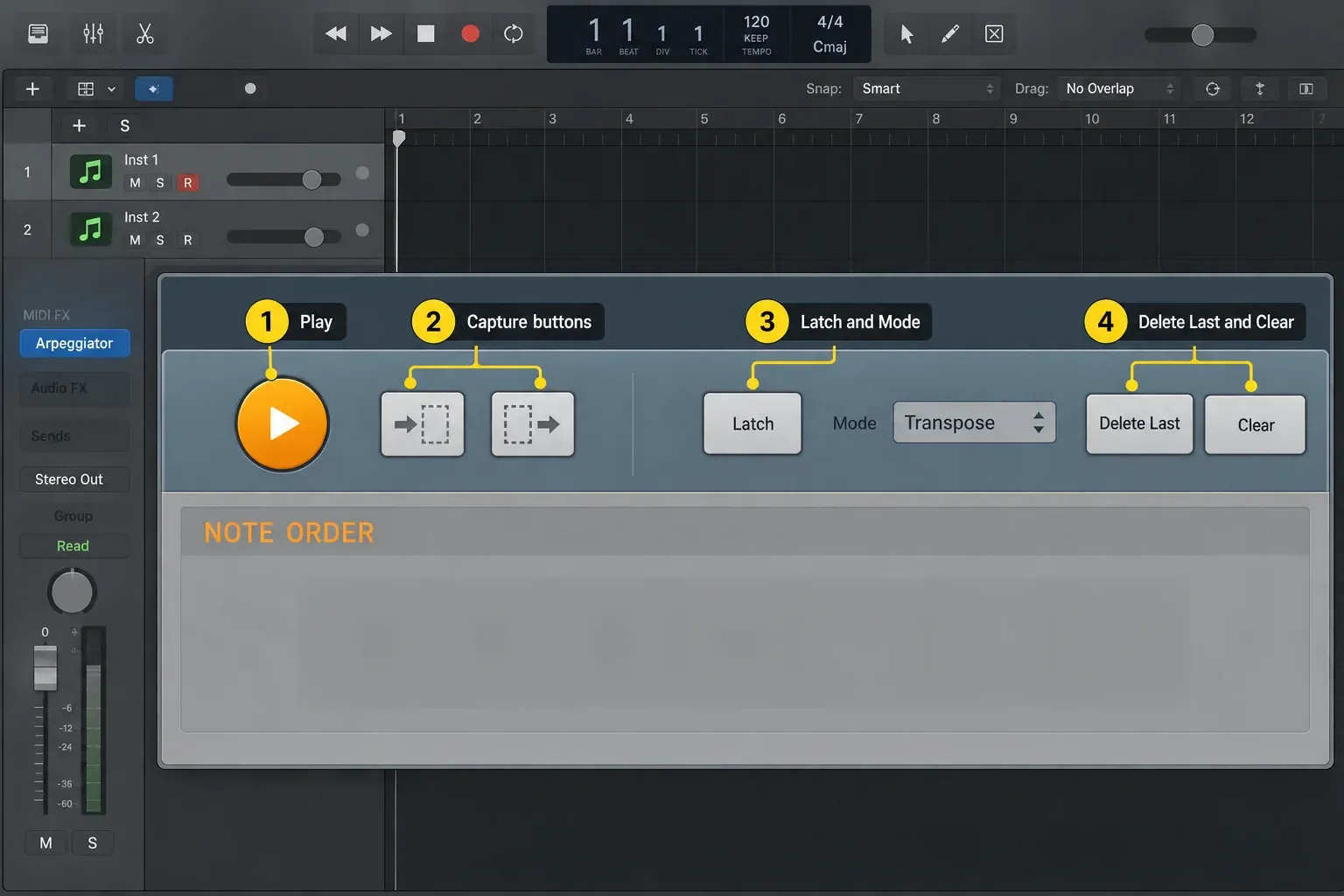
Latch lets the pattern continue without held keys. Choose the mode before playing a new chord: some modes replace the stored notes, while others add to them or transpose them. Gated Transpose is the exception to hands-free playback; it only sounds while a key is held.
Reset: the first new key clears the latched notes.
Transpose: one key shifts the pattern relative to its lowest note; pressing several keys together replaces the stored notes. Gated Transpose uses the same pitch behavior but mutes when you release the key.
Add: new notes join the stored pattern; repeated presses can add the same note more than once. Add Temporarily keeps added notes only while you hold them.
Through: incoming MIDI notes pass through so you can play alongside the latched pattern.
Clear empties Latch memory and stops the arpeggio without switching Latch off. Delete Last removes the last note, rest, or tie you added. In the extended controls at the lower left, Silent Capture stops playback and engages Latch/Add while you enter notes. Turning it off switches Latch to Transpose and resumes Play if it was active before. See Apple's control-parameter reference if switching modes gives an unexpected result.
Record Arpeggiator output or capture one pattern
Record a performance as MIDI
Use Record MIDI to Track Here when you want to record changing chords and their arpeggiated notes over time. It records the output of MIDI effects above its position in the chain. Effects below it aren't included.
- Keep a copy of your source MIDI region before recording over an existing part. For a new live take, choose an empty section of the track.
- On the instrument channel strip, click the arrows at the right edge of Arpeggiator. If you need to include later MIDI effects too, use the last of those effects instead.
- Choose Record MIDI to Track Here. Two small yellow triangles appear directly below that MIDI effect.
- Select the software instrument track, enable it for recording, and place the playhead where the take should start.
- Start recording and play the chord changes. Stop when the performance is complete.
- Bypass Arpeggiator and any other MIDI effects whose output you recorded before auditioning the new notes. This avoids processing the printed notes again.
- Open the recorded region in the Piano Roll and check that it contains the arpeggiated notes. To remove the record point, choose Record MIDI to Track Here again from the menu of the effect directly above its triangles.
That procedure records a new performance. For an existing chord region, preserve the source and check the recording result in the Piano Roll before replacing anything. Do not assume that pressing Record will rewrite the source region in place.
Drag the current pattern into a region
The upper capture button copies the source notes; the lower button copies the currently playing arpeggio pattern. Drag either onto a software instrument track to create a MIDI region at the drop position. The lower button keeps one pattern. For every chord change across a whole performance, I'd use Record MIDI to Track Here instead.
- Loop a short section and let the arpeggio settle into the groove.
- Open the full Arpeggiator plug-in.
- Use Latch only if you need the pattern to continue while you drag.
- Drag the lower capture button onto the instrument track at the intended bar.
- Bypass Arpeggiator before playing the captured region, or the plug-in will arpeggiate those output notes again.
- Open the Piano Roll and remove collisions, change velocities, and shape note lengths.
After capturing, you can shorten a phrase, change a landing note, or adjust velocities in the Logic Pro Piano Roll. Keep the source chords until you have checked the capture. If you need help setting up a live take first, follow the MIDI recording walkthrough.
Make the part feel less mechanical
Try a different chord inversion or remove a crowded note, then listen with the bass and drums. Adjust Note Length in Options alongside the instrument envelope. A pad with a slow attack may blur a short rhythmic pattern even when the MIDI timing is correct. Keep useful velocity differences instead of randomizing every note.
In Keyboard, Input Snap aligns the first incoming note to a rhythmic position. Its default, link to rate, follows the Arpeggiator Rate. Root and Scale snap played notes to the nearest note in the chosen scale. That can constrain pitch, but you still need to listen through the chord changes.
Add rests and accents in Grid mode
In the Pattern section, switch to Grid mode to shape a rhythm across 16 steps. Turn a step off to make a rest. Drag an active step vertically to change velocity, or horizontally to change its length. Extending a bar into the next step ties the notes; the Chord button makes that step play the held or latched notes together.
For a simple exercise, hold three notes, turn off one step, and accent the next active step. Listen for the gap before adding more changes. Arpeggiator keeps drawing pitches from your input; Logic Pro's Step Sequencer is a better fit when you want to program the individual pitches and steps directly.
Fix common Arpeggiator problems
I hear the chord but no arpeggio
Confirm that the track is a software instrument track, the MIDI FX label isn't bypassed, and the Arpeggiator Play button is on. If Logic is stopped, click Play inside Arpeggiator to start from its first step. Check that your MIDI region or keyboard is reaching the selected track.
The pattern keeps playing
Release the keys, turn Latch off, and click Clear. Stop Logic playback as well if a MIDI region is still supplying notes. If the instrument continues sounding with Arpeggiator bypassed, check the instrument release and incoming controller data. That leftover sound doesn't prove Latch is still active.
The captured region plays a different pattern
Bypass Arpeggiator before playing the captured region. Otherwise the individual output notes enter the plug-in again and may produce a different rhythm or note order. Also mute the original source region if it overlaps the capture on another track.
The pattern starts late
Check Input Snap and the region start. A snap value can wait for the next division before the arpeggio begins. Also move the source chord exactly to the intended beat and check for unwanted notes just before it.
The arpeggio clashes with the bass
Try reducing Octave Range, removing the lowest chord tone, or moving the part up an octave. Listen with the bass playing, because changing the note order alone may leave the same competing pitches in place.
Frequently asked questions
Where is Arpeggiator in Logic Pro?
On a software instrument track, open Smart Controls and click the Arpeggiator button, or insert Arpeggiator in the MIDI FX slot above the Instrument slot.
Can Arpeggiator process a MIDI region?
Yes. It can process incoming notes from a MIDI keyboard or a MIDI region in real time.
How do I record Arpeggiator output in Logic Pro?
For a performance over time, choose Record MIDI to Track Here from the Arpeggiator MIDI FX menu, then record on the instrument track. For one current pattern, drag the lower capture button onto a software instrument track. Bypass the recorded MIDI effects before playing the resulting notes.
What does Latch do in Logic Pro Arpeggiator?
Latch stores notes so the pattern can continue after you release the keys. Its modes replace, transpose, add to, or pass notes alongside the pattern. Gated Transpose only sounds while a key is held.
Why does my Logic Pro Arpeggiator not stop?
Check whether Latch is on and whether a MIDI region is still sending notes. Release the keys, turn Latch off, click Clear, and stop Logic playback. If sound continues with Arpeggiator bypassed, check the instrument and controller input separately.
Can I edit the arpeggiated notes?
Yes. Capture the current pattern with the lower button or record its output with Record MIDI to Track Here. Bypass the recorded MIDI effects, then edit the resulting notes in the Piano Roll.
Should I use Arpeggiator or Step Sequencer?
Use Arpeggiator when held chords or live input should generate motion. Use Step Sequencer when you want a fixed grid pattern with explicit control over each step.
Use the pattern in an arrangement
Once the part works with the song, keep the source chords and make an editable MIDI version for arrangement changes. You can leave a gap before a chorus or shorten a phrase without changing the whole preset. The Create Music in Logic Pro guides cover the next steps in beat making, sampling, and arranging.


