Logic Pro LUFS: Measure Loudness and Fix Meter Readings
Get a trustworthy loudness reading before changing the mix. Set the meter’s position and measurement range, clear old history, then verify the file you will deliver.

To measure LUFS in Logic Pro, insert Metering > Loudness Meter on the output you intend to bounce, after the audible processing. Clear its history with Reset, start analysis, and play the complete song once with Cycle off. Pause the measurement after the ending and read Integrated. A reading from a looped chorus describes that measurement alone. It won’t stand in for the whole song.
This guide covers the stock Loudness Meter in Logic Pro for Mac: where to put it, what its readings mean, and what to check when two meters disagree. If the measurement is reliable and you need to change the sound, use the complete mastering workflow for the processing decisions.
Put the meter on the signal you want to measure
Open the Mixer and find the output receiving the finished mix, usually Stereo Out. A meter on a vocal track measures that vocal at its insertion point. It can’t describe the drums, bass and other tracks joining the output. Apple’s output-channel guide explains the default summed output and projects with additional outputs.
Click an empty Audio Effect slot and choose Metering > Loudness Meter. Put it below the last processor affecting the sound you want to deliver. If a limiter or Mastering Assistant comes after the meter, that processor can change what reaches the bounce. You can drag a plug-in to another slot using Apple’s documented plug-in move controls.
For a straightforward final-mix check, keep Stereo Out and the Master volume control at 0 dB, with no automation moving them. Set comfortable listening volume on your interface or monitor controller. Keep reference tracks muted during the measurement. These precautions make the intended path easier to follow. The final-file check below confirms the actual result.
You don’t have to add a limiter just to measure loudness. The meter observes the incoming signal. It doesn’t raise the level, compress the song or make a file meet a delivery target.
Read M, S and I as different measurements
LUFS means Loudness Units relative to Full Scale. It describes perceived loudness using a weighted measurement of the signal, rather than simply reporting its highest sample. Apple documents the stock meter as conforming to EBU R 128 and notes that a difference of one LU corresponds to one decibel.
| Field | What it measures | Useful question |
|---|---|---|
| M: Momentary | A 400-millisecond window | How loud is this brief passage? |
| S: Short-term | A rolling three-second window | How does this phrase compare with the previous one? |
| I: Integrated | The program included in the active measurement | How loud is the complete song or selected section? |
The measurement windows and the distinction between a moving reading and a complete program are explained in iZotope’s loudness-meter guide. Integrated loudness uses gating, so very quiet material doesn’t contribute in the same way as the main program. Do not calculate a song’s result by averaging the displayed LUFS numbers of two sections. Measure the combined program.
A chorus can show a higher short-term reading than the song’s final Integrated reading. That’s normal for music with quieter verses or an intro. The LU Range field describes the loudness range during the measurement. It isn’t the file’s maximum true peak or a subtraction of the peak value from Integrated.
Run one fresh, complete measurement
- Stop and choose the range. Return to the intended beginning. Turn Cycle off for a full-song pass and include the audible ending. Leave the arrangement, processing and balance unchanged while measuring.
- Click Reset. This clears earlier values. Stopping Logic’s transport is not a substitute for explicitly clearing the meter’s accumulated history.
- Enable analysis. If the meter’s button reads Start, click it. While analysis is running, the button reads Pause. Make sure the plug-in itself is not bypassed.
- Play the program once. Let it run from beginning to end without jumping to another section or repeating the chorus. After the ending, pause the meter to retain the result, then stop playback.
- Record the result and conditions. Note Integrated, the measured range and the output path. After a gain, mix or processing change, reset and run another complete pass.
Apple’s Start/Pause and Reset definitions are the key here: Pause retains the current Integrated and LU Range values, while Reset clears all values. Clicking again resumes the real-time display. For a separate comparison, click Reset before you start the next pass.
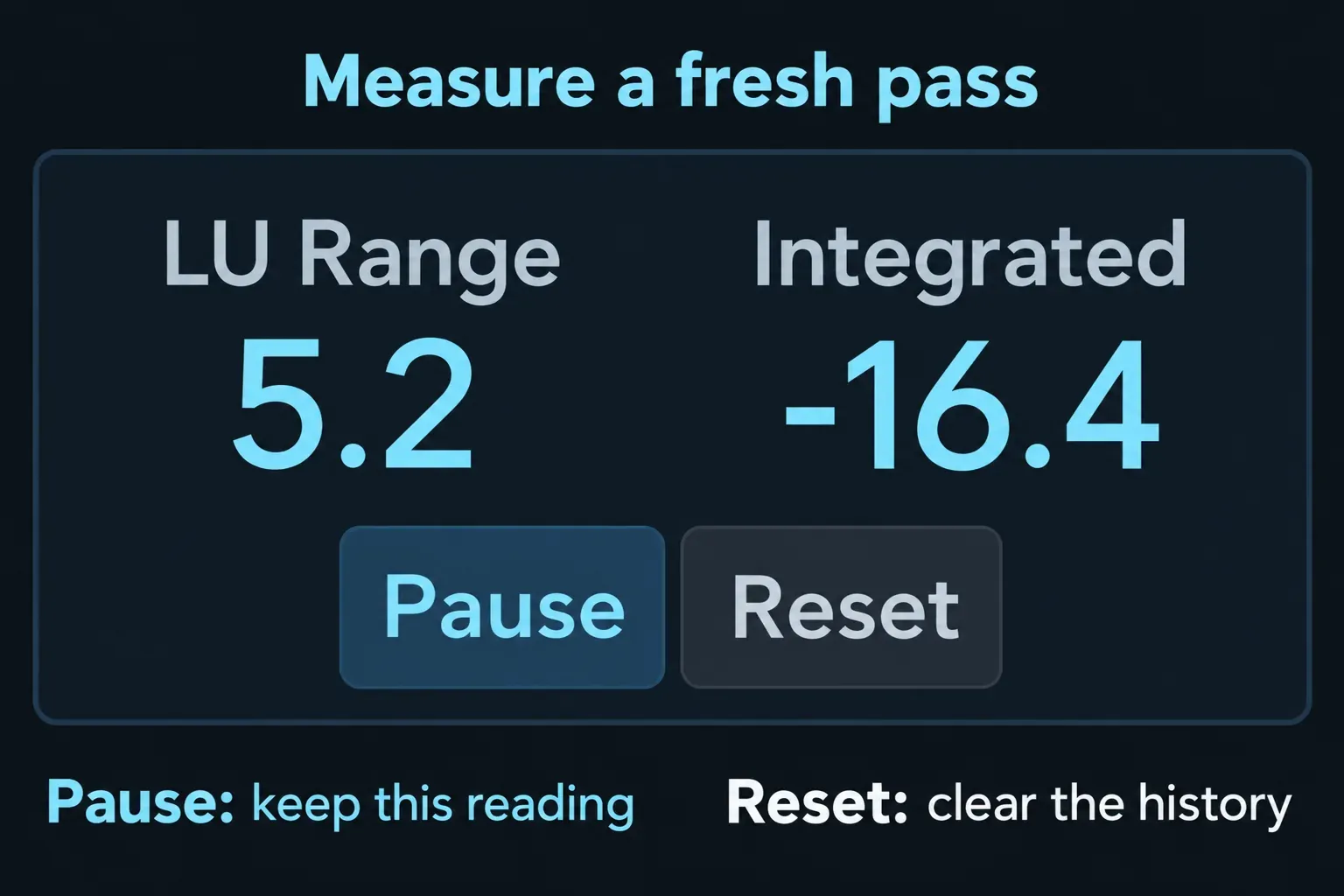
For example, if Integrated reads −16.4 LUFS and the chosen reference is −14 LUFS, the measured program is 2.4 LU below that reference. Moving the target line won’t close the gap. If you change gain or limiting, measure the new result rather than assuming the arithmetic predicts what a processor will do.
For a section comparison, deliberately measure each section separately: reset before the verse, record its result, then reset before the chorus. Label those readings as section measurements. Keep the whole-song result separate.
The target line is a reference, not a loudness control
Drag the target line to the reference you want to watch. Apple’s target-line controls cover −30 to 0 LUFS, and a blue meter bar turns yellow when the measured loudness exceeds that line. So yellow means “above this chosen loudness reference.” It doesn’t, by itself, mean the audio is clipping.
I’d choose the reference from the destination’s actual requirements before adjusting the mix. A music release, a broadcast delivery and an episode supplied to a client can have different specifications. A meter preset or a number from another song isn’t that specification.
For Spotify, the current normalization and mastering guidance recommends −14 integrated LUFS and a true peak below −1 dBTP. For masters louder than −14 LUFS, it advises keeping true peak below −2 dBTP. Its Normal playback setting is −14 LUFS, though Premium listeners can select other levels, and its web player and third-party devices such as TVs or speakers don’t use normalization. They’re Spotify’s conditions and don’t amount to a universal mastering law.
Check true peak with a separate meter
Loudness Meter doesn’t provide a true-peak readout. Add Metering > Level Meter after the final audible processing and select True Peak in its Mode menu. Apple distinguishes sample peak from True Peak mode: True Peak uses oversampling to detect peaks between samples that can exceed the sample values. To watch loudness and peaks in one window, choose Metering > MultiMeter instead: its Level pop-up menu includes True Peak modes, and its loudness section shows LU-I (integrated) and LU-S (short-term) fields.
Read the highest held value after the pass, before starting playback again. Level Meter resets that held number when playback starts or when you click it. A satisfactory Integrated result doesn’t guarantee a satisfactory peak value, so check both against the delivery requirements.
If the loudness target needs processing changes, the Limiter and Adaptive Limiter guide covers the controls and tradeoffs. Keep the final meters after that processing, then repeat the measurement.
Why two meters show different LUFS
Compare like with like before deciding that a meter is wrong. Reset both, start both, send them the same signal and measure exactly the same range. A track meter, an output meter and Mastering Assistant’s own meter can describe different stages or different playback histories.
| Symptom | Check first |
|---|---|
| Integrated is frozen | Start/Pause state, plug-in bypass and whether audio reaches that output. |
| The value changes after each chorus loop | Old history is still included. Reset and play the full song once. |
| Track and output disagree | Different signal points, additional tracks, processing and gain between them; also compare the same range. |
| Assistant and Loudness Meter disagree | Meter order, reset/start history, Bypass and Loudness Compensation states. |
| The bounce disagrees with the project | Bounce range, Normalize, output selection and any processing or gain applied when checking the file. |
With Mastering Assistant, turn Loudness Compensation off for delivery. It’s a comparison control that matches the processed and original volumes. Apple explicitly says to disable compensation and Bypass before bouncing. After changing those states, clear both meters and compare a new pass. Do not compare a stored reading from one state with a live reading from another.
Logic’s Mix > Pre-Fader Metering option changes the channel-strip level-meter display described in Apple’s pre-fader metering instructions. Do not mistake that level display for the Integrated field inside Loudness Meter. They answer different questions.
Measure the file you will actually deliver
Choose File > Bounce > Project or Section, check the exact Start and End positions, and leave Normalize: Off when you have already set the intended level. Apple’s bounce options explain that Normalize On raises the highest peak, while an active Cycle area sets the initial bounce range. Neither is a command to export at a chosen LUFS value.
Check the bounce in a clean project containing only that file. Keep the track, output and Master controls at 0 dB; use no processing except the meters. Confirm the file plays at its original speed with no Flex edits or region-gain changes. This avoids measuring an already processed master through the mastering chain a second time.
Reset the meters, start Loudness Meter and play the complete file. Read Integrated and the held true peak. Record the filename alongside the results so a later revision can’t be mistaken for the approved delivery. If the result differs, investigate the bounce-versus-playback signal path before compensating with more limiting.
A number is useful when you know what produced it. Once the measured file and the delivery requirements agree, return to the Mix & Master hub for the next task the sound needs.


