Logic Pro Limiter vs Adaptive Limiter: Which Should You Use?
Choose the right stock limiter, understand its real controls and set final peak control without flattening the mix.

Logic Pro includes two separate limiter plug-ins: Limiter and Adaptive Limiter, both under Dynamics in a channel strip’s Audio Effect menu. Start with Limiter when you want to adjust the recovery yourself. Try Adaptive Limiter when you want to raise a finished mix’s level with fewer timing decisions. Either choice needs a sensible ceiling, a fair listening comparison and a meter after the processing.
I’d choose between them by the control I need, then compare the result at similar loudness. “Adaptive” doesn’t mean the plug-in understands your release requirements. An output meter staying below zero doesn’t tell you whether the kick still has any life, either.
This guide covers the Mac plug-ins and their current controls. For the complete path from a finished mix to a delivery file, use the Logic Pro mastering workflow.
Limiter vs Adaptive Limiter: what actually changes?
The useful difference is visible in the controls. Apple’s Limiter reference documents manual Release, Legacy and Precision modes, and mode-dependent Soft Knee or True Peak Detection. Its Adaptive Limiter reference describes peak smoothing that can color the sound, plus Out Ceiling, True Peak Detection and an automatically calculated Optimal Lookahead.
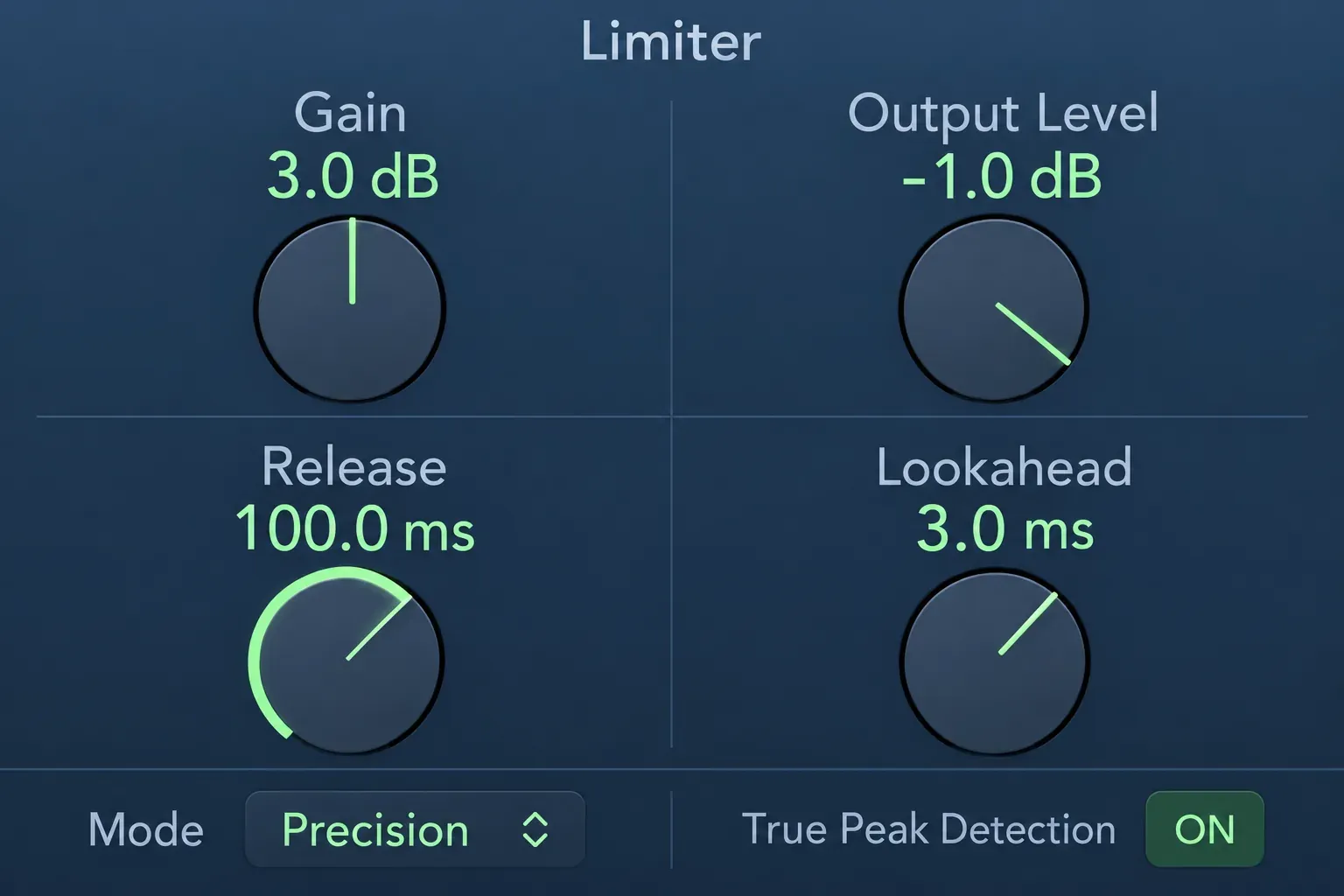
- Limiter: Gain, Release, Output Level and Lookahead are the main knobs. Choose it if you want to hear what a different release time does to a hit or phrase.
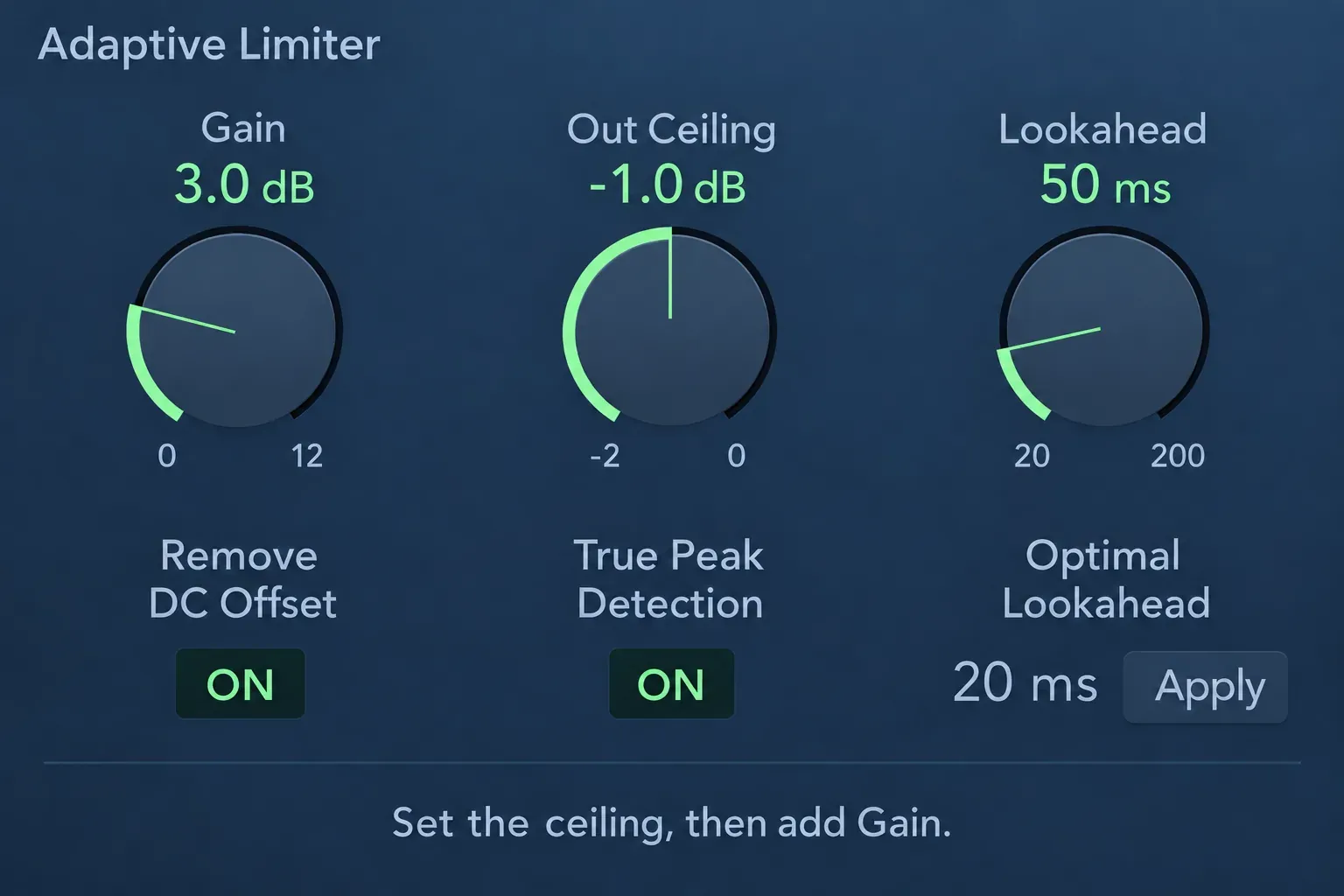
- Adaptive Limiter: Gain, Out Ceiling and Lookahead are the main knobs. There is no manual Release or Attack knob in the current main window.
- Both: can limit peaks and both have lookahead. True Peak Detection is available on Adaptive Limiter; on Limiter, select Precision mode to expose it.
Neither is restricted to a particular channel type. My starting choice for a final mix is Adaptive Limiter because its controls keep the decision focused. If its treatment of the transients is wrong for the song, compare Limiter. For track or drum-bus peak control, Limiter’s manual Release can be useful. That’s a workflow preference. Apple doesn’t say that one plug-in belongs only on tracks and the other only on Stereo Out.
Do not copy a tutorial’s Threshold or Attack instructions into Adaptive Limiter. Those aren’t knobs on this interface. Some old videos also show Input Scale in a different design. The current main window uses the controls above.
Insert the limiter on the channel that owns the problem
- Open the Mixer, or use the selected track’s channel strip in the Inspector.
- For a finished stereo mix, locate Stereo Out. For one instrument, select that instrument’s channel strip.
- Click an empty Audio Effect slot and choose Dynamics > Limiter or Dynamics > Adaptive Limiter. Select the format appropriate to the channel if Logic offers a format submenu.
- For final peak control, place the limiter after the EQ, compression and other audible processing you intend to keep. Put the final meters after it.
Start with one limiter. If Mastering Assistant or another loudness chain is already active, bypass that alternative while you set this one. Two processors can be a deliberate sound choice, but leaving both on by accident makes it harder to know why the mix is losing punch. The Mastering Assistant guide covers its integrated route.
A single uneven word usually needs an edit or automation before it needs the entire mix turned down around it. Use the Compressor workflow when the job is broader phrase-level control rather than a final peak boundary.
Set Gain and output level as separate decisions
Gain increases the level being driven into limiting. Output Level on Limiter and Out Ceiling on Adaptive Limiter set the output side of the decision. They don’t substitute for a compressor’s Threshold and Ratio controls. A compressor turns down the signal above its threshold in proportion, while a limiter pulls any peak above that threshold down to it, which caps the level there.
Begin with Gain at 0 dB. Choose an output setting for the recipient, enable the applicable true-peak option, then play a passage containing the troublesome peaks. Raise Gain in small moves and watch Reduction. Each time, listen for a specific cost: a flattened snare, a fuzzier bass note, an exposed breath or a chorus that feels smaller despite getting louder.
For an educational first pass, you can try 3 dB Gain and −1 dB output. Those are example values. They aren’t a preset or a promise of a particular amount of reduction. A quiet source may barely touch the limiter, while a hotter source may already be working too hard. The gain-staging guide explains how to check the level reaching each processor.
If Gain reaches its useful range without enough control, check the input level and routing before stacking another limiter. With an already distorted source, turning it down may make the distortion quieter without removing it. Apple specifically notes that Limiter can’t repair a recording that was clipped.
Release, lookahead and the shape of a drum hit
In Limiter, Release controls how long the reduction takes to recover after the signal falls back below the threshold. Listen to the hit and the sound immediately after it. A setting that recovers awkwardly can change the apparent groove or pull the next event down. Change one timing control at a time so you can hear which move helped.
Lookahead gives the processor advance information about approaching peaks. Both plug-ins have it, and it adds latency. A higher value on Limiter can make the transition into reduction smoother. It doesn’t guarantee that the drums will sound better. Recheck the transient after changing it.
Adaptive Limiter calculates Optimal Lookahead automatically. Its Apply button copies that recommendation to Lookahead, and a Lookahead value below the recommendation appears red. You can’t type a new value directly into Optimal Lookahead. Use it as a documented buffer setting, then judge the resulting sound.
For live recording, Apple recommends bypassing Adaptive Limiter while recording. Do the final loudness work on recorded material. A limiter in the playback chain won’t protect a microphone preamp or converter that overloads before the sound reaches it.
Use True Peak without turning LUFS into a ceiling
True Peak Detection looks for inter-sample peaks. On Limiter, choose Mode: Precision, then enable it. Legacy instead offers Soft Knee. Do not expect both mode-specific controls to appear together. Apple warns that Precision’s hard limiting can introduce distortion artifacts, so the mode name is not a quality score.
An output ceiling and integrated loudness answer different questions. The ceiling concerns maximum output level. LUFS describes loudness over time. Setting Out Ceiling to −1 dB doesn’t automatically produce −14 LUFS, and lowering a Loudness Meter target line doesn’t turn the audio down.
Add Metering > Loudness Meter after the limiter. Apple’s Loudness Meter instructions distinguish Momentary, Short-term and Integrated readings. Click Reset, enable Start/Pause, and play the whole song for an integrated measurement. A repeating chorus measures that chorus, not the finished release.
For a separate true-peak check, use Metering > Level Meter in True Peak mode, as described in Apple’s Level Meter reference. Sample-peak metering reads the individual samples. True Peak looks between them, where a higher peak can occur.
Choose delivery settings from the requirements of whoever receives the file. I wouldn’t damage a good mix to hit an internet loudness number. If another processor or gain stage follows the limiter, check the final result again. The limiter’s own meter only describes its output, so it can’t account for later changes.
Compare the limited version at a fair level
Keep a copy of the unprocessed mix and a limiter candidate. For the comparison, turn the louder candidate down until the perceived loudness is close. This is an audition adjustment. Restore the intended delivery level before saving the final file.
Listen first to the vocal, then to kick and snare attacks, then to the low end and the space behind the main part. Finally, play through the quiet section and ending. If the benefit disappears when you remove the volume advantage, reduce Gain or leave the processing out. You can keep peak control without forcing every moment toward maximum density.
When one bass note causes the whole mix to duck, return to that note or its channel. The limiter is receiving a problem that belongs earlier in the mix. Extra output gain won’t make that decision more selective.
Why the limiter seems not to work
Reduction stays at zero
Confirm that the plug-in is active and receiving the channel you’re hearing. Watch Input while the relevant passage plays. Raise Gain deliberately, because the output control isn’t an input threshold. With no troublesome peaks reaching it, zero reduction can be the correct result. Apple notes that at 0 dB Gain and 0 dB Output Level, Limiter has no effect on a normalized signal.
The output is safe, but the sound is worse
Reduce Gain and compare at matched loudness. On Limiter, adjust Release and Lookahead separately. Bypass earlier distortion or compression to find where the damage begins. A safe peak reading does not repair clipped source audio or tell you that the limiter’s treatment is musically useful.
The bounced file is different
Check the active output chain, export range and normalization setting. Listen to the actual file, not just the project’s loop. The bounce-versus-playback troubleshooting guide covers that separate handoff. Changing a format, normalizing the file or adding a later gain stage makes the limiter’s earlier reading only part of the story.
Common questions
Should I use both Limiter and Adaptive Limiter?
There is no requirement to stack them. Start with one final limiter. Use two only when each has a defined job and the combined result survives a level-matched comparison. Neither name requires the other plug-in to make its output usable.
Is Limiter only for individual tracks?
No. Apple describes mastering as a primary use for Limiter. You can also use it on a track or bus when that is where the peak problem belongs. Choose by the controls and result rather than a track-versus-master slogan.
Where is Adaptive Limiter’s Release control?
The current main window does not expose a manual Release knob. If you specifically want to set recovery time, use Limiter. Do not translate a third-party limiter’s interface into invented controls.


