How to Use the Logic Pro Vocoder: EVOC 20 PS
Route a recorded vocal or live mic into EVOC 20 PS, play the carrier with MIDI, recover intelligibility and print a mix-ready vocoder part.

To use the Logic Pro vocoder, load EVOC 20 PS in the Instrument slot of a software instrument track. Choose a vocal in Analysis Input, set Output Signal to Voc, turn Freeze off, and play MIDI notes while the vocal plays. The voice supplies articulation; the internal synth supplies pitch and harmony.
Apple’s current Mac guide calls the input selector Analysis Input. Older tutorials use Side Chain for the same input-selection role. This guide uses the current label and covers recorded vocals, a live microphone, clearer consonants and an audio print.
Understand the EVOC 20 PS signal flow
A vocoder compares two signals in frequency bands:
- Analysis signal: usually speech or singing. Its changing spectral shape carries consonants, vowels and rhythm.
- Synthesis signal: EVOC 20 PS's internal polyphonic synthesizer. MIDI notes determine its pitch and harmony.
- Vocoder output: the analysis envelopes reshape the synthesizer's filter bands.
Apple's EVOC 20 PS overview confirms that the instrument needs an Analysis Input from an audio track, live input or bus and incoming MIDI. The input doesn't “turn into MIDI.” It shapes the carrier you play.
Find the controls that matter first
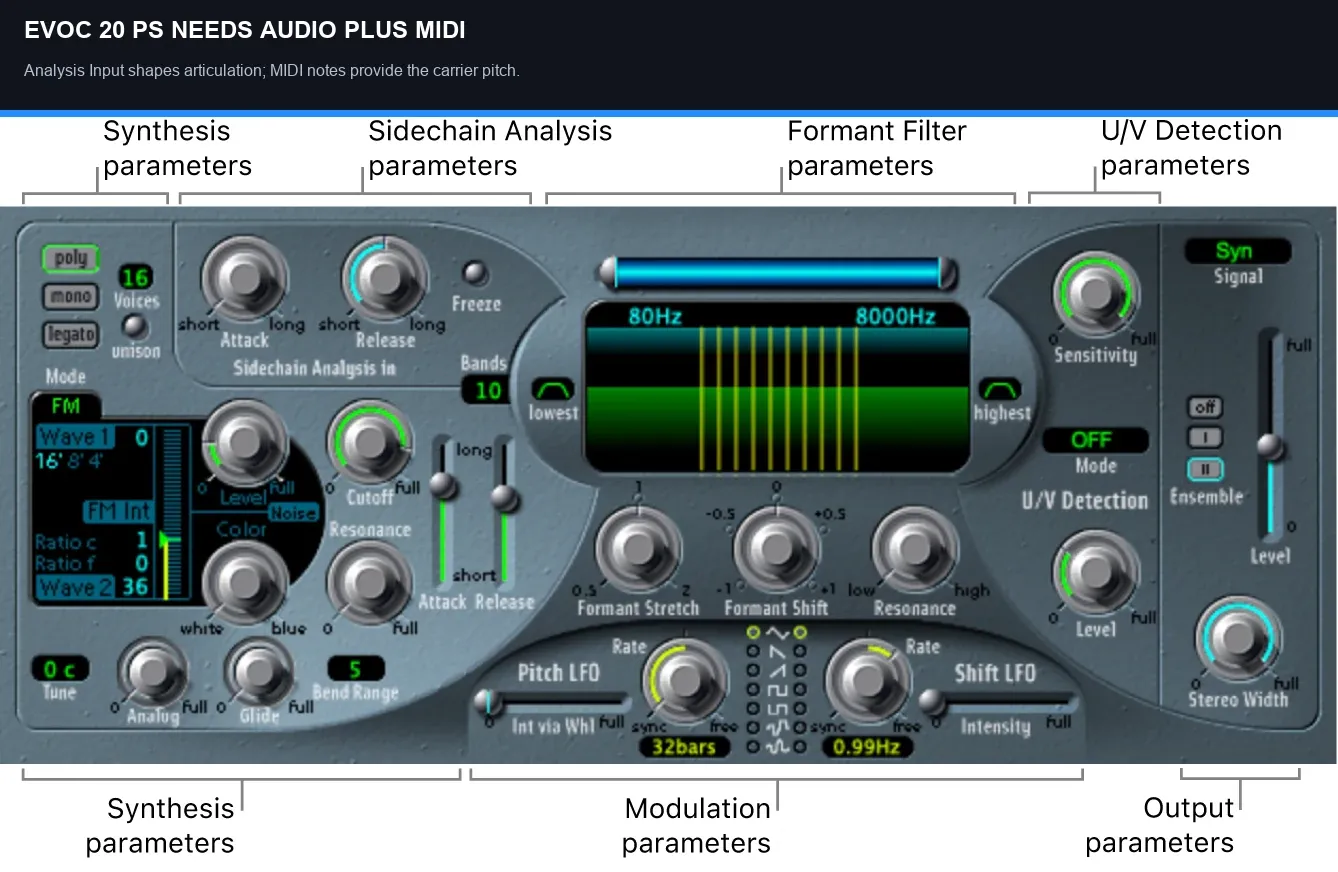
Ignore most of the controls until the basic path makes sound. The shortest route is Analysis Input, MIDI notes and the Output Signal selector. Once that's working, use the analysis level, carrier brightness, filter bands and U/V section to improve speech.
Set up EVOC 20 PS with a recorded vocal
- Create or choose a clean vocal audio track and confirm that its region plays.
- Create a software instrument track for the vocoder.
- Load EVOC 20 PS in that track’s Instrument slot, not an Audio Effect slot on the vocal track.
- Choose the vocal track from Analysis Input in the plug-in header.
- In the Output section, set Signal to Voc. Turn Freeze off in Sidechain Analysis so the current vocal controls the effect.
- Start playback and focus the EVOC track while playing a MIDI note or chord. Alternatively, draw MIDI notes in a region on the EVOC track that overlaps the vocal.
- Once both paths work, mute the dry vocal if you want only the effect. Keep the analysis source active; if this routing loses its feed when muted, undo the mute and use the bus method below.
- Record or edit the MIDI part to follow the vocal phrasing. For chords, select Poly and set Voices high enough for the notes you want to hear.
- Play the saved vocal and MIDI regions together, check phrase endings, and save the project. Existing MIDI-region playback does not require the EVOC track to remain selected.
For a separate analysis feed, use an unused bus:
- Leave the vocal track on and unmuted. Change its channel-strip Output to an unused bus and note that bus number.
- On the aux receiving that bus, choose No Output to keep the dry voice out of the mix. Do not mute the source track or turn its fader down; it is still feeding the bus.
- Select that same bus in EVOC’s Analysis Input. Leave the EVOC channel routed to Stereo Out or your normal mix destination, not back to the analysis bus.
- Play the vocal and MIDI. Check Ana, then return to Voc. If you later want a dry blend, route the analysis aux to the mix and set its level there.
A bus carries the signal; its receiving aux controls an audible return. Our buses, sends and aux guide explains that distinction. This setup uses the source Output, not a send whose level still needs raising.
Use a live microphone without feedback
- Use headphones at a low level. Create an audio track with the microphone’s hardware input, enable Input Monitoring on that track, and confirm that its meter responds without clipping.
- Create the EVOC software instrument track. Choose the same hardware input in Analysis Input, set Signal to Voc and turn Freeze off.
- Focus the EVOC track and play notes while speaking. For only the processed voice, set the clean mic track’s Output to No Output and turn down any unwanted direct dry monitoring on the audio interface.
- To capture both parts, click Record Enable on the clean mic track and the EVOC track. Keep the EVOC instrument track focused for the keyboard.
- Move the playhead to the start, press Record, then perform the voice and MIDI together. Stop and check that the mic track contains audio and the EVOC track contains MIDI.
- For playback without singing again, turn off Record Enable on both tracks and Input Monitoring on the mic track. Change Analysis Input from the live hardware input to the recorded mic track, then play the saved audio and MIDI together with the dry output controlled.
Input monitoring is not the same as recording. Apple’s simultaneous audio and software-instrument recording instructions require both tracks to be record-enabled. If you prefer a processed mic track or bus as Analysis Input, keep that path monitored and verify Ana before recording; the direct hardware-input method above avoids relying on that extra monitored route.
Build a carrier the voice can shape
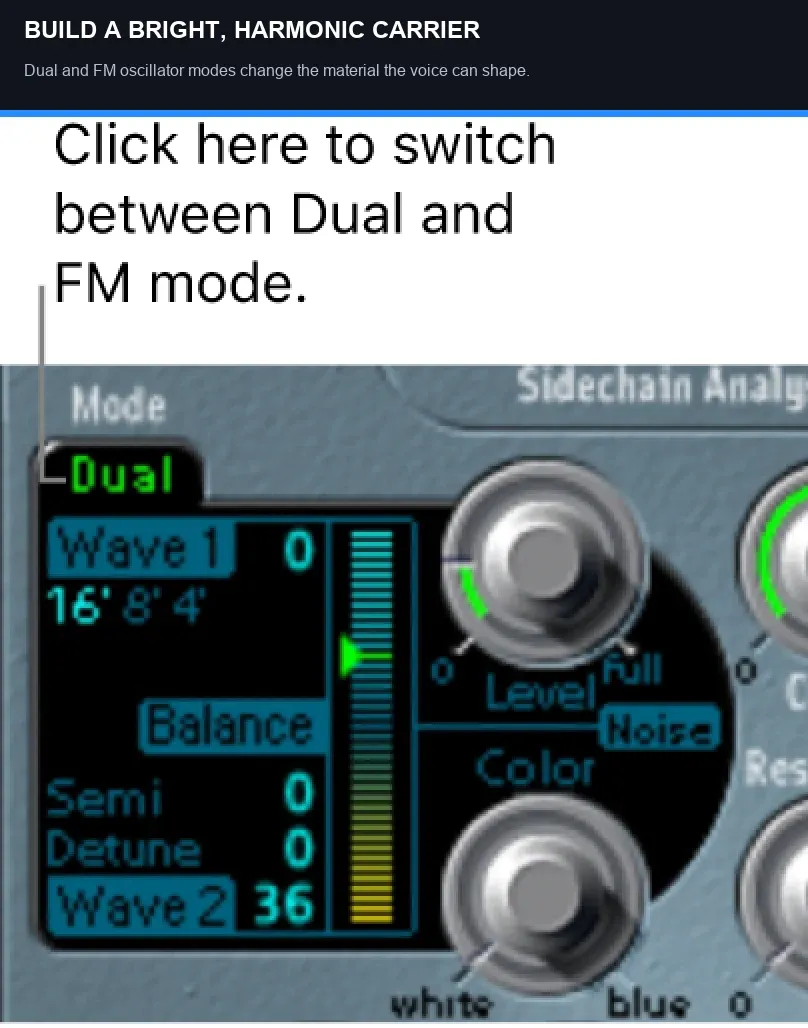
EVOC has Dual and FM oscillator modes plus a noise generator. Speech usually needs a carrier with energy in the mid and high bands; a dark tone can play the right notes but leave little material for consonants. These are choices to audition, not a required preset.
Start with:
- a bright digital waveform or modest FM tone;
- enough upper harmonics to carry consonants;
- short or moderate attack so syllables begin clearly;
- release long enough to connect the phrase without smearing the next word;
- simple chords before dense voicings.
If a chord collapses to one note, check Poly and the Voices field before changing the MIDI. Mono and Legato are single-voice modes. Apple’s EVOC keyboard-mode reference also notes that Unison uses extra voices; turn it off while checking straightforward chord playback.
Prepare the analysis vocal for clarity
Apple’s level and frequency tips explain why both the analysis voice and the synth need useful high-frequency content. Try these changes on the analysis path:
- compress the analysis signal enough to keep quiet syllables present;
- use EQ to recover useful high-mid or treble articulation when the recording lacks it.
Keep the source changes modest. Compression with makeup gain can bring breaths and room tone forward, while excessive treble or U/V noise can sound harsh. Remove distracting noises first. Use the bus feed above when you need a clearly routed, processed source, then listen in Ana to check what EVOC actually receives.
Check the analysis envelope and Freeze
Sidechain Analysis has its own Attack and Release controls, separate from the synth’s amplitude envelope. Shorten analysis Attack if consonants arrive too softly. Reduce a long analysis Release if one word smears into the next; extremely short settings can sound grainy. Apple gives about 8–10 ms as a starting point for analysis Release, not a target every voice must use.
Turn Freeze off for normal changing speech. When it is on, EVOC holds the captured spectrum, ignores new analysis audio, and its analysis Attack and Release controls have no effect. That can be useful for a sustained vowel, but it is also a reason the sound stops following your words. See Apple’s analysis controls and Freeze instructions.
Set the formant filter before chasing effects

EVOC has two banks with up to 20 filters each. Apple’s formant filter guide explains the relationship: Low and High Frequency set the working range, Shift moves synthesis bands up or down, Stretch changes their width and distribution, and Resonance emphasizes each band’s center.
A practical order:
- Drag vertically in the Bands field to choose the detail you need. More bands give finer spectral shaping; fewer can make a deliberately coarse effect.
- Set Low and High Frequency with the range handles or numeric fields so useful voice information remains inside the range.
- Begin with the synthesis bands aligned with the analysis bands in the display. Then move Shift or Stretch deliberately; do not assume an extreme preset is a neutral starting point.
- Raise Resonance cautiously and compare at a similar listening level. Reduce it if peaks become sharp or diction gets worse.
High resonance combined with large formant moves can create piercing peaks. Lower monitor level before sweeping and use an analyzer only as support for the listening test.
Use U/V detection for consonants
Voiced sounds such as vowels have periodic pitch. Unvoiced sounds such as many s, f, t and sh components behave more like noise. Apple's U/V Detection guide explains that replacing unvoiced content can make speech less weak and more intelligible.
Choose a replacement mode before adjusting its level:
- Noise replaces detected unvoiced portions with noise.
- Noise + Synth combines noise and the synthesizer for those portions.
- Blend uses the high-pass-filtered analysis signal. Sensitivity has no effect in this mode.
With Noise or Noise + Synth selected, raise Sensitivity only until the wanted consonants are detected; too high a setting can classify voiced parts as noise. Use U/V Level to set how loud the replacement is. Start low and stop before hiss dominates: high Level, especially with high Sensitivity, can overload EVOC internally. In Blend, judge Level rather than trying to fix it with Sensitivity.
Use output modes as diagnostic tools
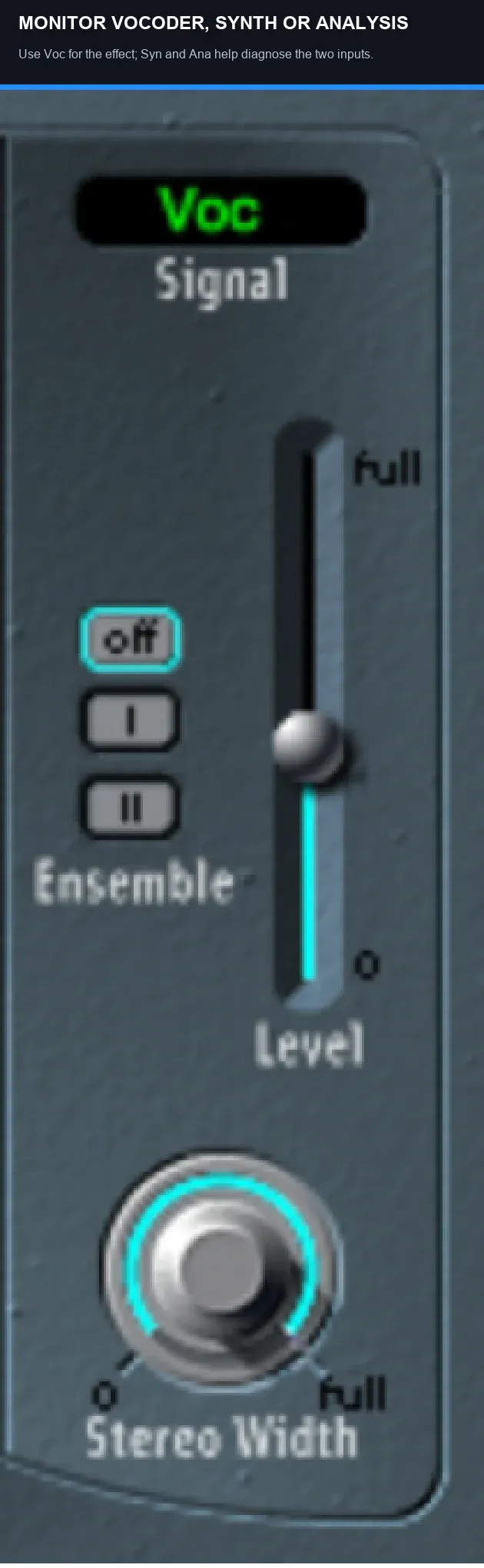
Apple's output guide defines three Signal choices:
- Voc: the vocoder result;
- Syn: the synthesizer carrier alone;
- Ana: the analysis input alone.
If Syn is silent, check MIDI notes, the synth envelope and output level. Focus the EVOC track for live playing; for existing MIDI, check the region and its timing. If Ana is silent, check the selected source and its routing. If both work but Voc holds an old vowel, turn Freeze off. If the keyboard itself is not reaching Logic, use the MIDI keyboard troubleshooting guide before changing vocoder settings.
Record the performance and print it safely
The EVOC track records MIDI, not the final processed audio. Keep that MIDI and the clean vocal for editing. To record a stereo print from the saved parts in real time:
- Save a project alternative or duplicate. Note the EVOC channel’s original output, and choose a different unused bus for its Output. Do not reuse the analysis bus.
- Create a stereo audio track named EVOC Print. Set its Input to that print bus and its Output to Stereo Out or your normal mix destination.
- If Logic created an aux for the print bus, set that aux to No Output. Monitor through EVOC Print only, so the print and aux do not double the sound. Do not route the print track back to either input bus.
- Enable Input Monitoring on EVOC Print and check its meter while the recorded vocal and MIDI play. Software Monitoring must be enabled in Logic Pro > Settings > Audio > General to hear this monitored path. Select the print track if monitoring is restricted to the focused track.
- Record-enable only EVOC Print for this pass. Start before the phrase and press Record; let the saved vocal and MIDI play through the full release tail, then stop.
- Turn off Record Enable and Input Monitoring on EVOC Print. Mute the live EVOC instrument, restore its original output, and listen to the recorded print by itself. Keep the original vocal and MIDI tracks for revisions.
Apple’s channel-strip controls reference confirms that an audio track can record a bus input. The General Audio settings explain Software Monitoring and the focused-track restriction. This print captures the EVOC channel path, not separate reverb or delay returns routed elsewhere.
Check the print’s first consonant, last tail and level before relying on it. Recording the mic source alone gives you the clean voice, not the vocoder result. A saved audio print preserves this performance; keeping the source and MIDI lets you change the notes or sound later.
Three vocoder roles that mix differently
Lead robotic vocal
Prioritize consonants, a stable level and a centered image. Try fewer chord notes if the words blur. Blend a little dry vocal only when the part benefits from a natural attack.
Vocoder harmony behind a lead
Program chord changes from the song harmony, shorten release around busy lyrics and filter lows that compete with bass. Pan or widen the support carefully while the dry lead anchors the center.
Rhythmic or non-vocal texture
Use drums, loops or found sound as Analysis Input. Intelligible words don't matter here, so larger formant movement, band modulation and wider output can become part of the rhythm. Keep transient level controlled to avoid sharp filter bursts.
Program MIDI that follows the phrase
Match MIDI note lengths to the lyric rhythm. Leave gaps for breaths and place chord changes where the harmony needs them. If the start of a word disappears, compare the MIDI onset, synth attack and analysis attack before moving the vocal out of time.
Try one or two notes for a lead before building a full chord. For backing harmony, spread the notes without adding low rumble. Velocity response depends on the patch, so compare loudness by ear.
Edit with the dry vocal and drums audible, then listen to EVOC alone. The vocal may anticipate or sit behind the grid, so rigidly quantizing every chord can work against the performance.
Mix the vocoder without losing the lyric
Set the channel level against the lead before adding more effects. Remove low-frequency energy that competes with bass, but keep enough body for the phrase. If words are still vague, revisit the source, envelopes, carrier and voicing rather than adding output gain.
- Use a short room or delay when the part needs depth without a long wash.
- Check any dry vocal or analysis-aux return is intentional.
- Compare the phrase in mono after widening; keep the main lyric clear in the center.
Ensemble is in the Output section: I adds a chorus effect and II gives a fuller variation. It is not a pre-vocoder carrier control. Stereo Width distributes the synthesis filter-band outputs across the stereo field; it does not provide separate low-band and high-band width knobs.
For a formant lift or width change on one phrase, use Logic Pro track automation and return the parameter to its starting value after the move. Keep the largest changes away from consonants that need to stay clear.
EVOC 20 PS no-sound checklist
- Check EVOC is in the Instrument slot and its channel has an audible output route.
- Switch Signal to Ana. Confirm the intended recorded voice or live input reaches the plug-in.
- Switch to Syn. Play MIDI or check that an existing MIDI region overlaps the phrase; focus EVOC when playing live.
- Return to Voc and turn Freeze off. Check both the synth and analysis envelopes if notes or words are cut off.
- For chords, check Poly and enough Voices. For missing consonants, check carrier brightness, Bands, U/V mode and Level.
- If the dry voice is doubled, inspect the source output, analysis aux and interface direct monitoring instead of muting the whole signal path.
Frequently asked questions
Where is the vocoder in Logic Pro?
Create a software instrument track and choose EVOC 20 PS in its Instrument slot. It is a vocoder instrument with a built-in synthesizer, not a simple insert on the vocal track.
Why does EVOC 20 PS need MIDI?
MIDI plays the internal synth’s notes and harmony; the analysis audio shapes that carrier. For normal speech-following vocoding, the MIDI and voice need to overlap with Freeze off. Freeze can hold a captured spectrum between words, but it does not replace the MIDI-driven carrier.
Is Analysis Input the same as the old Side Chain menu?
It serves the input-selection role shown as Side Chain in older tutorials. Follow the current Analysis Input label in the plug-in header.
Why can I hear the synth but not the vocoder?
Check Output Signal: Syn plays only the synth. Use Ana to verify that the intended source reaches EVOC, turn Freeze off, then return to Voc while MIDI and the voice overlap.
How do I make EVOC 20 PS words clearer?
Check the source level and useful high frequencies, choose a bright carrier, shorten overly slow analysis envelopes, and use enough bands. Adjust U/V mode and Level for consonants; Sensitivity does not operate in Blend. Simplify chord voicing if words still blur.
How do I record the vocoder in Logic Pro?
For a live take, record-enable the mic audio track and EVOC instrument track, focus EVOC, then record the voice and MIDI together. For processed audio, route EVOC’s output to a separate bus and record that bus on a stereo audio track. Keep the clean source and MIDI.
Continue through the Logic Pro Create Music hub for MIDI, instruments, sampling and arrangement workflows.


