High-Pass vs Low-Pass Filters in Logic Pro
Choose the correct edge filter, set cutoff and slope by ear, keep useful body and brightness, and automate controlled sweeps in Logic Pro.

A high-pass filter passes the higher side of the spectrum and progressively attenuates the lower side. A low-pass filter does the reverse: it passes the lower side and progressively attenuates the higher side. In mixing language, high-pass and low cut mean the same direction; low-pass and high cut mean the opposite direction.
Use either filter when you can name what should become quieter. A high-pass can reduce rumble below a part’s useful range; a low-pass can reduce hiss above it. When noise overlaps the music, filtering changes both. Listen for lost body or brightness, and leave the filter off if the tradeoff makes the part worse.
High-pass vs low-pass: the quick answer
| Filter | Also called | Passes | Attenuates | Typical job |
|---|---|---|---|---|
| High-pass | Low cut, HPF | Frequencies above cutoff | Frequencies below cutoff | Remove rumble, handling noise or unnecessary sub energy |
| Low-pass | High cut, LPF | Frequencies below cutoff | Frequencies above cutoff | Remove hiss, brittle top end or bright spill |
The name tells you what passes, while the alternate name tells you what gets cut. That’s why a high-pass filter is a low cut. Nothing about the words tells you the correct cutoff frequency for a vocal, guitar or bass. You still have to listen to the source.
Where the high-pass and low-pass filters are in Logic Pro
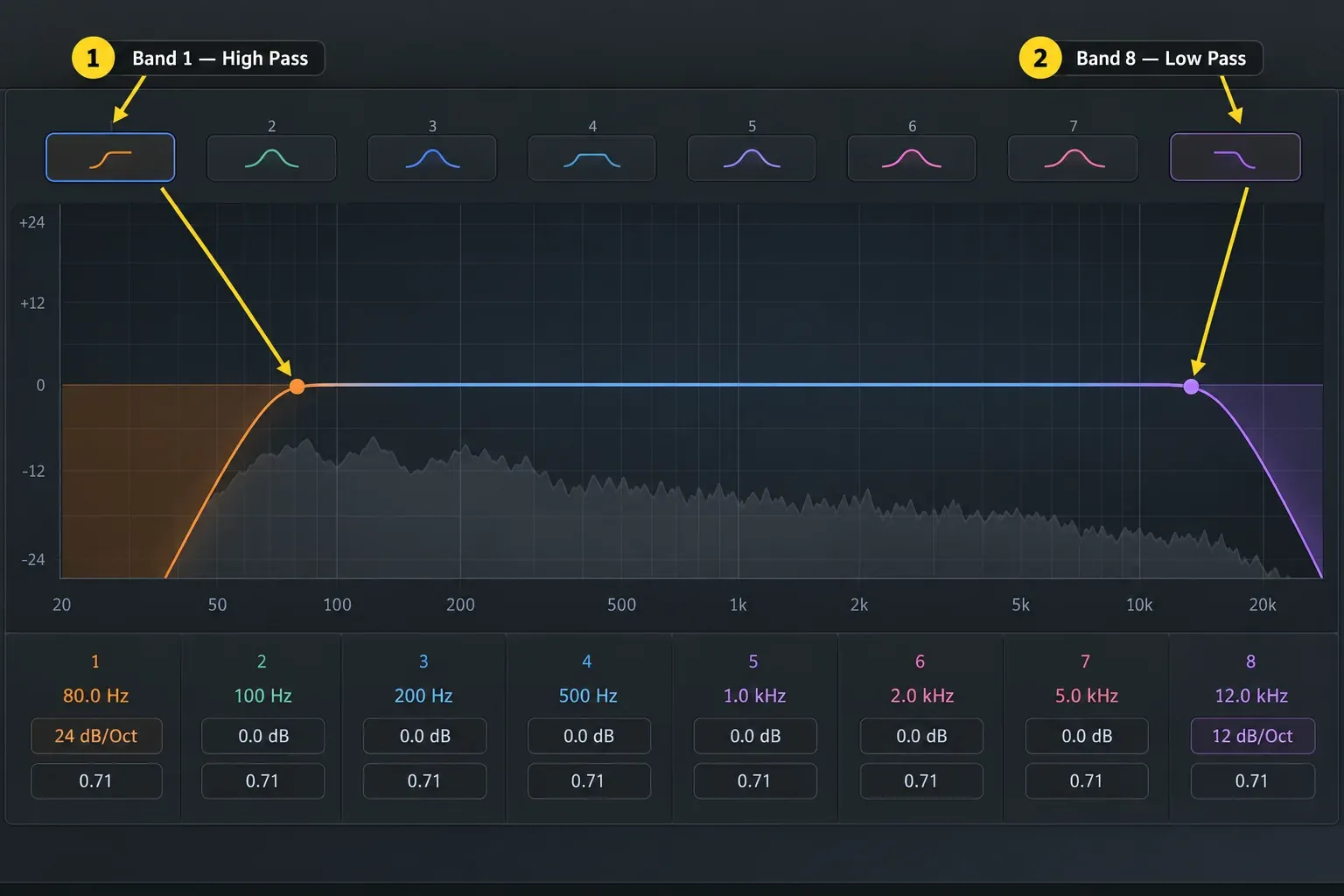
Open EQ → Channel EQ on the track, bus or output you want to change. Apple’s current Channel EQ overview describes an eight-band EQ with both filter types, shelves, four parametric bands and a real-time Analyzer.
- Band 1, at the far left: high-pass filter. Click its button to turn it on.
- Band 8, at the far right: low-pass filter. Click its button to turn it on.
To change cutoff alone, drag the active filter’s shaded area horizontally or edit its Frequency value below the graph. Dragging the control point can change Q as well as frequency. Drag the filter line vertically, or use Gain/Slope, to change slope; adjust Q separately.
The broader Logic Pro Channel EQ workflow covers shelves, bell bands, Analyzer choices and full-track EQ decisions. This guide stays with the two edge filters.
Cutoff, slope and Q change different things
Cutoff frequency: a reference point on the slope
Cutoff sets the reference frequency for the transition. It isn’t a brick wall or the first frequency affected. A high-pass set near the bottom of a vocal’s useful range progressively attenuates material below that area. A low-pass near the upper edge of a dark effect return progressively attenuates material above it. The amount changed around cutoff depends on slope, Q and filter design.
Slope: how quickly the filter rolls off
Slope is measured in decibels per octave: an octave is a doubling or halving of frequency. Far enough into its roll-off, a 12 dB/oct high-pass adds approximately 12 dB of attenuation each time frequency halves; a low-pass does so each time frequency doubles. That’s the eventual roll-off rate. One octave from cutoff the figure isn’t exact yet, because Q and the transition shape still matter there.
A steeper slope concentrates more of the transition near cutoff. A gentler slope spreads it across a wider range. Compare the whole response with the same cutoff and Q before choosing, then retune cutoff if needed. Neither curve is automatically more transparent.
Q or resonance: what happens around cutoff
On Channel EQ’s edge filters, Q changes the shape around cutoff and can create a bump near the boundary. Apple notes that Q has no effect on bands 1 and 8 when slope is set to 6 dB/oct. At other slopes, a higher Q can make the cutoff audible before the unwanted range is fully removed.
That small peak may restore perceived weight or add character. It can just as easily exaggerate a note, consonant or cymbal edge. Bypass the filter and level-match before you decide the resonant version is better.
A seven-step filter workflow that avoids guessing
- Name the problem. Rumble, plosive energy, hiss, cymbal spill and deliberate muffling require different decisions.
- Play a representative section. Include the lowest note, brightest attack or loudest phrase that the part must keep.
- Turn on the correct edge filter. High-pass for unwanted lows; low-pass for unwanted highs.
- Use a moderate slope first. Move the cutoff until the unwanted material becomes quieter.
- Back away when the useful sound changes. Restore the body, air, pick attack or room cue that tells you the filter has gone too far.
- Check in the full mix. Solo exposes noise; context tells you whether that noise matters and whether the part still supports the song.
- Compare bypassed at matched loudness. A louder version often wins even when its tone is worse.
Turn on the Analyzer, then switch its Pre/Post display to compare the spectrum before and after EQ. It can reveal low-frequency energy that small speakers hide, but it cannot tell you whether that energy belongs to the performance. Keep the lowest useful note and the full arrangement in the listening check.
When a high-pass filter helps
- Vocal or speech: remove air-conditioning rumble, floor vibration, stand movement or low plosive residue below the voice you need.
- Acoustic or electric guitar: reduce handling noise, footfall or cabinet lows that do not contribute to the arrangement.
- Overheads and room microphones: control kick leakage or room pressure when it conflicts with close mics, while preserving the intended kit weight.
- Reverb and delay returns: keep low-frequency wash from masking kick and bass. Filter the aux return rather than changing the dry track when the effect alone is the problem.
- Bass or kick: remove true subsonic movement below the part, but stop before the fundamental and useful weight thin out.
There’s no defensible “high-pass every non-bass track” rule. A piano, guitar, pad or room mic may carry low information that makes the arrangement feel connected. Filter it away because the spectrum looks busy and you can end up with ten individually clean tracks adding up to one weak mix.
If the excess low end comes from a level or routing problem, fix that first. The Logic Pro gain-staging guide separates headroom from tone, while the buses, sends and aux guide shows how to filter only a shared effect return.
When a low-pass filter helps
- Noisy recordings: reduce hiss above the useful brightness of the source when denoising would do more damage.
- Amp and distortion layers: trim fizzy top end that fights cymbals or vocal consonants.
- Synths and samples: darken a layer so another part owns the attack and air. In Quick Sampler, the instrument’s own Filter section offers LP and HP types plus a filter envelope and a Keyscale control, so cutoff can move with each note or follow the keyboard.
- Reverb and delay returns: keep bright repeats or tails behind the dry signal.
- Sound design: automate cutoff to create a muffled-to-open transition or the reverse.
A low-pass filter can’t distinguish unpleasant fizz from useful presence when they overlap. If the source turns dull before the problem disappears, use a bell cut, dynamic EQ, de-esser, different amp tone or source edit instead.
Use starting areas, not fixed presets
| Source or problem | Start by listening for | Stop when |
|---|---|---|
| Vocal high-pass | Rumble and plosive residue below the lowest useful note | The chest, pitch or warmth begins to shrink |
| Guitar high-pass | Footfall, handling noise and lows hidden by bass | The body loses authority or the pick becomes disconnected |
| Bass or kick high-pass | Subsonic movement rather than musical fundamental | Weight or note definition changes |
| Distorted source low-pass | Fizziness above the useful bite | Attack and presence become veiled |
| Reverb low-pass | Bright tail competing with the dry source | The space loses its intended size or clarity |
Numbers printed in presets or tutorials can locate a search area. They can’t hear the singer, microphone, tuning, arrangement, sample rate or chosen slope in your session. Sweep until you hear the boundary, then back off.
Using high-pass and low-pass together
Use both edge filters with the high-pass cutoff below the low-pass cutoff to keep a band between them. The combined response is band-pass-like, with sloping edges rather than a rectangular window. This can make telephone, radio or distant-speaker effects. Overlapping the cutoffs can attenuate most of the source instead of leaving a useful middle band.
For routine mixing, check that both transitions leave the source enough body and brightness. With multiple microphones on one instrument, or a filtered copy running beside the original, compare the combined sound too: phase changes can alter how those related signals add together.
How to automate a filter sweep in Logic Pro
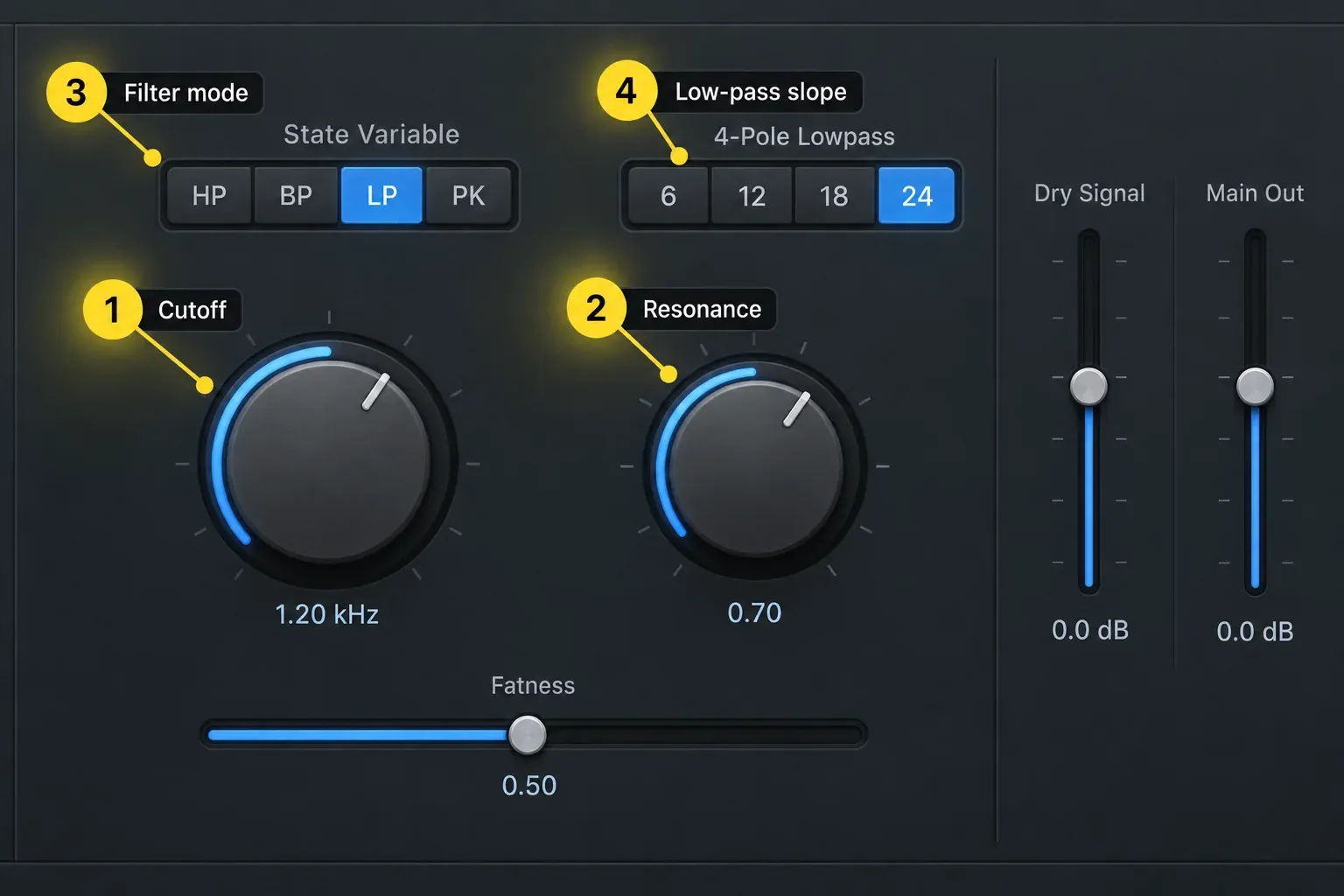
Channel EQ can automate an edge-filter frequency, but for a deliberately moving effect I’d pick AutoFilter, because its sweep controls sit together in one Filter section. Apple’s current AutoFilter control reference shows Cutoff, Resonance, high-pass/band-pass/low-pass/peak modes and 6, 12, 18 or 24 dB/oct low-pass choices.
- Insert Filter > AutoFilter in the Audio Effect slot of the track or return you want to process. For an aux that is not visible in the Tracks area, select its Mixer channel strip and choose Options > Create Tracks for Selected Channel Strips (Control-T).
- Set up an automation-only starting point: switch the Filter section on, set its Envelope and LFO modulation amounts to zero, switch Distortion off, and turn Dry Signal fully down. These are deliberate settings for this example, and a fresh AutoFilter may load with different values.
- Choose HP or LP and start with low Resonance. The 6, 12, 18 and 24 dB/oct buttons select a low-pass slope and switch the mode to LP; they are not slope choices for HP. Set Main Out so auditioning is comfortable.
- In the Tracks area, choose Mix > Show Automation (A). Select Track rather than Region automation for this timeline-based example, set the track’s automation mode to Read, and choose this AutoFilter instance’s Cutoff parameter in the track header.
- If the lane is empty, click it once to create the initial value at the project start. On the existing curve, click to add points at the start and end of the transition. Drag points vertically for value or horizontally for timing; add another point after the transition to restore the intended setting for the next section.
- Play from before the transition through the following section. Check that the Cutoff knob follows the curve. If the parameter curve is gray because it is muted, hover over its parameter menu and use the On/Off control to turn it back on.
- Listen at the loudest part of the sweep. Reduce Resonance or Main Out if it whistles or jumps in level. For an opening low-pass, raise cutoff toward the end; for an opening high-pass, lower it. Verify the result by ear rather than assuming the maximum or minimum control value is perfectly unfiltered.
Apple’s automation-curve instructions cover parameter selection and muting; its Read-mode reference explains playback of the saved move. The AutoFilter output controls separate dry signal from overall level. Very high resonance can self-oscillate before the control reaches maximum, so begin at a safe monitoring level.
Five mistakes that make filters sound worse
- Filtering every track by default. Remove a real problem, not a color on the Analyzer.
- Choosing cutoff in silence. A source can sound impressive solo and wrong against the arrangement.
- Using the steepest slope automatically. Steep is a boundary choice, not a quality setting.
- Adding resonance without checking level. The cutoff bump may create a peak even while other frequencies are reduced.
- Confusing filters with shelves. A shelf raises or lowers a broad side of the spectrum; an edge filter keeps rolling toward attenuation.
High-pass and low-pass troubleshooting
The high-pass filter made the track thin
Lower the cutoff first and listen to the lowest musical note. Then compare slope and Q, retuning cutoff as necessary. A gentler slope or lower Q does not guarantee more body at the same cutoff; reducing a resonant bump can remove perceived weight. If noise overlaps the useful low end, try a narrower bell, level automation or source repair instead.
The low-pass filter made the track dull
Raise the cutoff and compare the useful attack and air. If you change slope, retune cutoff and judge the combined response rather than assuming a gentler curve will restore brightness. For one narrow harsh area, use a bell or dynamic treatment instead of removing the whole top end.
The meter peak rose after filtering
Check Q, resonance and phase-related waveform changes near cutoff. Cutting part of the spectrum doesn’t guarantee a lower sample peak. Compare at matched loudness and reduce output if needed.
The filter on a send barely changes the sound
If a filter on a send barely changes the full sound, listen to the return by itself. The unfiltered track can still be playing alongside it. To filter the whole part, use an insert on that part or its appropriate existing subgroup; a send is useful when you want a parallel filtered layer. Check the existing routing before changing outputs, especially inside a Track Stack. The buses, sends and aux guide explains the distinction.
Should I use Channel EQ or Linear Phase EQ?
Use Channel EQ for routine track and bus filtering unless you’ve got a specific phase reason to do otherwise. The separate Linear Phase EQ guide covers latency, pre-ringing and transient tradeoffs.
The practical filter decision
Choose the filter direction, then move cutoff while listening to the part’s lowest note or brightest attack. Cutoff marks a reference point inside the transition, and the filter already shapes frequencies on the side it passes. Keep the version that solves the problem with an acceptable tonal change, checked in context and at matched loudness.
The Logic Pro Mixing hub places filtering in the larger path from clean levels and routing to EQ, compression and delivery.
Frequently asked questions
Is a high-pass filter the same as a low-cut filter?
Yes. Both terms describe a filter that lets higher frequencies pass while attenuating frequencies below the cutoff. One name describes what passes; the other describes what gets cut.
Is a low-pass filter the same as a high-cut filter?
Yes. A low-pass filter lets lower frequencies pass and attenuates frequencies above cutoff, so it is also called a high cut.
What is the best high-pass frequency for vocals in Logic Pro?
There is no universal value. Play the lowest useful vocal notes, raise cutoff until unwanted rumble falls away, then back off when chest, pitch or warmth changes. Slope, microphone, singer and arrangement all affect the boundary.
Should I high-pass every track?
No. Use a high-pass filter when unwanted low-frequency energy exists and its removal helps the mix. Filtering every track by habit can remove weight and make the arrangement feel disconnected.
Which high-pass filter slope should I use?
Start with a moderate slope and compare in context. Use gentler slopes for gradual tonal cleanup and steeper slopes when a firm boundary must reject noise or spill. Let the audible result decide, because the curve’s appearance can’t tell you how the part sits in the mix.
Can I automate a low-pass filter in Logic Pro?
Yes. In the Tracks area, show automation with A, select Track automation, choose the plug-in’s cutoff parameter and draw the move. Use Read mode to play it back and check that the parameter curve is not muted. For a clean AutoFilter sweep, disable unintended modulation, distortion and dry-signal blending as described above.


