Logic Pro Articulation Sets: Map Keyswitches and Orchestral MIDI
Build a usable articulation map for your orchestral patch, separate incoming switches from library output, and assign the right technique to recorded MIDI notes.

Logic Pro Articulation Sets let you assign named playing techniques—Sustain, Staccato, Pizzicato—to MIDI notes. Select a set in the Track inspector → Articulation Set menu, then use the Articulation Set Editor to match those names to your instrument. A third-party library usually needs an Output mapping; a compatible native instrument may read articulation IDs directly.
The trap is building a neat list of techniques without telling the library how to select them. I would start with two articulations and a short phrase. A working Sustain/Staccato map is more useful than twenty names that all play the same patch.
What an articulation set controls
An articulation is a playing technique, not an effect added to ordinary notes. Your loaded patch must contain the relevant sounds. Naming a row “Legato” cannot create legato transitions in a sustain-only instrument. When choosing a library, check the patch’s actual techniques as well as its sound; our orchestral plug-in guide for Logic Pro helps with that separate decision.
Apple’s articulation editing overview describes how Logic stores a technique with each recorded MIDI note. The set gives those choices names and the information needed to use them. Keep these three jobs separate:
- Articulations: the names and IDs you assign to notes.
- Output: the MIDI messages a third-party instrument needs to select those techniques.
- Switches: the incoming keys or controllers you use to choose an articulation while playing.
You can edit recorded notes without building a keyboard-switch layout. Conversely, a keyboard shortcut that selects an articulation does not, by itself, make an external library understand its ID.
Choose or create a set for the loaded patch
- Select the software instrument track and open its Track inspector.
- Expand the track parameters if the Articulation Set menu is hidden.
- Choose the set that belongs to the loaded instrument or patch. If it already works, keep its mapping.
- Choose Edit from the same menu to inspect an existing set. For a custom map, choose New.
Apple documents choosing a set and opening its editor; Spitfire’s Logic articulation-set walkthrough also covers creating a new map and saving it with Save As…. The instrument determines the mapping, so a preset for a different library is only a starting point.
Before entering anything, find the patch’s keyswitch notes, controller values or MIDI-channel assignments in its manual or interface. Also check its note-naming convention. The same MIDI note can carry a different octave label in Logic and the plug-in; Spitfire’s walkthrough shows this exact mismatch. Match the actual MIDI pitch, not just the printed “C” label.
Name the articulations and assign IDs
In the Articulations tab, use + to add the techniques your patch supports. For a small custom keyswitch map, start with Sustain → ID 1 and Staccato → ID 2. These are example IDs, not universal library values.

For an instrument that uses keyswitch output, IDs can be your own identifiers. For a Sampler instrument that selects sample groups by ID, they must match the group assignments. Apple makes that distinction in the Articulations pane reference.
The Channel field can associate an articulation with a MIDI channel; leave it unrestricted unless your instrument’s routing requires a particular one. Symbol is the notation symbol used by the Score Editor. It does not replace a library’s keyswitch mapping. If your next task is preparing notation, continue with the Score Editor and MusicXML guide.
Map Output to the library’s keyswitches
The Output tab translates an articulation choice into the message the instrument expects. For a note-based keyswitch, choose Type: Note On and put the library’s switch note in Selector. Set the output channel when the receiving instrument requires one.
Example: imagine a patch whose documented switch notes are C0 for Sustain and C♯0 for Staccato. Set the Sustain output row to Note On / C0 and the Staccato row to Note On / C♯0. Use those notes only for that hypothetical patch; replace them with your library’s actual assignments.

Some libraries use controllers instead. With Type: Controller, Selector identifies the CC and Value identifies the required value. Spitfire’s UACC documentation describes switching compatible patches through CC32. That is a specific library protocol, not a universal Logic setting: use it only when the loaded patch documents UACC support and has the correct mode enabled.
For more complex instruments, Activate Multiple Outputs permits up to three messages for one articulation. Apple’s Output pane documentation gives the example of choosing a category and then an articulation. Leave that option off for a patch that needs just one switch message.
Assign articulations to recorded MIDI notes
Open the MIDI region in the Piano Roll, select the notes that should use a technique, then choose it from the Articulation pop-up in the editor inspector. Assign Sustain to the long notes and Staccato to the short passage in your example phrase.
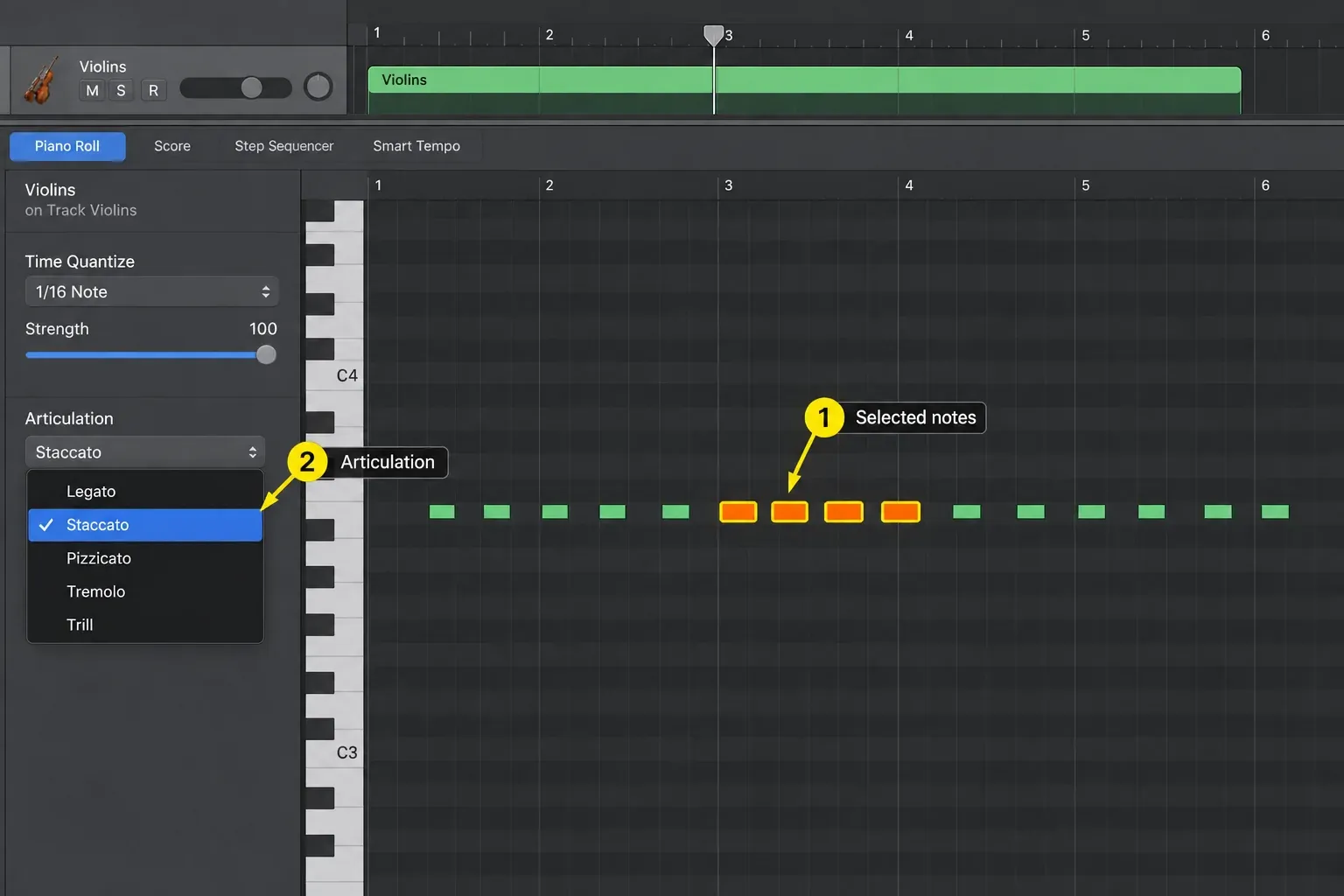
Apple says the Piano Roll articulation menu becomes available when articulations have been recorded in a region. If it is missing, check that the track has a set and that you are editing the correct MIDI region. You can use the Event List to inspect or assign the note IDs instead.
In the Event List, display the MIDI region’s events and choose View → Articulation. The resulting column shows technique names when a set is selected; without a set, it shows IDs from 1–255. Click the articulation value for a note to change it, as described in Apple’s note-event articulation instructions. For a manually drawn region, this gives you an explicit way to assign IDs even when the Piano Roll menu is unavailable.
Play from the phrase’s opening note and watch the library’s articulation indicator, if it provides one. The long notes should select Sustain and the short passage should select Staccato. If the names change in Logic but the library stays on one technique, compare the Output selectors with the patch’s actual switch assignments.
Changing the articulation in the plug-in window header affects notes played live. It does not rewrite previously recorded notes. Apple spells this out in its software-instrument articulation controls. If playback ignores a header selection, edit the notes themselves.
Add keyboard switches when you need live control
Open Switches and enable MIDI Remote. Add an incoming Note On switch, choose its key in Selector, and select the articulation it should activate. For ordinary sustained or short techniques, Permanent keeps the choice active until another switch is received.

Momentary applies the articulation while the switch is active in its defined range. Toggle switches to the technique and returns to the previous one when triggered again. Apple’s Switches pane reference also explains the retrigger and trigger variants; use them only when that behavior suits the phrase.
Your playing keys and the library’s output keys can differ. For example, you might move the incoming switches out of a bass part’s playable range while retaining the low switch notes the library expects. Octave Offset belongs to the incoming switch setup; it does not correct an incorrect Output selector.
If the keyboard is not reaching Logic at all, fix that connection before chasing articulation settings. Our MIDI controller setup guide covers that stage.
When the wrong articulation plays—or nothing plays
Names appear, but every note sounds the same. Check Output. An articulation ID is not automatically a keyswitch for a third-party instrument. Compare Type, Selector, Value and Channel with the loaded patch’s requirements. Also confirm you loaded the patch the set was built for.
Live playing changes technique, but the recorded phrase does not. Inspect the note assignments in the Piano Roll or Event List. A plug-in-header selection affects live notes; recorded notes retain their own articulation choices.
The controller does not switch techniques. Check MIDI Remote, the incoming MIDI channel, Selector and the accepted value range. A Note On switch uses velocity within that range. Changing Output alone will not fix an incoming key that Logic never recognizes.
Sampler becomes silent after choosing an ID. Check the sample group’s Enable by Articulation setting and ID value. Apple’s Sampler articulation handling says only groups matching the note’s ID play when that filtering is enabled. This is a Sampler-specific diagnosis; silence in another plug-in can have different causes.
The start of a phrase uses the last technique you played. Make the intended articulation explicit on the notes, including the opening note. Spitfire’s keyswitch programming guidance warns that its plug-in retains the last played keyswitch. For that workflow, assign a technique to every note rather than relying on an earlier switch outside the passage.
Save the map and reuse it deliberately
Use Save As… from the Articulation Set menu to give a reusable custom map a clear library-and-patch name. Spitfire’s saving and sharing instructions describe recalling saved sets and sharing their .plist files. Logic also stores articulation sets inside saved patches and projects.
A saved map does not install the library or make every patch interchangeable. Before reusing it, compare the technique names, switch messages and channels with the new instrument. I would keep a small map per patch until those assignments are clear, then expand the template.
Articulations handle playing techniques; recording the performance and arranging it are separate jobs. Continue with recording MIDI in Logic Pro, or return to the Logic Pro music creation hub for the wider workflow.


