Logic Pro Score Editor and MusicXML: MIDI to Readable Notation
Clean performed MIDI into readable notation in Logic Pro, format voices and staff styles, then deliver a PDF or MusicXML file.

The Logic Pro Score Editor turns MIDI regions into standard notation, but a performed part rarely becomes a clean score by itself. The reliable workflow is to keep musical timing edits separate from notation cleanup: fix wrong notes in the Piano Roll, use Score Region Quantize to simplify what is displayed, assign an appropriate Staff Style, separate voices, add the markings a player needs, then prepare Page view for PDF or export MusicXML for continued notation work.
That separation matters. If you quantize the underlying MIDI just to make the page look tidy, you can change the performance. If you only change the score display, playback stays intact while the printed rhythm becomes easier to read.
Open Score Editor for the right MIDI region
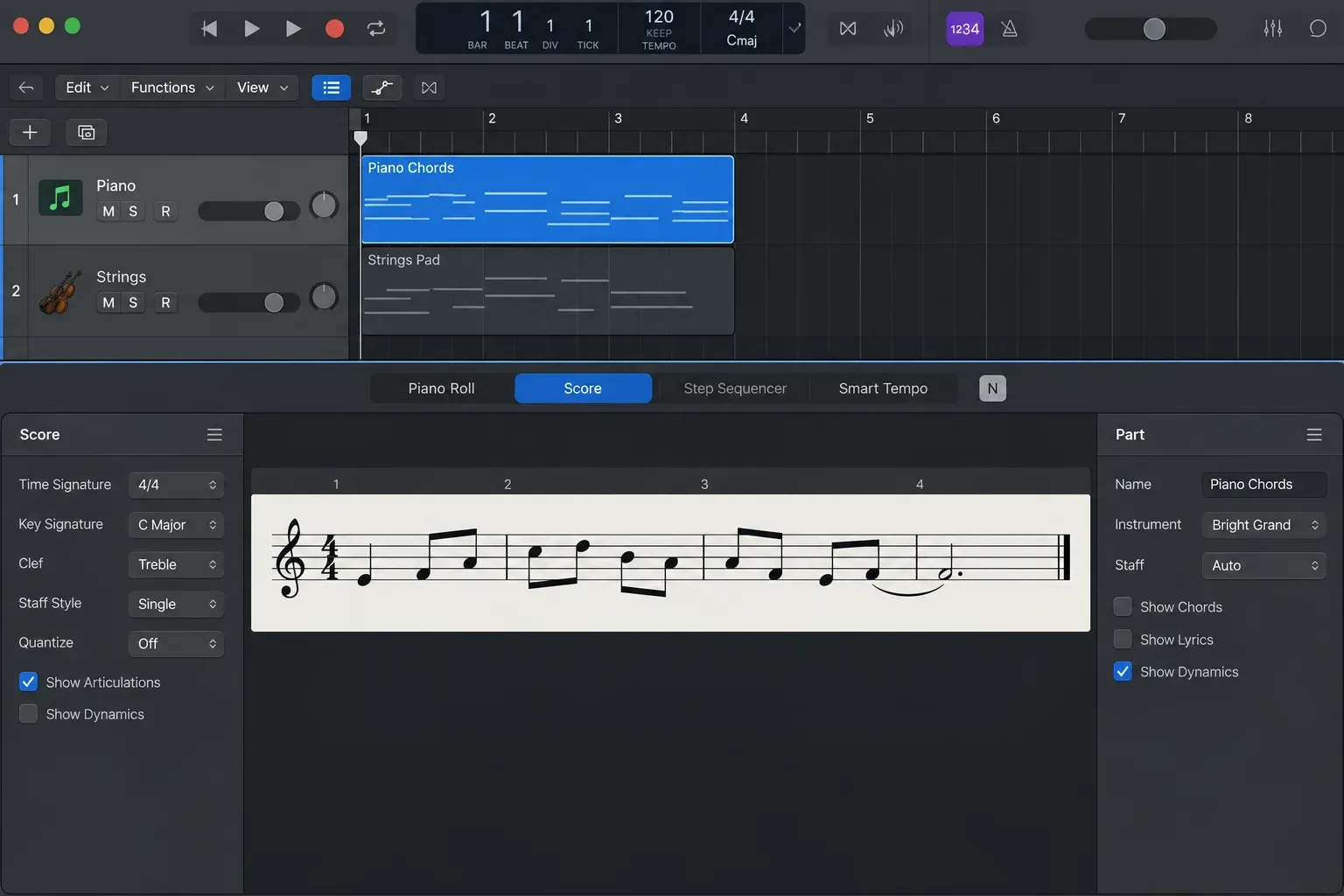
The Score Editor reads MIDI regions on software instrument and external MIDI tracks. It does not turn an ordinary audio region directly into notation. If the source is audio, first create usable MIDI with an appropriate audio-to-MIDI workflow, then clean that MIDI before treating it as a score.
Apple’s current Score Editor overview gives three practical opening routes:
- Select a MIDI region in the Tracks area.
- Click the Editors button and choose Score, or press N.
- For a separate window, choose Window → Score or press Command-5.
Selecting the region first keeps the editor focused on the part you actually need. Double-clicking the background of the Score Editor moves up to the full-project display level; double-clicking a staff returns to a single track. That is useful once individual parts are clean and you need the complete score.
Why a good MIDI performance can look like bad notation
A player can land slightly before the beat, hold notes across subdivisions, overlap a release with the next attack, or use the sustain pedal. Those details may sound natural while creating tied notes, tiny rests and awkward subdivisions on the page. The Score Editor is translating exact MIDI positions and lengths into notation; it is not guessing what a copyist would have written.
Start by deciding whether the problem is musical or visual:
| What you see or hear | Edit this | Why |
|---|---|---|
| A note sounds early, late or wrong | MIDI event in Piano Roll or Score Editor | The performance data needs correction |
| The performance sounds right but the page has tiny rests and ties | Score Region Quantize | The notation display needs simplification |
| The rhythm includes real triplets or swing | A duple/triple display value such as 8,12 | A straight value can hide the intended triplet structure |
| Two hands or voices collide on one staff | Staff Style and voice assignment | This is an engraving and part-structure problem |
For actual timing problems, use the Piano Roll to edit note positions and lengths. If the whole performance needs rhythmic tightening, use the broader MIDI quantization workflow. Do that because the music needs it, not because the printed page looks busy.
Clean the display with Score Region Quantize
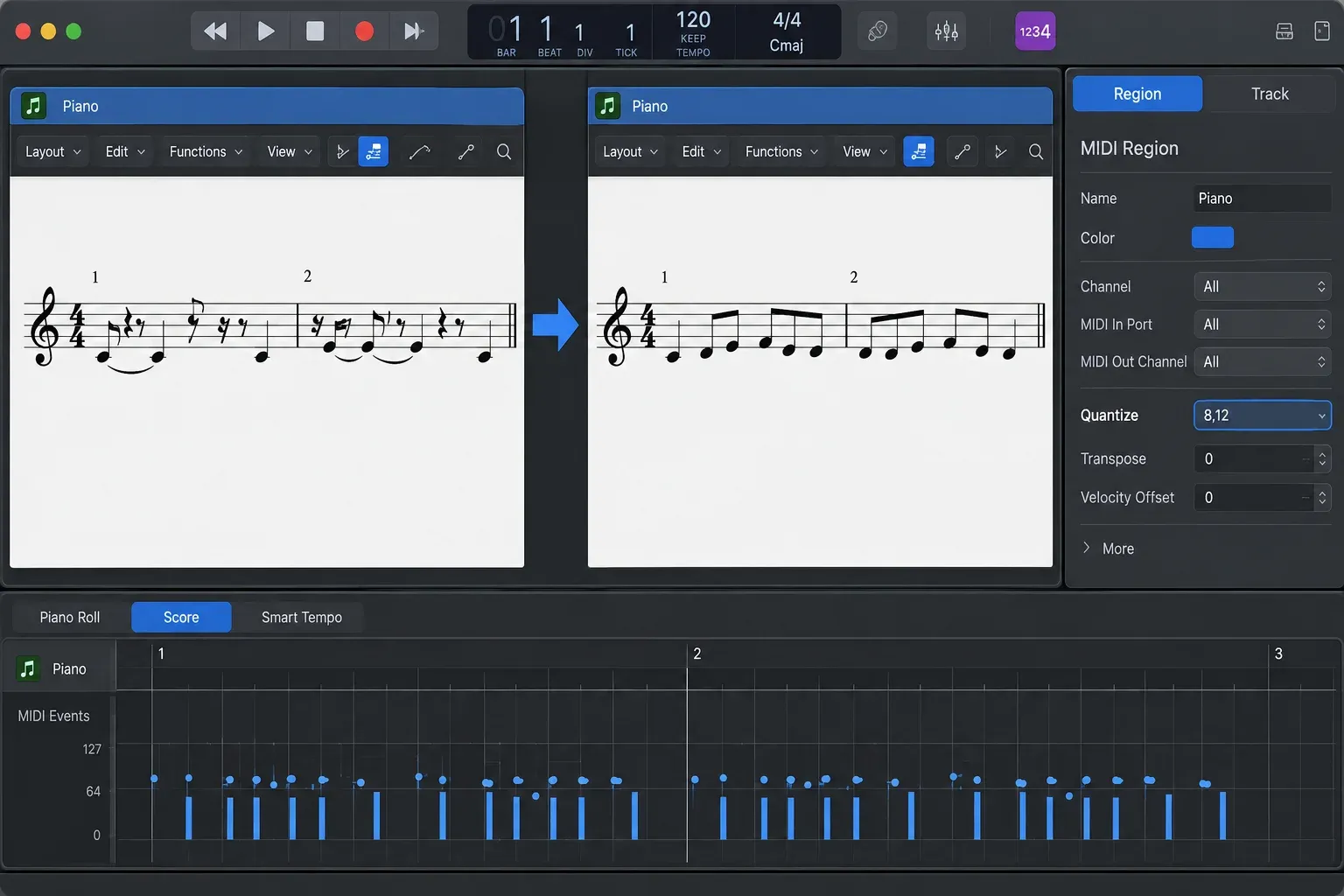
Apple describes the Score Editor’s Region Quantize parameter as visual quantization. It sets the shortest note value Logic is allowed to display. A setting of 8, for example, prevents a short performed note from appearing as a 32nd note; it can be shown as an eighth note instead. The MIDI event itself remains where it was played.
- Select the MIDI region in Score Editor.
- Open the local Score inspector if it is hidden.
- In the Region inspector, choose a Quantize value that matches the smallest meaningful written subdivision.
- Check several measures with syncopation, pickups and sustained notes before applying the same value elsewhere.
For straight eighth-note material, start with 8. For sixteenth-note detail, try 16. If the part contains eighth-note triplets or swing, Apple’s documented example is 8,12; a single straight value does not automatically display triplets. Use the coarsest setting that preserves the rhythm a musician must actually read.
Do not force one value across an entire project. A keyboard comp, fast ornamented lead and simple bass part may need different display values. A double-time passage can also justify a separate MIDI region with a finer Score Quantize setting.
Use Staff Styles before dragging notes around the page
Staff Styles define how a part is represented: clefs, staff count, displayed transposition, stem and beam behavior, rests, ties, staff size and spacing. Apple is explicit that Staff Styles affect the score display without changing MIDI playback.
Choose the closest built-in style first. A piano part normally needs a grand staff; a bass line needs a bass clef; a transposing instrument needs the correct displayed transposition. Create a custom style only when the reusable display rules genuinely differ. Logic saves Staff Styles with the project, and Apple’s Staff Style workflow supports single-staff and dual-staff styles as well as duplication from an existing style.
This is also where project organization pays off. Clean track names, intentional MIDI regions and a sensible song arrangement in Logic Pro make the eventual score easier to navigate and extract into parts.
Separate hands and voices deliberately
A pitch split works when the right hand stays above the left hand. It fails when voices cross. Apple’s voice-assignment guide supports two methods:
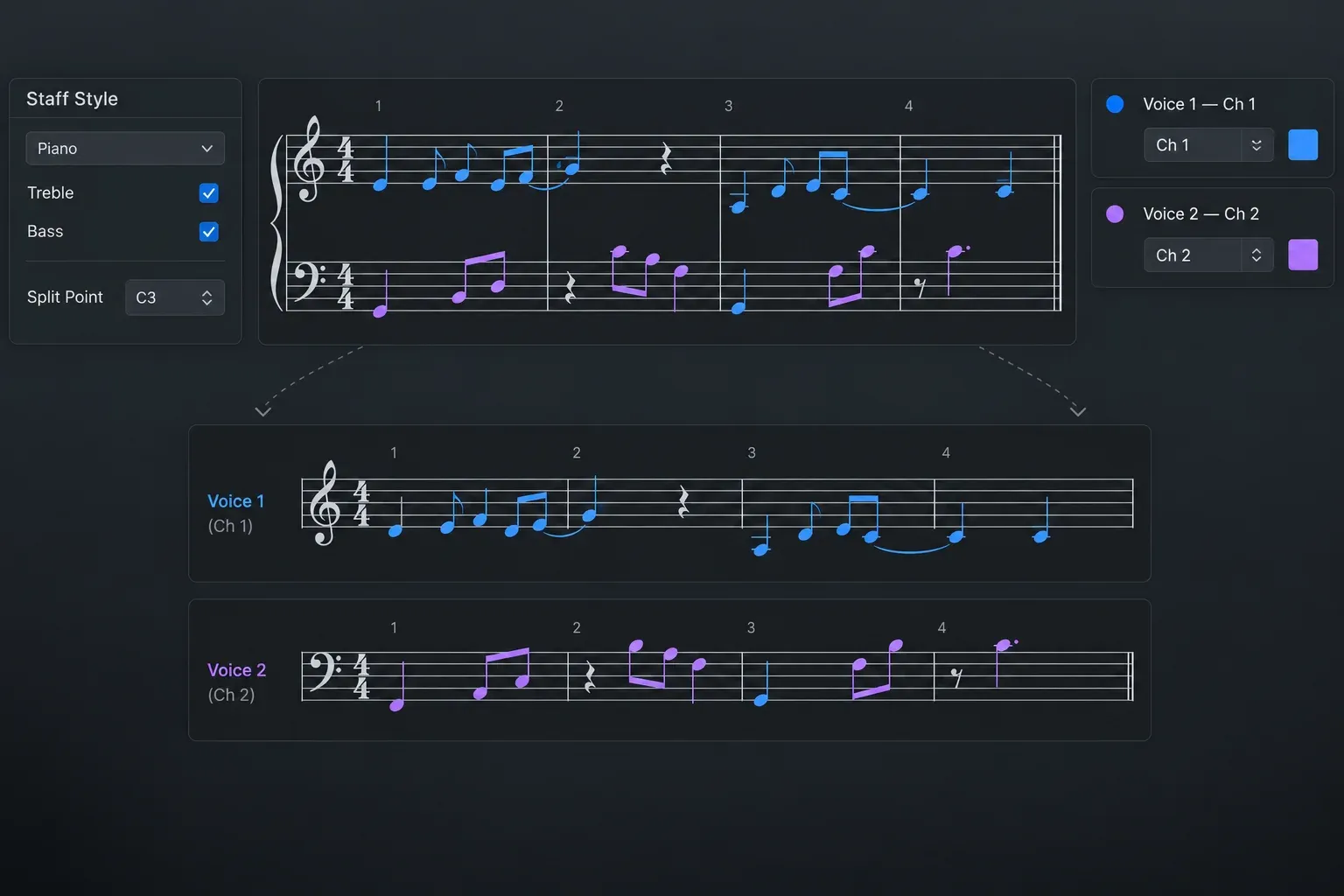
- Split point: notes at or above the chosen pitch go to the upper voice; lower notes go to the lower voice.
- MIDI channels: each voice uses a defined channel, so lines can cross while staying independent on the page.
Use a split point for uncomplicated piano writing. Use MIDI channels when counterpoint, inner voices or crossed hands make pitch alone unreliable. The Voice Separation tool can draw a dividing line through a previously recorded passage and assign notes to the staff style’s voice channels.
For difficult editing, choose View → Explode Polyphony. Apple’s Explode Polyphony command temporarily shows each voice on a separate staff. Turn it off after the assignments are correct so the part returns to its intended combined notation.
Add only the marks the musician needs
Readable notes are not yet a playable part. Add dynamics, phrasing, articulations, crescendi, rehearsal information and chord symbols where they clarify intent. Avoid filling the page with marks that repeat what the arrangement already makes obvious.
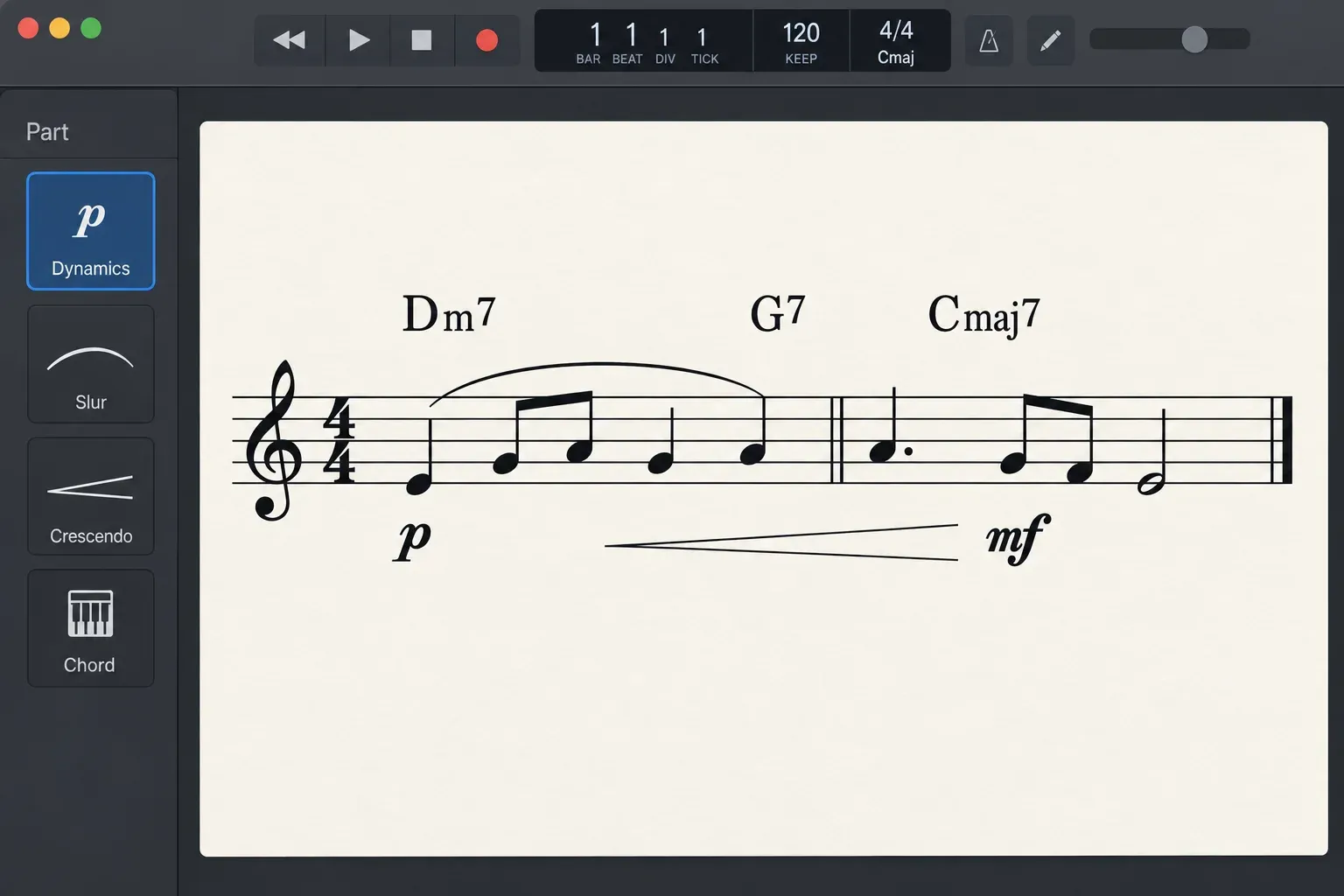
The Part box contains the symbols. Apple notes that dynamics, slurs and crescendi are visual score symbols; they do not change note volume or playback. Automatic slurs follow selected notes and adjust when those notes move, but they cannot cross a MIDI-region boundary. Merge regions first if one phrase must carry a continuous automatic slur.
For a lead sheet or rhythm part, add harmonic information with the CHORD symbol. Logic accepts roots, qualities, extensions and slash-bass notation. Apple’s chord-symbol instructions also recommend watching the help tag so each symbol lands at the correct bar position. If the project already uses Session Players, compare the written harmony with the Chord ID and Session Player structure before handing the page to a musician.
Move to Page view for layout and PDF
Edit notes in Linear view because it keeps the musical line continuous. Switch to Page view when the content is stable and the task becomes spacing, systems and pages. Apple’s score-layout guide recommends Page view for repositioning staffs, setting bars per line, checking margins and using page rulers.
Before export, inspect the score like a player:
- page turns do not break an important phrase;
- systems have enough vertical space for dynamics and chord symbols;
- titles, composer text and part names are consistent;
- rehearsal marks and measure numbers are easy to find;
- the final bar, pickup and anacrusis are represented correctly;
- every extracted part shows the intended track and staff style.
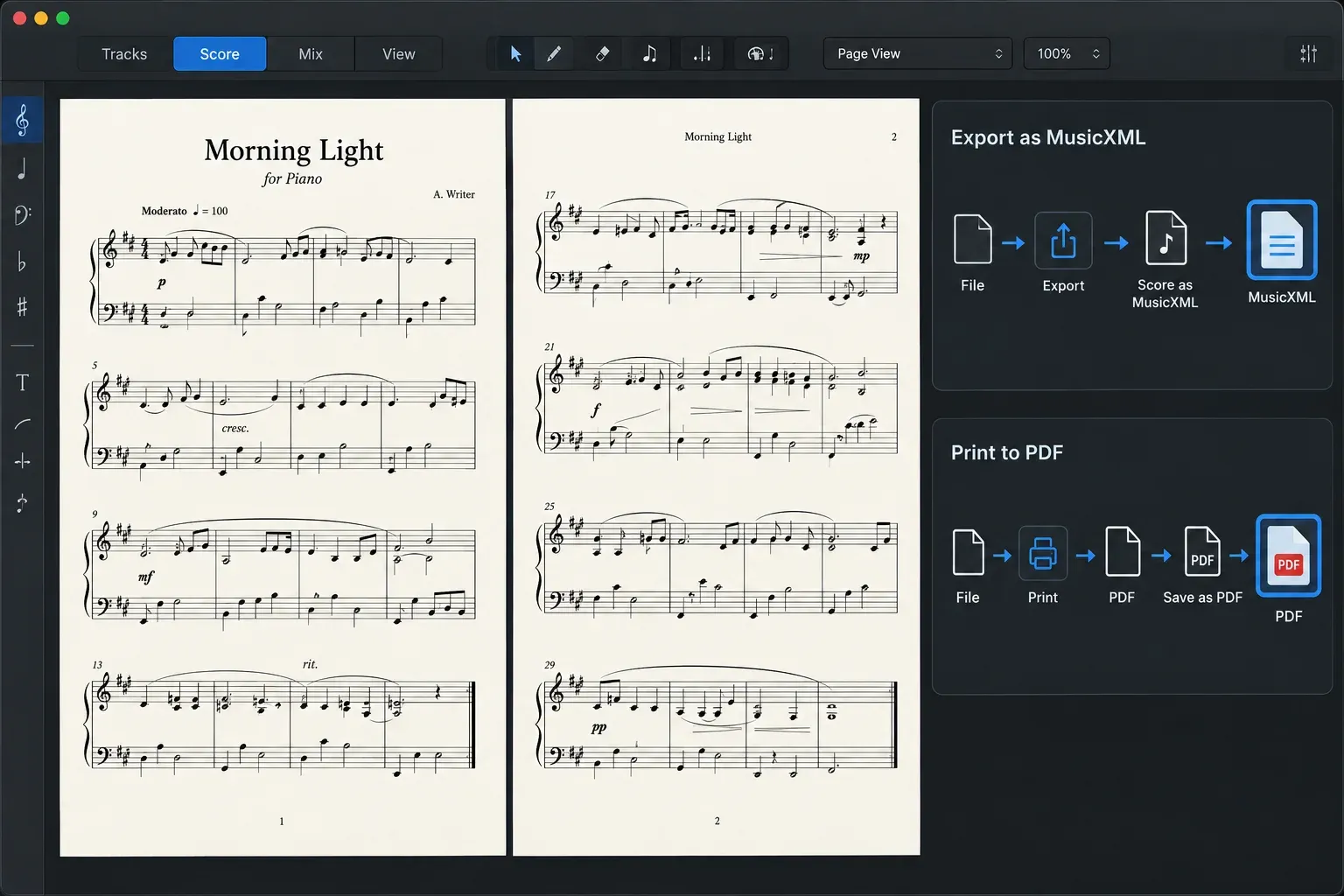
For a fixed deliverable, choose File → Page Setup, make the Score Editor active, then choose File → Print. In the macOS Print dialog, use the PDF menu and choose Save as PDF. Apple confirms that the printed result follows the Score Editor’s Page view, excluding guides and hidden display elements.
Use MusicXML when the score still needs editing elsewhere
PDF preserves the page you prepared. MusicXML carries notation data into compatible scoring and production applications so another editor can continue the work. In Logic, choose File → Export → Score as MusicXML, name the file and save it. That is the complete path in Apple’s current MusicXML export guide.
Treat MusicXML as a handoff, not a visual guarantee. Open the exported file in the receiving application and check:
- instrument names, clefs and displayed transposition;
- voice assignment and cross-staff passages;
- tuplets, ties, slurs, dynamics and articulations;
- chord symbols, text and rehearsal marks;
- repeats, endings and bar numbering;
- system breaks, page breaks and spacing.
This verification pass is part of delivery even when the file opens without an error. Different notation programs make their own layout decisions, and the receiving score may need re-spacing before it is printable.
When Logic Pro is enough—and when it is not
Logic’s Score Editor is strong when the music already lives as MIDI in the production session. It can produce readable lead sheets, rhythm parts, simple piano parts, orchestral sketches and rehearsal copies without rebuilding the composition in another program.
Move the final stage to a dedicated notation application when the job depends on complex engraving, publisher-specific house styles, large ensemble part management, advanced contemporary notation or repeated revisions between copyists and performers. Logic can remain the composition and playback source while MusicXML becomes the bridge.
The cleanest handoff starts earlier than export: record organized MIDI, keep regions inside the intended bars, name tracks clearly and separate musical timing fixes from score-display fixes. If the performance is still being captured, the Logic Pro MIDI recording workflow is the right upstream step.
Score handoff checklist
- The correct MIDI regions appear in Score Editor; no required notes sit outside region boundaries.
- Wrong pitches and musical timing problems are fixed in the MIDI data.
- Score Region Quantize shows the intended straight, swing or triplet rhythm without flattening playback.
- Each part has the correct Staff Style, clef and displayed transposition.
- Polyphonic voices remain separate through crossings and dense passages.
- Dynamics, slurs, crescendi, chord symbols and text are positioned for the player.
- Page view has been checked for systems, margins, page turns and extracted parts.
- The PDF has been opened and inspected as a fixed-page deliverable.
- The MusicXML file has been opened in the receiving application and checked element by element.
The main rule is simple: preserve the performance, simplify the notation, then verify the exact format the next person will use.


