How to Convert Audio to MIDI in Logic Pro With Flex Pitch
Turn a clean vocal, bass or single-note instrument into editable MIDI with Flex Pitch, then repair the created notes in the Piano Roll.

To convert audio to MIDI in Logic Pro, use a clean monophonic recording, turn on Flex Pitch in the Audio Track Editor, correct obvious detection errors, then choose Edit > Create MIDI Track from Flex Pitch Data. Logic creates a software instrument track with MIDI regions below the source. The result is a transcription you can edit, not a perfect copy of the recording.
These steps are for Logic Pro on Mac. Flex Pitch works best with one pitched line at a time: a vocal melody, bass line, whistle, or single-note guitar part. It is not a reliable chord-to-MIDI converter.
What Logic actually converts
Flex Pitch runs pitch detection on the recording and splits the performance into detected notes. The conversion command turns that analysis into MIDI note events, and those events can trigger any software instrument. Hum an idea and it becomes a synth line. Record a bass and it becomes an editable bass part.
The sound itself doesn't move into the MIDI region. Breath, consonants, guitar tone, room sound, vibrato shape and the original dynamics don't survive as an identical performance. What the new region gives you is note pitches, positions, lengths and MIDI velocities. All four still need musical judgment. Keep the audio track until you've checked the MIDI part against it.
Which audio works, and which audio should use another route
Apple's current audio-to-MIDI instructions say the process works best with monophonic material, and warn that chords or polyphonic material can cause interpretation errors. Monophonic here means one pitched note sounding at a time.
| Source | Expected result | Best route |
|---|---|---|
| Dry solo vocal or humming | Usually the best starting point if the melody is clear | Flex Pitch to MIDI |
| Single-note bass | Often usable; low notes and slides may need cleanup | Flex Pitch to MIDI |
| Single-note guitar, flute or saxophone | Usable when only one note sounds and effects are limited | Flex Pitch to MIDI |
| Piano or guitar chords | Overlapping pitches can be missed or misread | Manual transcription or a purpose-built polyphonic tool |
| Full song or stereo mix | Several simultaneous instruments defeat the monophonic analysis | Find stems, isolate a line, or transcribe manually |
| Kick, snare or other drums | Pitch analysis is the wrong detector | Replace or Double Drum Track |
| A sound you want to play chromatically | You need a sampler, not note transcription | Quick Sampler |
Monophonic describes the music. The file's channel count doesn't matter: converting a stereo chord recording to mono won't turn it into a single-note melody. Start with a dry, isolated line where possible. Ringing notes, harmonies, reverb and bleed can make the pitch analysis harder to interpret.
Prepare the audio without damaging the original
If you start from an audio file rather than a take recorded in the project, drag the WAV, AIFF, MP3, AAC or Apple Lossless file from the Finder into the empty area below the tracks. Apple's import instructions say Logic creates a new audio track holding one region that covers the whole file. By default, Logic also analyzes the tempo of an added file: if it decides the file is a loop, the region plays at the project tempo, and in an empty project the project tempo changes to match the file. Check that the region plays at the speed you expect before you enable Flex Pitch, and use the Smart Tempo guide if it does not.
- Create a project alternative before editing. Choose File > Project Alternatives > New Alternative and give it a clear name. Alternatives share the same audio assets, so also keep a separate copy of irreplaceable recordings.
- Choose the cleanest region. Use a solo vocal, DI bass or single-note instrument rather than a processed bus or full mix.
- Reduce distractions before analysis. If possible, work from a dry take. Avoid printing extra reverb, chorus or stereo widening into the source used for detection.
- Work with a short musical phrase first. Copy that phrase to a separate audio track if you only want to convert it; the conversion command can create MIDI for the audio regions across the source track.
- Listen for overlaps. Crossfades, doubled takes and ringing open strings can make a supposedly monophonic part polyphonic.
Don't quantize or hard-tune the recording just to make the command available. The preparation pass is there for clean note detection. A mechanically perfect performance isn't the goal. If the performance needs vocal tuning for its own sake, use the separate Flex Pitch vocal tuning guide. This article stays focused on extracting editable MIDI.
Apple's project-alternative instructions explain how to save and switch between those project states.
Step 1: open the region and enable Flex Pitch
- Select the audio region you want to convert.
- Double-click the region to open it in the Audio Track Editor.
- Click the Show/Hide Flex button in the editor.
- Choose Flex Pitch from the Flex pop-up menu.
- Wait for Logic to analyze the region and display note blobs.
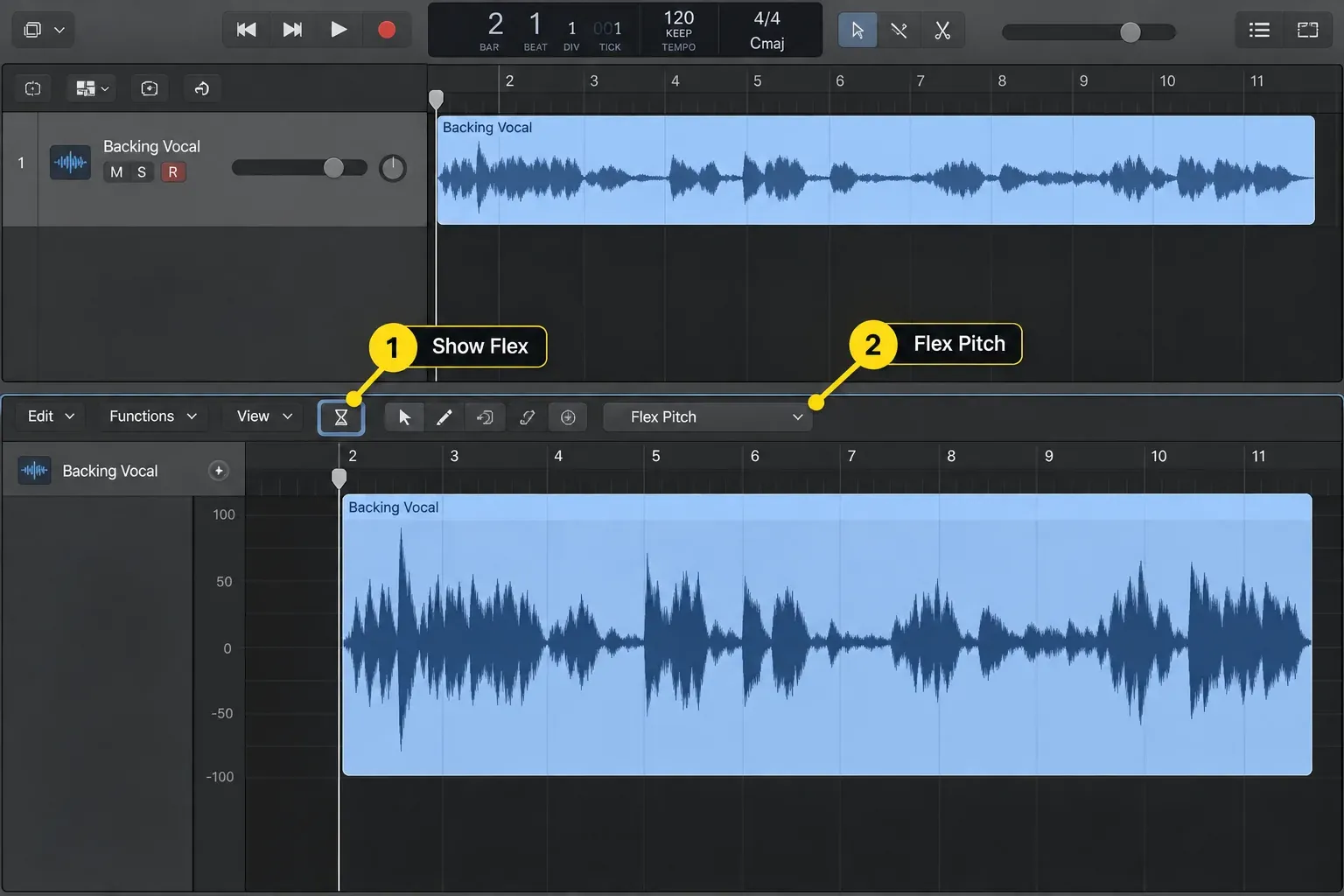
The Audio Track Editor matters because the conversion command lives in its Edit menu. Open a different editor, or pick a Flex timing algorithm, and you won't get melodic pitch data.
Step 2: check the detected notes before conversion
Play the region while watching the Flex Pitch blobs. Compare what Logic detected with what you hear. Repair the analysis where it would create a wrong MIDI note:
- Split a joined pair of notes with the Scissors tool at the intended boundary.
- Merge fragments of one sustained note: select them and use the Join tool, or Edit > Bounce or Join > Join. Leave isolated noise notes for deletion in the new MIDI region.
- Drag a clearly misidentified note vertically to the intended pitch.
- Check slides and vibrato carefully; a musical bend can be divided into unwanted semitones.
- Leave expressive pitch movement alone when it does not cause a wrong note event.
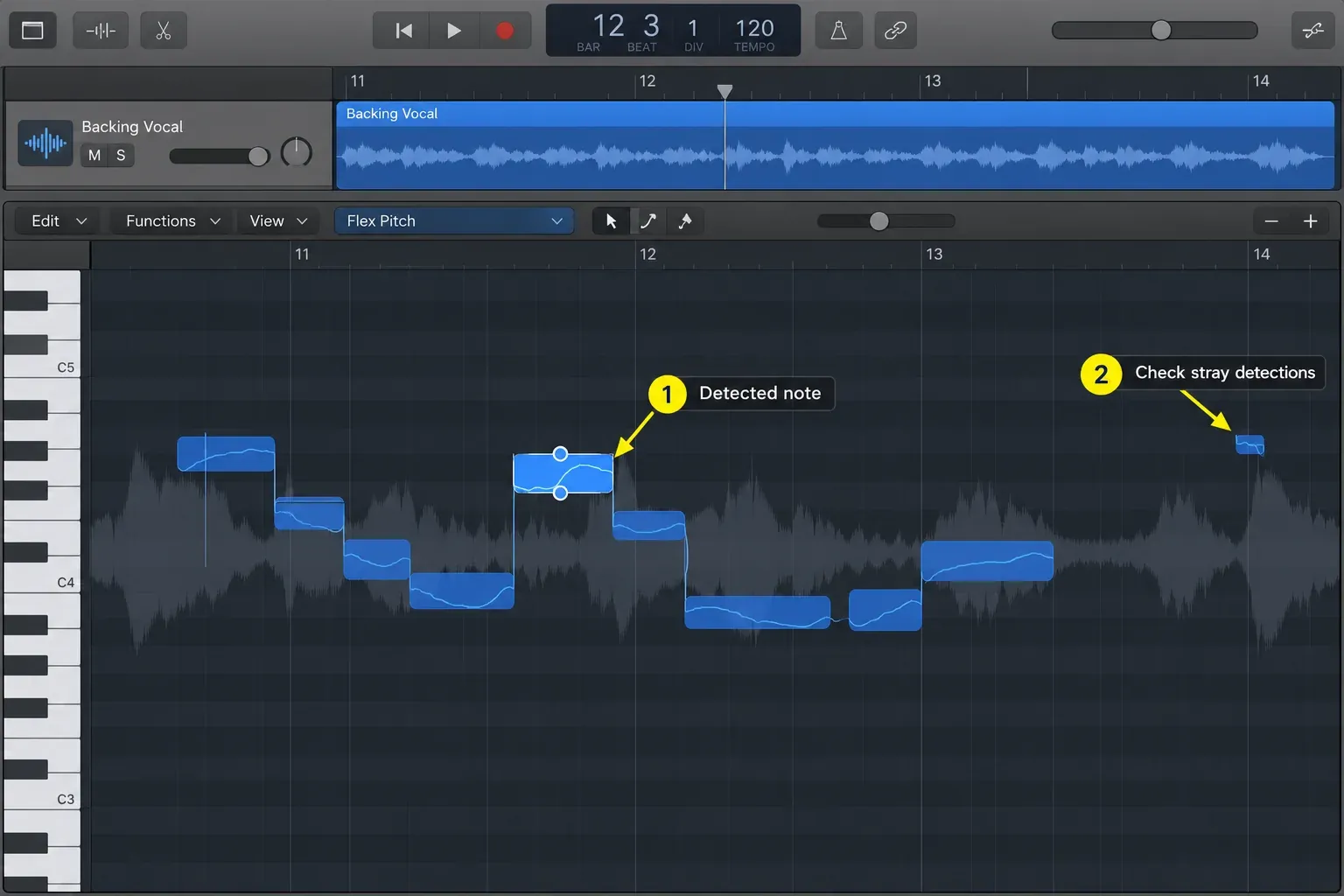
The current Flex Pitch guide documents note-level pitch and timing edits. Use those tools with restraint here. Correcting the source analysis changes the MIDI that Logic creates, but heavy-handed tuning will also change the audio performance you meant to keep.
Step 3: create the MIDI track from Flex Pitch data
- Keep the analyzed audio region selected in the Audio Track Editor.
- Open the editor's Edit menu.
- Choose Create MIDI Track from Flex Pitch Data.
- Look directly below the audio track for the new software instrument track.
- Choose a patch from the Library so the MIDI notes play a sound that suits the line.
Apple documents one new MIDI region for each audio region on the source track. Do not assume that selecting one phrase restricts conversion to that phrase. If you need just that passage, copy it onto its own audio track before converting. Keep useful phrase boundaries when cleaning the result.
Loop a short phrase and compare the audio and MIDI in turn using their mute or solo controls. Then listen to them together at a lower level if you intend to layer them. Keep the source available as your pitch and rhythm reference.
Step 4: clean the MIDI in the Piano Roll
Open the created region in the Piano Roll. Work from the biggest musical error to the smallest:
- Remove false notes. Very short notes often come from breaths, pick noise or a pitch slide.
- Add missed notes. Quiet syllables and soft attacks can disappear from the analysis.
- Correct pitch. Listen against the source instead of trusting the scale display.
- Fix note starts and lengths. A transcription can have the right pitch but still phrase badly.
- Set velocity for the instrument. The converted values are a starting point. A piano, pad and bass patch respond differently.
- Quantize only as much as the arrangement needs. Hard quantization can erase the timing that made the source musical.
- Check overlaps. A monophonic synth or bass patch may behave differently when adjacent MIDI notes overlap.
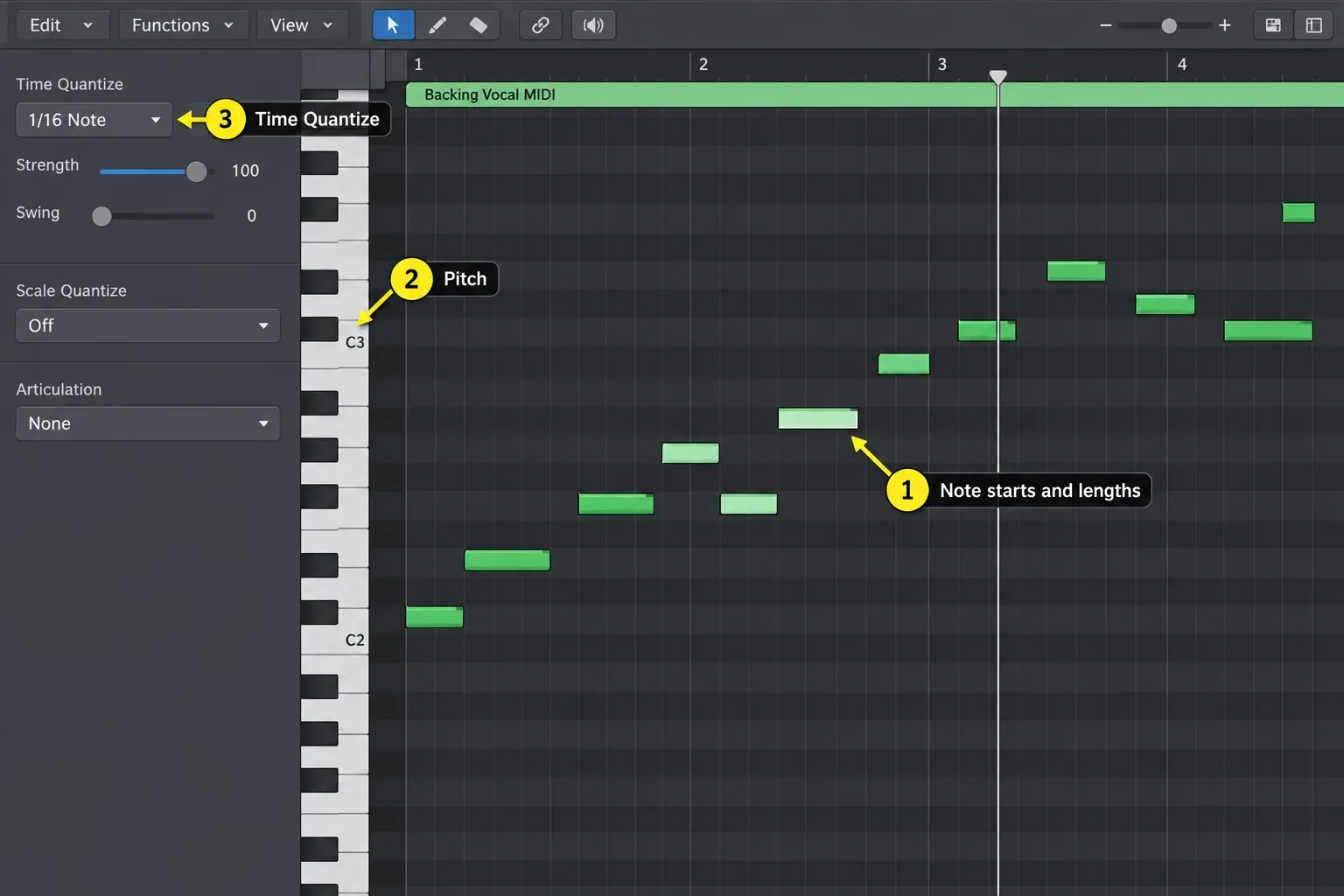
If Piano Roll editing is new to you, the Logic Pro Piano Roll guide covers selection, note length, velocity and quantization in more detail.
Save the converted notes as a MIDI file
To use the cleaned notes in another app, work on a copy of the MIDI regions. If you used region playback parameters or quantization, apply them permanently to that copy before export; convert any aliases or loops you need into real regions.
- Select the cleaned MIDI regions in the Tracks area.
- Choose File > Export > Selection as MIDI File.
- Choose a destination, name the file and click Save. Reopen it in the receiving app and check timing, note lengths and instrument assignment.
A standard MIDI file carries note and timing data, not the recorded voice or your software instrument's sound. Follow Apple's MIDI export guide when preparing several regions or exporting for a device that requires Format 0.
Three practical ways to use the created MIDI
Hum a melody, then choose the sound later
Record one dry vocal line to a click, convert it, and drop a simple piano patch on the MIDI track first. Piano is my default check because it makes wrong pitches and sloppy timing obvious. Once it's clean, audition the synth, string or bass sound that belongs in the arrangement. Pick an exciting patch too early and you'll hide transcription errors behind long releases and modulation.
Double a vocal without replacing the singer
Keep the vocal as the lead and use the created MIDI to drive a quiet synth or instrument layer. Shorten notes that run across consonants, pull the velocity range in if the layer jumps out, and filter the patch so it supports the melody instead of masking the words. Shift selected MIDI notes only when you want a harmony on purpose. The extracted line starts life as the lead melody.
Replace or reinforce a bass sound
If you have both a dry DI bass recording and a distorted amp recording, I'd convert the DI first: the dry signal gives pitch detection less to misread. Check slides and short pickup notes, then use the MIDI for a software bass or sub layer. Listen to the new layer alone and with any audio bass you keep; adjust note timing and the patch if the combined attack becomes weak or smeared.
For all three uses, keep the source region until the production is delivered. The recording holds articulation and phrasing that a note list can't bring back after the fact.
If Create MIDI Track from Flex Pitch Data is missing or greyed out
Check the state of the editor before looking for a hidden preference:
- The source must be audio. The command does not apply to an existing MIDI region.
- Select an audio region. Selecting only the track header can leave the editor without the intended region context.
- Open the Audio Track Editor. Use the Edit menu inside that editor, not another Edit or Convert menu elsewhere in Logic.
- Enable Flex in the editor. The note analysis must be visible.
- Choose Flex Pitch. Monophonic, Polyphonic, Slicing and other Flex algorithms are timing modes, not the pitch-data source for this command.
- Wait for analysis to finish. Large or newly imported regions may not display pitch data immediately.
- Use a pitched monophonic recording. A chordal piano part will not become suitable because you select the Polyphonic timing algorithm.
If the command runs but produces few or incorrect notes, test a short dry vocal or single-note bass phrase on a separate track. If that converts sensibly, compare its pitch analysis with the original source. A full mix, harmonies or overlapping notes may require a different source rather than another menu setting.
For drums, use Replace or Double Drum Track
For a recording of one drum or percussion instrument, select its audio track and choose Track > Replace or Double Drum Track. Apple's drum replacement guide describes transient analysis that creates MIDI trigger notes on a new Sampler track. A mixed drum loop is not automatically separated into individual kick, snare and cymbal performances.
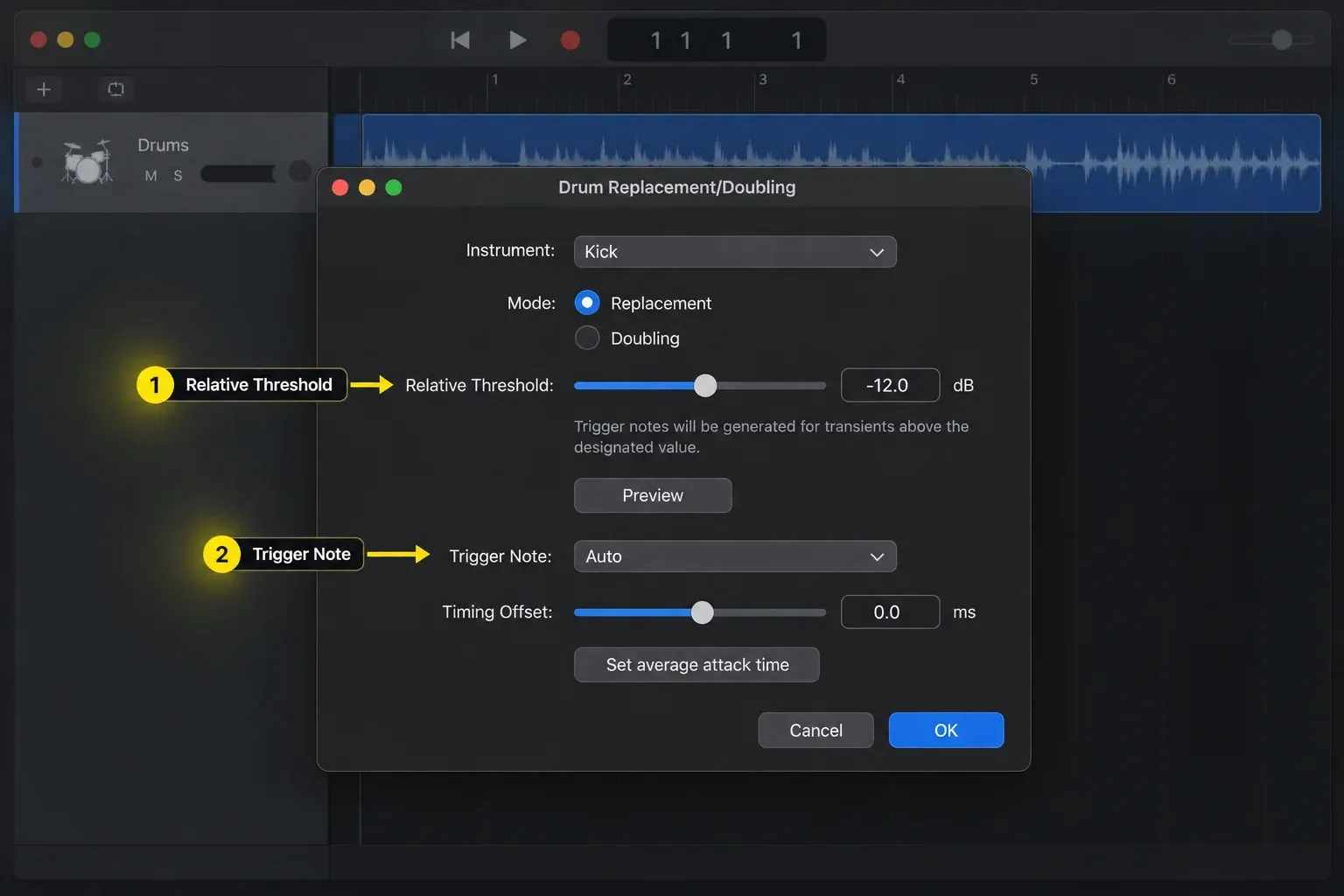
- Choose the appropriate Instrument in the Drum Replacement/Doubling dialog and select a suitable Sampler sound from the Library.
- Choose Doubling to keep the original audible, or Replacement to mute the source regions when you confirm.
- Adjust Relative Threshold so wanted hits trigger notes without triggering on bleed. Use Preview to compare a representative passage.
- Check Trigger Note against the chosen instrument. Adjust Timing Offset only if the replacement needs to arrive earlier or later.
- Click OK, then inspect the created MIDI notes and listen for missed or extra hits.
Once the triggers follow the performance, use the Logic Pro beat-making guide to arrange them with the rest of the drum part.
For chords or samples, choose the job before the tool
You need the notes from chords
Flex Pitch isn't Apple's built-in polyphonic transcription system. A piano chord, strummed guitar or full mix carries several fundamentals at once. Manual transcription stays the dependable route when accuracy matters. A dedicated polyphonic converter can give you a draft, but check every voice against the source before it goes into an arrangement or score.
If you only need the chord changes, Logic can analyze the chords in an audio region. Drag the region onto the Chord track, or Control-click it and choose Chords > Analyze Chords to add them to the region instead, as Apple's chord analysis steps show. You get chord symbols, not the notes of the original voicing, so check each one by ear. A Session Player such as Keyboard Player or Bass Player can then follow the Chord track, and Convert > Convert to MIDI Region turns its part into editable notes. The Session Players and Chord ID guide covers correcting the chords and shaping that part.
You want to play the original sound
Use Quick Sampler. Apple's drag-and-drop track workflow can build a Quick Sampler track straight from audio. That keeps the recorded timbre and maps it for MIDI playback. It's solving a different problem from transcribing the notes inside the recording. Control-clicking a region and choosing Convert > Convert to New Sampler Track is in the same camp: it turns each selected region, or each section between transient markers, into a sample zone on a new Sampler, Alchemy or Drum Machine Designer track. The MIDI regions it creates hold ascending trigger notes that replay those zones at their original positions. They don't describe the melody's pitches, and Logic mutes and dims the source regions.
You want a new instrument to follow the melody
Use Flex Pitch to MIDI, then choose a patch and edit the new region. That's the move for doubling a vocal with a synth, replacing a bass sound, sketching a melody by humming, or building a notation draft. Treat the created notes as an arranger's starting point.
Frequently asked questions
Can Logic Pro convert audio to MIDI without a plug-in?
Yes. For a monophonic pitched recording, enable Flex Pitch in the Audio Track Editor and choose Edit > Create MIDI Track from Flex Pitch Data. Logic creates a software instrument track with MIDI regions below the source.
Can Flex Pitch convert piano or guitar chords to MIDI?
Not reliably. Apple says the feature works best with monophonic material and that chords or polyphonic audio can produce interpretation errors. Use manual transcription or a purpose-built polyphonic tool, then verify every note. If you only need the chord changes, drag the region onto the Chord track to analyze them as chord symbols that a Session Player can follow.
Can I convert a vocal melody or humming to MIDI?
Yes, when the recording contains one clear vocal line. Start with a dry solo take where possible. Correct obvious pitch or split-note errors in Flex Pitch, then remove false MIDI notes and add missed notes in the Piano Roll after conversion.
Why is Create MIDI Track from Flex Pitch Data greyed out?
Check the documented prerequisites first: select an audio region in the Audio Track Editor, enable Flex, choose Flex Pitch and let note analysis finish. The conversion command is in that editor's Edit menu. A Flex timing algorithm such as Polyphonic does not supply melodic pitch data.
Does creating MIDI change the original audio?
The command creates a separate software instrument track and MIDI regions; it does not replace the audio track. Flex Pitch edits made before conversion can affect audio playback. Create a project alternative first, and keep a separate copy of irreplaceable recordings because alternatives share their audio assets.
Should I use Flex Pitch to turn drums into MIDI?
Use Track > Replace or Double Drum Track for a recording of a single kick, snare or other percussion instrument. It detects transients and creates MIDI trigger notes. It does not automatically transcribe all the instruments in a mixed drum recording.
Audio-to-MIDI checklist
- The source contains one pitched note at a time.
- A duplicate or recoverable project version protects the original.
- The correct audio region is open in the Audio Track Editor.
- Flex is enabled and the algorithm is Flex Pitch.
- Obvious pitch and split-note errors are corrected; remaining false or missed MIDI notes are cleaned after conversion.
- The command comes from the Audio Track Editor's Edit menu.
- The new MIDI is compared with the source phrase by phrase.
- Pitch, starts, lengths, velocity and overlaps are checked in the Piano Roll.
- Drums use Drum Replacement/Doubling, chord changes use chord analysis on the Chord track, and playable sounds use Quick Sampler.
Continue through the Logic Pro Create Music hub for MIDI, beat-making and arrangement workflows, or use the Logic Pro Tutorials hub to find the next task in a complete project.


