How to Use Flex Pitch in Logic Pro: Tune Vocals
A selective Flex Pitch workflow for natural vocal tuning, with note controls, artifact fixes and a clear choice between Flex Pitch and Pitch Correction.

Flex Pitch lets you repair individual notes in a recorded vocal: move a flat note, settle a shaky ending, or balance one loud syllable. It works on monophonic audio, such as a solo voice or bass line. Start with the right take; tuning cannot separate a doubled vocal or rescue every distorted note.
Checked September 12, 2026 against Apple’s current Mac guide and Logic Pro 12.3.1 release notes. Finish the comp first, then tune a protected copy. Keep a separate project copy with its audio files before bouncing or making destructive edits.
Fast answer: duplicate the comp, enable Flex view, choose Flex Pitch on the vocal track, open the Audio Track Editor, listen before moving notes, correct only audible problems, use fine pitch and drift before forcing every note to the grid, and bypass frequently for artifacts.
When Flex Pitch is the right tool
| Source | Flex Pitch fit | Better response when it struggles |
|---|---|---|
| Clean solo vocal | Usually suitable for selective note repair | Use small manual moves |
| Monophonic bass or instrument | Often suitable when one note sounds at a time | Check attacks and slides carefully |
| Stacked or doubled vocal file | Poor detection risk | Edit the isolated parts before stacking |
| Raspy, screamed, or heavily distorted vocal | Detection and artifact risk | Use another take, leave the note, or test a specialist editor |
| Chordal or polyphonic audio | Not the intended use | Return to the source parts or another workflow |
In practice, clean, close-enough performances respond well. Strong distortion and complex overtones can land on the wrong detected note, or develop artifacts under correction. That’s a reason to audition every edit, not evidence that every source will fail.
Prepare the vocal before Flex Pitch
- Finish the vocal comp and confirm the performance choices.
- Clean clicks and obvious edit boundaries.
- Remove or repair severe plosives and noises that confuse note detection.
- Save a separate project copy with its audio files, then work on the copied comp. A duplicate track is useful for comparison, but is not an independent file backup.
- Keep doubles and harmonies on separate tracks.
- Confirm the song’s key, but judge non-diatonic notes by the melody rather than a scale label.
If the performance isn’t yet compiled, return to the vocal recording and comping workflow before tuning. Editing pitch across changing comps creates duplicated work and inconsistent transitions.
How to enable Flex Pitch in Logic Pro
- Select the vocal audio track.
- Choose Edit → Show Flex Pitch/Time in the Tracks area, or press Command-F while that area has focus.
- Click the vocal track’s Track Flex button, then choose Flex Pitch from its Flex Mode menu.
- Let Logic analyze the audio.
- Double-click the audio region to open the Audio Track Editor. Show Flex in the editor too, and confirm Flex Pitch is selected.
- Confirm that detected notes follow the actual melody before editing.
Apple’s Flex activation instructions distinguish showing Flex controls from enabling Flex on the track. The Flex Pitch algorithm reference also warns that the Audio File Editor’s destructive operations become unavailable. Make any required destructive edits first, or bounce the Flex-edited region in place before those operations; retain the backup.
How to tune vocals with Flex Pitch
- Listen to the phrase in the mix and identify an audible pitch problem.
- Select the detected note and drag vertically only when it is assigned to the wrong pitch.
- Use fine pitch for smaller centering changes.
- Adjust pitch drift at the start or end only when the transition sounds unstable.
- Reduce vibrato only when it distracts from the phrase.
- Use note gain for a local imbalance instead of forcing more compression.
- Touch formant shift only to repair or create an intentional tonal change.
- Bypass Flex Pitch and compare at matched loudness after every short section.
- Commit or bounce the tuned copy only after the whole phrase survives a context check.
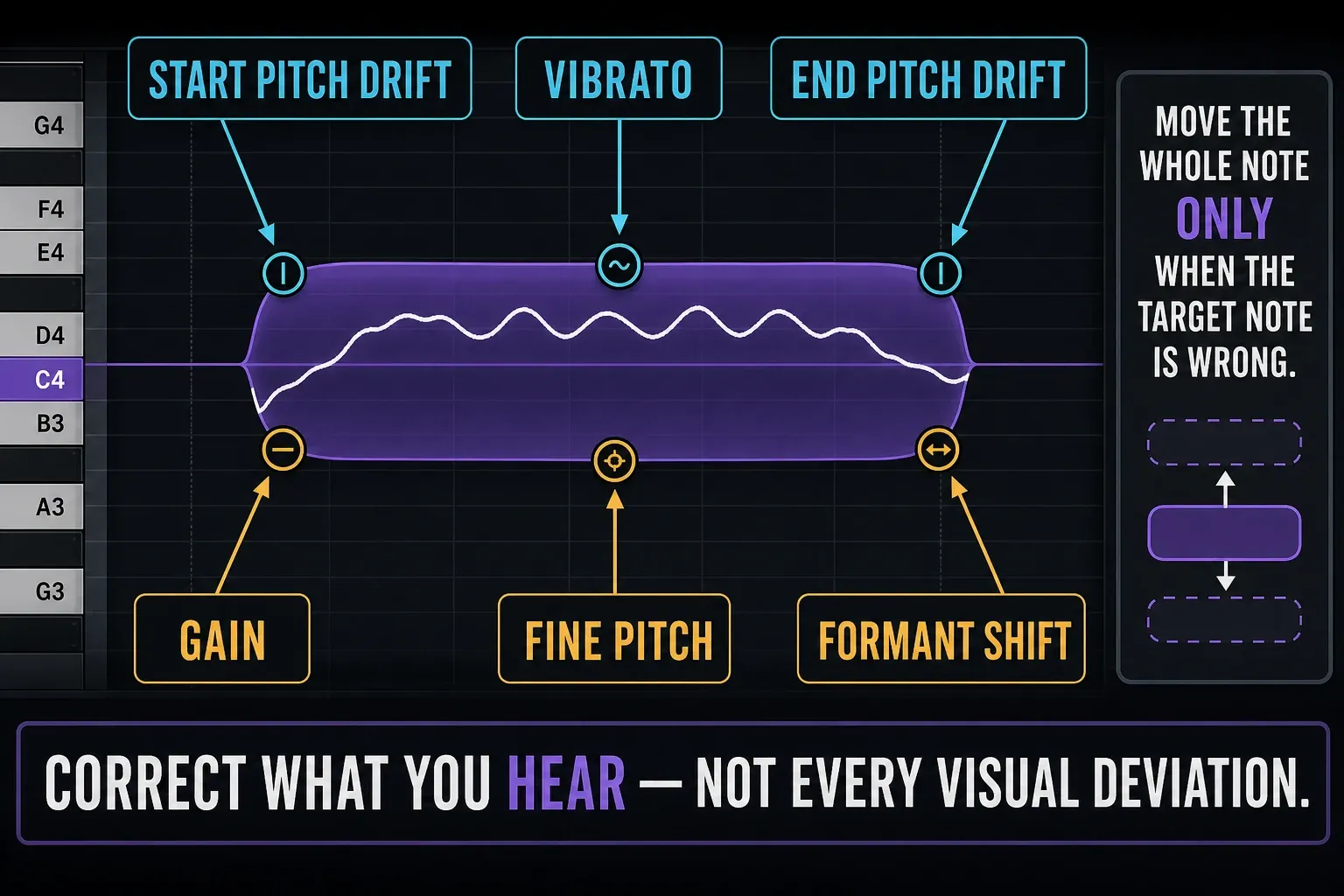
The objective isn’t a row of mathematically centered rectangles. Natural singing contains approach notes, bends, vibrato, blue notes, consonants, and expressive drift. Correct the listener’s problem, not every visual deviation.
Correct several notes with the Pitch Correction slider
In the Audio Track Editor, select the notes that need tuning and raise the Pitch Correction slider gradually. Without a scale choice, correction targets the chromatic scale. Use Scale Quantize to choose the intended key and major or minor scale when that suits the melody. Apple’s audio pitch quantization instructions describe these controls. This slider edits the selected audio notes; it is not the channel-strip Pitch Correction plug-in. Listen to borrowed notes and slides before applying the same correction across a phrase.
Understand the six Flex Pitch hotspots
| Hotspot | Control | What to listen for |
|---|---|---|
| Upper left | Pitch drift at note start | Approach into the note |
| Upper middle | Vibrato | Amount of repeated pitch variation |
| Upper right | Pitch drift at note end | Exit and connection to the next note |
| Lower left | Gain | Level of the detected note |
| Lower middle | Fine pitch | Small tuning offset without changing note name |
| Lower right | Formant shift | Perceived vocal character independent of the fundamental move |
Apple’s current Flex Pitch editing reference documents these hotspots. It also confirms that notes can be moved, resized, cut, merged, and adjusted with dedicated Vibrato and Volume tools in the Audio Track Editor. When the goal is an editable instrument part rather than a tuned audio region, use the separate workflow to convert monophonic audio to MIDI with Flex Pitch.
A transparent tuning order
1. Fix detection before correction
Use the Scissors tool to split a detected note that contains two sung pitches. To combine fragments of one note, select them and use the Join tool or Edit → Bounce or Join → Join (Command-J). Older tutorials call this the Glue tool. Check the boundary by listening before changing pitch.
2. Repair the center
Use fine pitch for a note that’s consistently sharp or flat but belongs to the correct semitone. Move the whole note vertically only when the detected or intended note is different.
3. Preserve the entrance and exit
Adjust start and end drift after the center is stable. Leave some approach and release movement in place. That usually sounds more believable than flattening the entire curve.
4. Tame vibrato only when needed
If reducing vibrato makes a held note sound stiff, restore some movement. For a note that wobbles more widely than you want, make a small adjustment and compare it in the arrangement.
5. Leave formants alone unless you hear a problem
Pitch movement can change perceived character, especially on larger shifts. A small formant adjustment can pull back a chipmunk-like or unnaturally heavy tone, but aggressive values create their own effect. Treat formant shift as a repair or creative control, not a required step.
Why Flex Pitch creates artifacts
The source is not truly monophonic
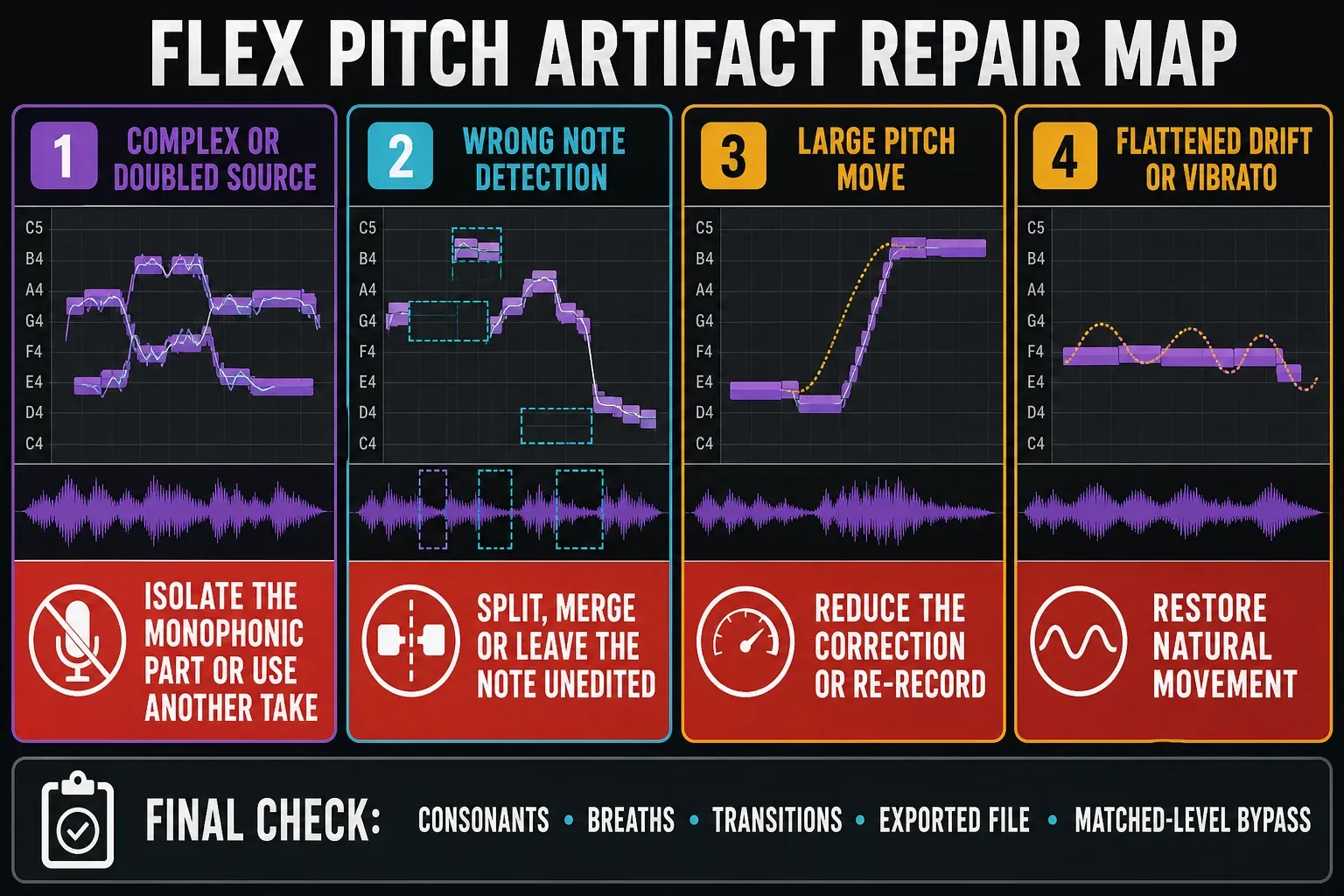
Bleed, doubles, chords, loud reflections, and overlapping harmonics can confuse detection. Isolate the source or choose another take.
The correction is too large
Large pitch moves can sound more conspicuous than small repairs. If a corrected syllable loses its character or breaks up, try less correction or another take rather than stacking further processing.
Transitions were flattened
Pitch drift and vibrato carry identity. Restore some original movement or reduce the correction.
A consonant was treated as a pitched note
Try the Track inspector’s Formants menu → Keep Unvoiced Formants when consonants or plosives sound processed. Apple documents it in the algorithm reference above; it preserves unvoiced formants while processing voiced ones. It is worth comparing, not a guarantee against every artifact. Leave noisy, unpitched sections uncorrected when tuning does not help.
The detected note is wrong
Check the audible fundamental. Raspy and distorted vocals can present stronger overtones than the intended pitch. A visually neat move to the wrong note won’t help.
The artifact appears only after export
Re-import the bounced file into a clean track and compare it against live playback at the same position. If the artifact is in the file, reduce or remove the specific Flex edit, bounce that short repaired section in place, or return to the untouched comp. Never approve tuning from editor playback alone when the deliverable is a rendered file.
If Flex analysis triggers performance problems or instability, create a protected bounce, simplify the session, and reach for the Logic Pro crash guide or system-overload workflow.
Final quality check
- Listen through the whole phrase, not isolated notes.
- Check consonants, breaths, slides, and vibrato at every edit boundary.
- Compare with Flex Pitch bypassed at matched level.
- Listen in the mix, solo, headphones, and a small speaker.
- Keep the untouched approved comp available for immediate rollback.
Once the tuned performance passes these checks, continue with the stock-plugin vocal mixing workflow. More timing, tuning, and production tools are organized in the Logic Pro features hub.
Does Logic Pro have Auto-Tune?
Logic Pro does not include Antares AutoTune. For this job, Logic gives you two built-in choices. Its Pitch Correction plug-in automatically corrects a monophonic vocal as the track plays. Flex Pitch analyzes recorded audio and lets you repair individual notes afterward. AutoTune is Antares’ separate product; when it is installed, Antares’ current Logic instructions place it under Audio Units > Antares.
| Method | Best use | How it behaves |
|---|---|---|
| Logic Pitch Correction | Quick automatic tuning or a deliberate hard-tuned effect | Runs as a channel-strip insert while the track plays |
| Logic Flex Pitch | Repairing specific notes after recording | Provides manual note, drift, vibrato, gain and formant edits |
| Antares AutoTune | An Antares workflow or sound you specifically want | Runs as a separately installed Audio Unit; it is not bundled with Logic |
How to get an Auto-Tune-style effect with Pitch Correction
- On the vocal channel strip, insert Pitch > Pitch Correction.
- Set Root Note and Scale/Chord to the song’s actual harmony. Check borrowed notes and key changes instead of forcing the whole melody into the wrong grid.
- Leave Neural Pitch Detection on unless you have a reason to select the vocal’s pitch range manually.
- Use Response to control correction speed. Lower values reach the corrected pitch faster and can make slides sound stepped; higher values allow a slower move.
- Set Tolerance by ear. Lower values correct smaller deviations more aggressively; higher values preserve more natural pitch movement.
- Use Bypass All and listen in the mix. If you want a hard effect, the stepped movement may be the point. If you want an invisible repair, stop when the voice sounds settled rather than processed.
Apple documents those controls in its current Pitch Correction overview and parameter reference. There’s no useful universal Response or Tolerance value. The singer’s range, vibrato, slides and the intended sound change the right setting. For a handful of wrong or unstable notes in an otherwise good take, use the Flex Pitch workflow above instead.
Frequently asked questions
Does Logic Pro have Auto-Tune built in?
Logic Pro does not include Antares AutoTune. It does include Pitch Correction for automatic real-time tuning and Flex Pitch for manual note editing after recording. If you install Antares AutoTune separately, Logic loads it as an Audio Unit.
Is Flex Pitch included with Logic Pro?
Yes. Flex Pitch is built into Logic Pro and edits detected notes in monophonic audio without a separate tuning plug-in.
Does Flex Pitch work on chords?
No. It is intended for monophonic material, where one pitched note sounds at a time. Chords, doubles, and overlapping sources can produce unreliable detection.
Why does Flex Pitch make vocals sound robotic?
Common causes are excessive pitch movement, flattened drift or vibrato, wrong note detection, and correction applied to noisy consonants. Reduce the edit or use a better take.
Should I comp or tune vocals first?
Finish and approve the comp first, then tune a protected copy. Otherwise every comp change can invalidate detailed pitch edits and create mismatched transitions.
Can Flex Pitch change vocal timing and volume?
Yes. Detected notes can be moved or resized, and their gain can be changed. Make small edits and check transitions because timing and level changes can expose artifacts.
Why are Flex Pitch notes not showing in Logic Pro?
Show Flex in the Audio Track Editor as well as the Tracks area, enable the vocal track’s Track Flex button, and choose Flex Pitch rather than a Flex Time mode. Open the intended audio region and allow analysis to finish. If using Command-F, first click the editor so it has keyboard focus. Increase vertical zoom when inspecting notes in the Tracks area. A noisy, polyphonic or silent source may still give unusable detection.


