How to Connect a MIDI Keyboard to GarageBand on Mac, iPhone and iPad
A USB MIDI keyboard plugs straight into a Mac and plays any software instrument track in GarageBand. Here are the cables and adapters for iPhone and iPad, Bluetooth pairing, older 5-pin keyboards, how much delay Bluetooth adds, and the fixes when the keys make no sound.

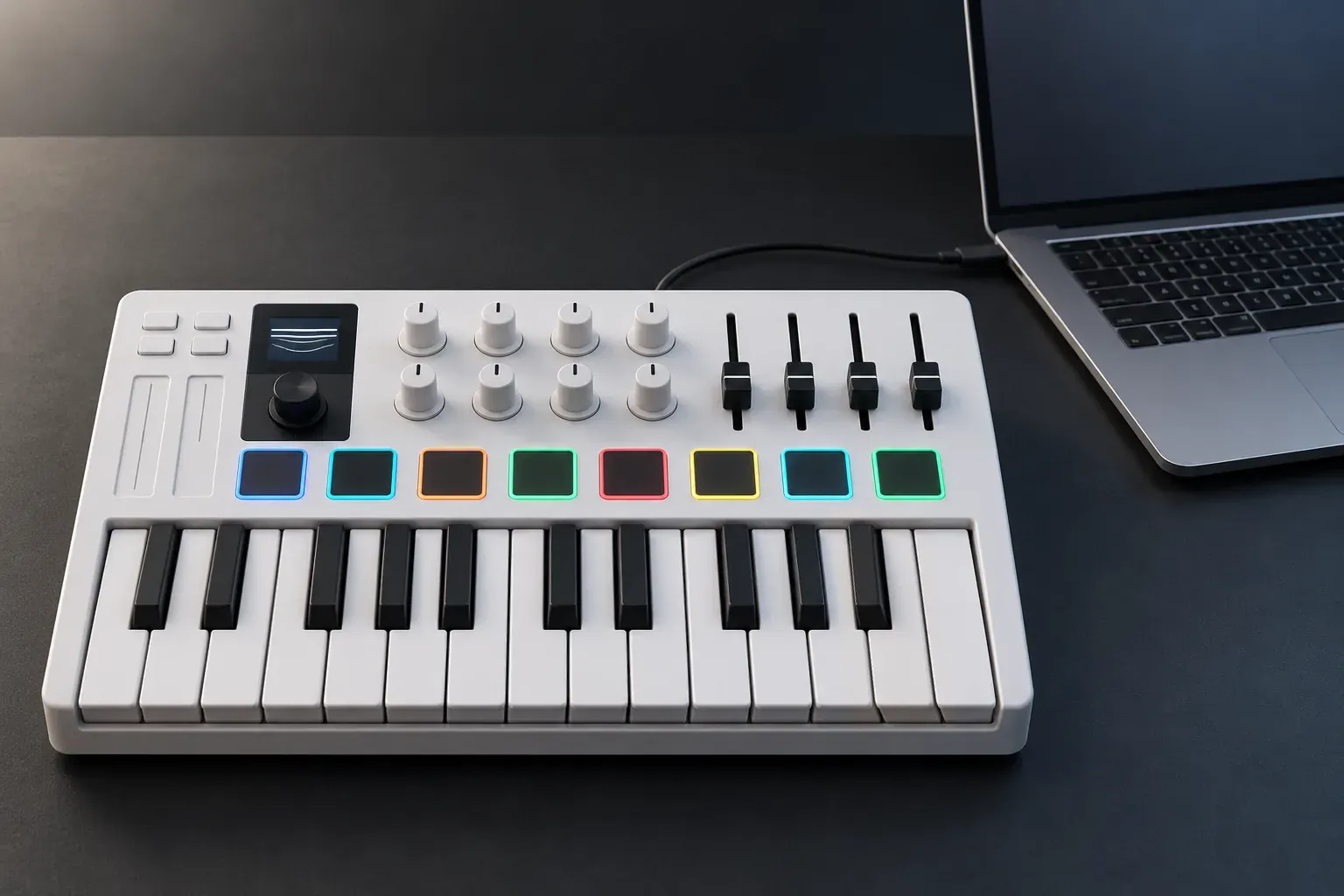
To connect a MIDI keyboard to GarageBand on a Mac, plug its USB cable into the computer, add a software instrument track, pick a sound and play. That’s the whole job for a class-compliant keyboard, and you usually won’t need a driver or manual MIDI setup with one controller connected. On an iPhone or iPad you need the right cable or adapter for its port, and a Bluetooth keyboard pairs from inside GarageBand.
Below are the Mac steps, the cables and adapters for iPhone and iPad, Bluetooth pairing on both, how much delay Bluetooth adds according to four published measurements, and the hookup for an older keyboard with 5-pin MIDI ports. If the keyboard is connected and GarageBand stays silent, the fix list further down goes through the causes in order.
How do you connect a USB MIDI keyboard to GarageBand on a Mac?
Apple’s steps for connecting a music keyboard to GarageBand on Mac start with one cable from the keyboard to the computer. After that, the keyboard needs a track that can make sound:
- Connect the keyboard’s USB cable to the Mac. A bus-powered keyboard takes its power from the same cable.
- Open a project, or start a new one.
- Choose Track > New Track (or press Option-Command-N) and click the software instrument track type. Apple’s track guide calls it a software instrument track, and its recording page names the same option MIDI.
- Pick a patch in the Library, which opens as soon as the track is created. Start with a piano, because you’ll hear every key and every chord clearly.
- Play. Apple’s software instrument recording steps use R to start recording and the Space bar to stop.
Apple adds one condition: follow the keyboard’s own instructions, which may include installing a driver, and check the maker’s website for the latest version. Class-compliant controllers skip that step. Arturia lists the MiniLab 3 as bus-powered and class-compliant over USB-C, and Korg says you don’t need to install a driver for the microKEY Air when you connect it by USB cable.
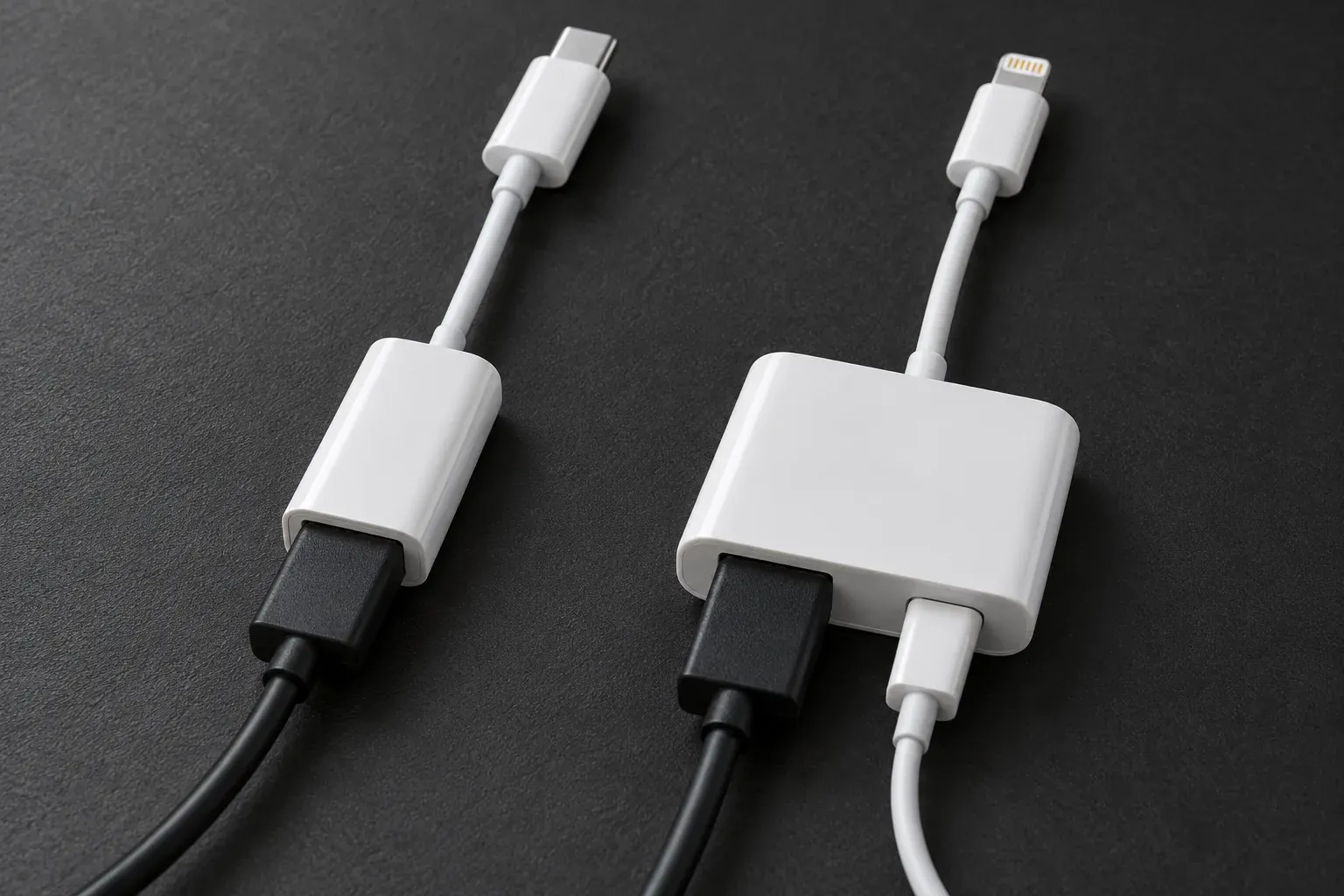
If your Mac has only USB-C ports and the keyboard came with a USB-A cable, match the keyboard end of the data cable: for a USB-B keyboard socket, use USB-C to USB-B, or keep the supplied USB-A to USB-B cable and add Apple’s USB-C to USB Adapter, which Apple sells for USB-C Macs, iPads and iPhones.
Why is the keyboard missing from GarageBand Settings?
Because the menus you’re probably looking at are for audio. Choose GarageBand > Settings (Command-Comma) and click Audio/MIDI. The Output Device and Input Device menus list Core Audio devices, so a MIDI-only controller will not show up there. A keyboard with a separate USB audio interface, such as Roland’s FP-30X, can also appear as an audio device. That exact mix-up is the question in an Ask Different thread about a keyboard GarageBand didn’t list, where the top-voted answer points out that the device menus only cover the microphone and sound output.
The keyboard appears in the MIDI Controller menu on the same pane. Apple’s Audio/MIDI settings page says it shows the last connected controller, or None if no controller has been connected, and that you can choose which one to use when several are connected. If it reads None and you’ve plugged the keyboard in, click Reset MIDI Drivers, which reloads MIDI devices after a lost connection. Third-party instruments need one more switch in that pane: Enable Audio Units, which lets projects use AUv2 plug-ins and AUv3 extensions.
How do you connect a MIDI keyboard to GarageBand on iPad or iPhone?
Use a cable that matches the port on your device, or go wireless with Bluetooth (next section). Apple’s iPad USB-C page lists audio interfaces and MIDI devices among the USB accessories you can connect, and its iPhone USB-C page says iPhone 15 and later models have a USB-C connector.
| Your iPhone or iPad | Keyboard cable | What connects them |
|---|---|---|
| USB-C | USB-C | A cable with USB-C on both ends, such as the one that came with your iPad |
| USB-C | USB-A | Apple’s USB-C to USB Adapter between the cable and the device |
| Lightning (iPhone 14 and earlier, older iPads) | USB-A | Apple’s Lightning to USB 3 Camera Adapter, with a USB power adapter plugged into its Lightning port |
The power plug on the Lightning adapter is the part that’s easy to skip. Apple’s Lightning to USB 3 Camera Adapter page says that once you power it with a USB power adapter, you can connect USB peripherals such as hubs and audio/MIDI interfaces. Korg describes the same route for the microKEY: a Lightning to USB camera adapter and one USB cable.
Then open GarageBand and choose a Touch Instrument such as the Keyboard. Notes from the connected keyboard play it, and the Record button records the part into its track. GarageBand also records changes to the instrument’s onscreen knobs and sliders, as Apple’s Touch Instrument recording steps describe. Check hardware controls separately: playing notes doesn’t confirm that every knob or transport button is assigned. Make a short recording and play it back before relying on a control.
How do you connect a Bluetooth MIDI keyboard to GarageBand?
If a keyboard doesn’t have Bluetooth LE MIDI, it won’t pair this way. Apple’s Bluetooth MIDI guide for Audio MIDI Setup covers devices that use Bluetooth LE (low energy) hardware, with iOS 8 or later and iPadOS 13 or later. Put the keyboard in pairing mode first.
On iPad, follow Apple’s Bluetooth MIDI steps for GarageBand on iPad. The iPhone version is the same apart from the iPhone SE:
- Tap the Settings button in the control bar. On iPhone SE, tap Settings, then Song Settings.
- Tap Advanced, then Bluetooth MIDI Devices.
- Tap the keyboard’s name and turn on the Connect switch. Turn the same switch off to disconnect.
On a Mac, you pair the keyboard in Audio MIDI Setup:
- Install any software the keyboard maker provides, as Apple asks.
- In Audio MIDI Setup, choose Window > Show MIDI Studio.
- Click Configure Bluetooth in the toolbar, put the keyboard in pairing mode, select it in the list and click Connect.
Korg’s page for the microKEY Air says it supports Apple Bluetooth Low Energy MIDI, names GarageBand among the iPad and iPhone apps it connects to, and offers a Bluetooth MIDI Connect utility for Mac as another way to pair. It runs on two AA batteries, which Korg rates at about a month with an hour of playing a day.
How much delay does Bluetooth MIDI add?
In the four published comparisons below, the reported extra delay ranges from 3.5 to 20 ms, with a median of 12.85 ms. They use different hardware and methods: a forum estimate against direct USB, half a round-trip difference, a trigger-to-sound difference, and a vendor’s key-to-sound comparison. That median summarizes this set; it does not predict the delay of every Bluetooth keyboard. Excluding the vendor result gives a median of 12.8 ms.
| Measurement | Setup | Extra delay over a cable |
|---|---|---|
| Loopy Pro forum measurement, 2022 | USB keyboard into a MacBook Pro; iPad Air 2 return paths over Bluetooth MIDI and iDAM, estimated against direct USB | 3.5 ms |
| NIME 2019 paper by Wang, Mulder and Wanderley, two Macs | 1,000 messages between two Macs through a Bluetooth MIDI adapter or a pair of USB MIDI interfaces, half the round-trip difference | 12.8 ms |
| NIME 2019, test device | The same sensor device in USB-Serial and Bluetooth MIDI modes, from trigger to sound on a Mac | 12.9 ms |
| PartyKeys latency test (sells wireless keyboards) | Vendor-reported key-to-sound averages: wired USB MIDI 8 ms versus generic BLE MIDI 28 ms, at 1 meter without interference | 20 ms |
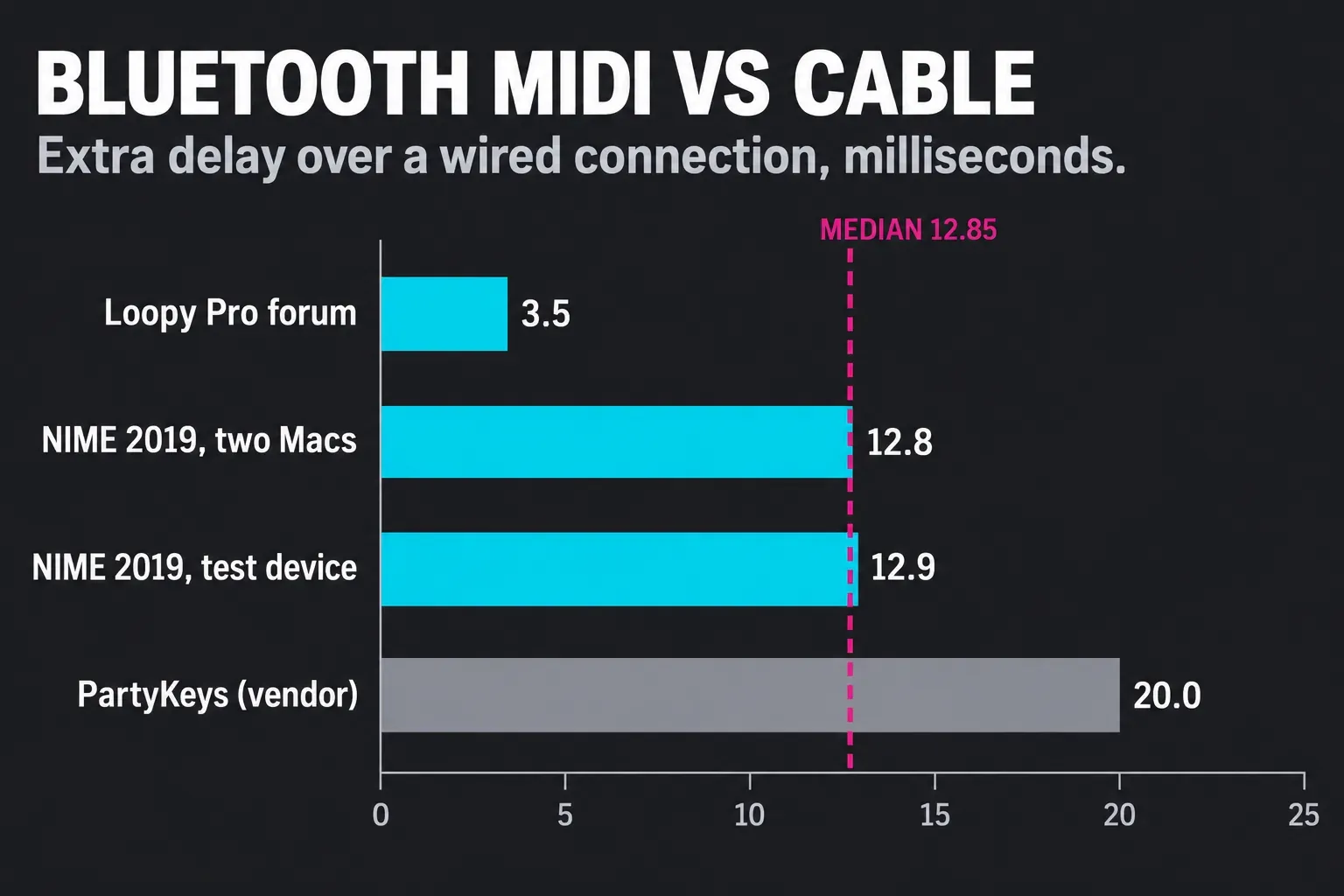
The median doesn’t show the wobble. In the two-Mac test, the spread of round-trip times (standard deviation) was 2.2 ms over the cables and 15.0 ms over Bluetooth, so the delay also changes more from one note to the next.
My call: use a cable when you record parts that have to sit tight, such as drums, basslines or fast runs, and keep Bluetooth for sketching ideas and practice away from the desk. The two-Mac test supports that choice: Bluetooth added both delay and more variable timing. A stable offset is more predictable than one that changes between notes.
How do you connect an older keyboard with 5-pin MIDI ports?
Through a USB MIDI interface. Apple’s connection steps link the keyboard to the interface with standard MIDI cables and the interface to the computer. The Roland UM-ONE mk2 is one example: a bus-powered USB box with two 5-pin cables, labeled MIDI IN (connect to MIDI OUT) and MIDI OUT (connect to MIDI IN).
Plug the interface’s MIDI IN cable into the keyboard’s MIDI OUT socket. For GarageBand, that’s the connection that matters. For playing an external synth from recorded MIDI notes, the accepted Ask Different answer identifies the limit: GarageBand does not provide a MIDI-note output track for that instrument. Apple’s steps also connect the other direction, keyboard MIDI In to interface MIDI Out, which doesn’t hurt and helps if another app sends MIDI back to the keyboard.
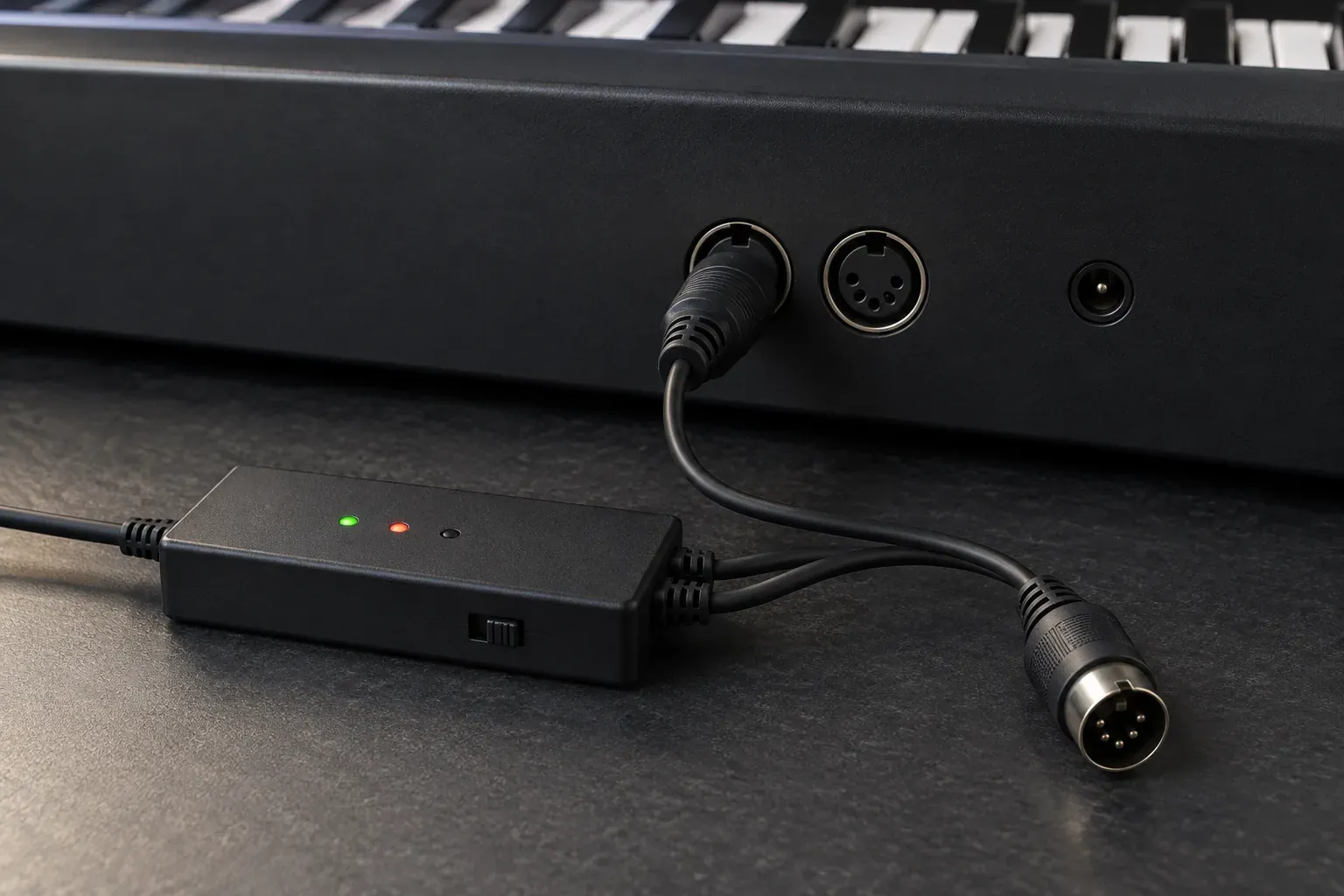
Set the UM-ONE mk2’s COMP/TAB switch before you connect it. Roland’s COMP/TAB switch leaflet says COMP is for a computer and needs Roland’s driver installed. Roland lists Driver Ver.1.0.4 for macOS Big Sur 11.x or later; check its linked hardware compatibility table for your exact macOS version. TAB is for an iPad, where you don’t need a driver. Roland’s iPad setup puts a powered USB hub between the camera adapter and the interface, and the app has to support CoreMIDI.
Why is the keyboard connected but GarageBand makes no sound?
Check the track first, then the connection. Work down this list and stop at the first fix that brings sound back:
- Track type. Notes only make sound on a software instrument track. An audio track (Mic or Line, or Guitar or Bass) records sound from an input, so a MIDI keyboard can’t play anything there. Select a software instrument track or create one with Track > New Track.
- Controller. In GarageBand > Settings > Audio/MIDI, check the MIDI Controller menu. If it reads None or shows another controller, choose your keyboard or click Reset MIDI Drivers.
- Connection. Open Audio MIDI Setup and choose Window > Show MIDI Studio. If the keyboard is missing, click the Rescan MIDI button in the MIDI Studio window. A dimmed device icon can mean it’s turned off or disconnected. Then click Test MIDI Setup and play a note: on the device in MIDI Studio, the up arrow (the In port) lights up when the note arrives. If nothing lights, Apple’s checklist for a MIDI device that isn’t working starts with the cable, the power and the maker’s software.
- One note per chord. Switch to a piano patch and set the keyboard to MIDI channel 1. Apple’s support note for Logic Pro and MainStage says a controller set to a channel higher than 1 can make some software instrument patches respond monophonically, so you hear only one note of a three-note chord. Apple writes it for those two apps, and it’s a quick test in GarageBand too: if chords return after changing only the channel, that isolates the channel setting; changing the patch at the same time does not.
- Rule out the keyboard. Choose Window > Show Musical Typing (or press Command-K) and type a few notes. If they sound, the selected software instrument can produce audio. Focus next on the external controller’s connection, selected MIDI controller and channel; this check does not rule out every patch or velocity setting.
- Quiet or flat notes. Raise Keyboard Sensitivity. Apple’s software instrument playing guide has you select the track, click the Smart Controls button and drag the Keyboard Sensitivity slider, so softer playing produces higher velocity levels.

Two limits save a lot of searching. GarageBand does not provide an external-instrument track that sends recorded MIDI notes to a hardware synth. Record that synth’s audio on an audio track instead. MIDI messages themselves carry note and control data, not audio. A MIDI-only controller will not appear in Input Device, but an audio-capable keyboard may expose a separate USB audio input. To record built-in sounds, use that supported USB audio connection or cable the keyboard’s audio output to an audio interface.
If you also work in Logic Pro, our Logic Pro MIDI keyboard troubleshooting guide covers the Logic side, and our Audio MIDI Setup guide goes deeper into MIDI Studio.
What should you set up once the keys play?
Velocity first. Choose View > Show Smart Controls (or press B). Apple’s Smart Controls overview says software instrument tracks get Keyboard Sensitivity and the Arpeggiator there. If you play softly and notes come out thin, raise the sensitivity before you record anything.
Smart Controls also record. Any adjustments to knobs or other controls in the Smart Controls area during recording are saved as region automation, so a filter sweep you make while you play stays in the take. After recording a software instrument, open the Piano Roll to tighten the timing or adjust individual notes.
To record a layered part, follow Apple’s steps for recording to several software instrument tracks. Choose Track > Configure Track Header (or press Option-T), turn on Record Enable, then click the Record Enable button on each track you want. Those tracks all receive MIDI from the keyboard at once, and record enabling a track also lets you monitor it.
On iPhone and iPad, an MPE controller assigns each note to its own MIDI channel. To use one, close GarageBand, then open the Settings app, go to Apps > GarageBand and turn on Support MPE Controllers, as Apple’s MPE page describes.
If you move up to Logic Pro, our guide on how to use a MIDI controller in Logic Pro covers mapping knobs and pads to controls, and recording MIDI in Logic Pro picks up from there.
Can you play GarageBand without a MIDI keyboard?
Yes. Choose Window > Show Musical Typing (or press Command-K) and your Mac keyboard plays notes. Z and X shift the octave, C and V change velocity, 1 and 2 bend the pitch, 4 to 8 add modulation and 3 turns it off, and Tab toggles sustain on or off. A button in the upper left of the same window switches to an onscreen keyboard you play with the mouse.
There’s also Logic Remote. On an iPhone or iPad it controls playback, recording, patches and mixing in GarageBand on Mac, and its Touch Instruments play software instruments, connected over Wi-Fi, USB-C or a Lightning cable, as Apple’s Logic Remote connection guide explains. Apple’s Logic Remote page for GarageBand says to choose GarageBand > Download Logic Remote to get it.
Musical Typing is fine for a melody or a bassline. For chords and dynamics I’d plug in a real keyboard, because you set velocity with your fingers instead of with the C and V keys. If you’re choosing one, our guide to the best MIDI controllers for Logic Pro compares current models, and a class-compliant USB controller connects to GarageBand the same way. When a project outgrows GarageBand, Logic Pro vs GarageBand lays out what you gain by moving up. More recording guides are in our Recording & Editing hub.
GarageBand MIDI keyboard FAQ
Can you use a MIDI keyboard with GarageBand?
Yes. GarageBand on Mac, iPhone and iPad takes notes from USB and Bluetooth LE MIDI keyboards, and from 5-pin MIDI keyboards through a USB MIDI interface. On a Mac the keyboard plays a software instrument track. On iPhone and iPad it plays Touch Instruments.
Do you need a MIDI keyboard for GarageBand?
No. Musical Typing turns the Mac keyboard into a note keyboard, the onscreen keyboard plays with the mouse, and Logic Remote adds Touch Instruments on an iPhone or iPad. You’ll find chords and velocity much easier on a real keyboard.
Do MIDI keyboards need a driver for GarageBand?
Class-compliant keyboards don’t. Arturia lists the MiniLab 3 as class-compliant, and Korg says the microKEY needs no driver over USB. Apple says some keyboards do need one and to check the maker’s website. Interfaces vary too: the UM-ONE mk2 needs Roland’s driver on a Mac in COMP mode and none on an iPad in TAB mode.
Can a MIDI keyboard be used as an audio input in GarageBand?
MIDI itself is not an audio input: it sends notes to a software instrument track. A MIDI-only controller will not appear in Input Device. Some keyboards also have a separate USB audio interface; use that supported audio connection, or connect the keyboard’s audio output to an audio interface, to record its built-in sounds.
How do you use a MIDI keyboard with GarageBand on iPad?
On a USB-C iPad, connect it with a USB-C cable or through Apple’s USB-C to USB Adapter. On a Lightning iPad, use the Lightning to USB 3 Camera Adapter with a power adapter plugged in. For Bluetooth, tap Settings, Advanced, Bluetooth MIDI Devices, then turn on Connect. Open a Touch Instrument and play.
Can GarageBand send MIDI to an external synth?
GarageBand does not provide a track that sends recorded MIDI notes to an external synth or sound module. Play the synth from its own keys or another app and record its audio in GarageBand. That is different from tempo sync: GarageBand on iPhone and iPad can send MIDI Clock from Song Settings > Advanced > Send MIDI Clock.


