How to Use Multipressor in Logic Pro
A band-by-band workflow for Logic Pro’s four-band compressor: what each control does, starting points credited to published engineers, and when a normal Compressor or EQ is the better fix.

Multipressor is Logic Pro’s multiband compressor: it splits audio into up to four frequency bands so you can compress one part of the spectrum independently. Add it from Dynamics > Multipressor in an Audio Effect slot. Solo the band containing the problem, adjust its crossover boundaries, then set Threshold and Ratio. Finish by turning Solo off and comparing the plug-in with bypass at matched volume.
I’d reach for it when a sound gets boomy, harsh or overly bright at particular moments. If the entire track needs level control, use a normal compressor. If the tone is wrong throughout, start with EQ. Apple’s Multipressor overview explains the four-band design and the downward expander built into each band. This guide puts the controls in a useful order and separates documented behavior from engineers’ suggested starting settings. For its place in a full mix, see the Logic Pro mixing workflow.
What Multipressor does that a normal compressor can’t
A standard Logic Pro Compressor turns down the whole signal whenever it crosses the threshold. Multipressor first splits the signal into bands, compresses each band independently, then recombines them into a single output. Apple says this lets you apply more compression to the bands that need it without affecting the others, which avoids the “pumping” often heard with heavy single-band compression.
Sound On Sound’s Hugh Robjohns and Paul White describe the classic example in their 2002 guide to multiband compression. With a full-band compressor, a loud kick drum pulls down everything else passing through at that moment. On a whole drum kit the hi-hats and cymbals end up dulled while the kick works the compressor. Split the signal and only the low band reacts.
Two other features set it apart. Each band has its own downward expansion, which Apple describes as working like a noise gate but fading the level smoothly with an adjustable ratio instead of cutting it off abruptly. And Apple calls Multipressor a mastering tool, though nothing stops you from using it on a single track or bus when the problem sits in one frequency range.
Add Multipressor and read the window
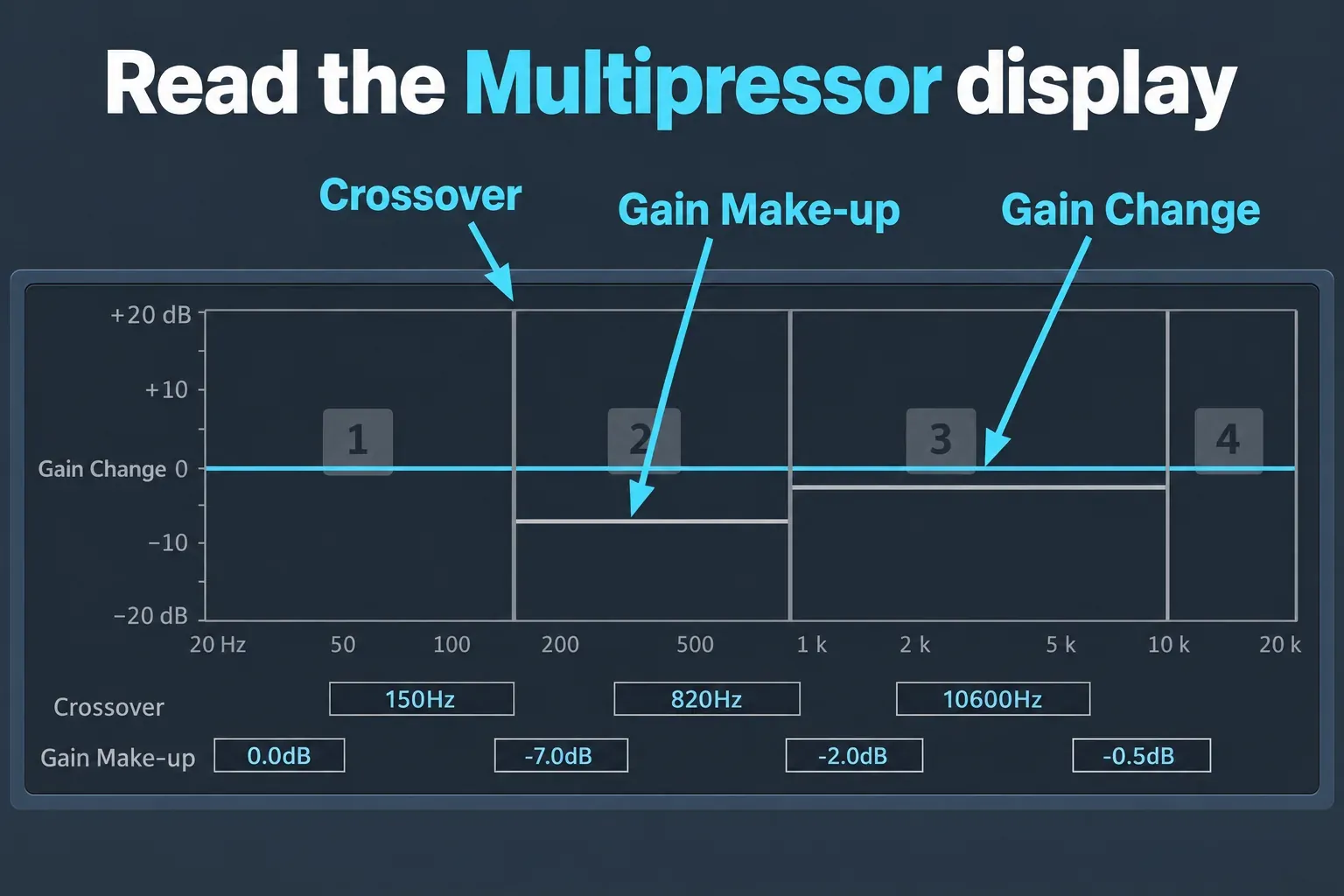
Open an Audio Effect slot on the channel strip and choose Dynamics > Multipressor. Apple’s display parameters page splits the window into three areas: the graphic display at the top, a set of controls for each band underneath, and the output parameters on the right.
| Control | What to adjust |
|---|---|
| Compression Threshold and Ratio | Threshold sets where compression begins; Ratio sets its strength. A ratio of 1:1 means no compression. |
| Peak/RMS, Attack and Release | Peak/RMS changes detection toward short peaks or averaged power. Attack and Release determine how compression responds over time. |
| Expansion Threshold, Ratio and Reduction | These control downward expansion below its threshold. A threshold of -60 dB limits expansion to signals below that level; it is not an off switch. |
| On/Off, Byp and Solo | Band activation, band bypass and solo are separate controls. Solo lets you hear the selected band; Byp bypasses that band. |
| Auto Gain, Lookahead and Out | Auto Gain makes the output louder. Lookahead lets the processor analyze upcoming audio; Out adjusts the combined output level. |
Apple’s band-control documentation identifies the thresholds, ratios and input/output meters. Its output-parameter guide says Auto Gain references processing to 0 dB, making the output louder. It doesn’t promise a fair bypass comparison.
One detail changes how you read the display. Apple’s use tips say the blue bars show gain change, a composite of the compression reduction, the expander reduction, the auto gain compensation and the gain make-up. On its own, a bar can’t tell you how much compression is happening, so use Solo and your ears alongside it.
Set up Multipressor one band at a time
- Name the problem first. Sharp pick noise, boomy proximity bass, harsh upper mids on certain vowels. If you can’t name a frequency range and a moment when it misbehaves, a regular Compressor or EQ is probably the better tool.
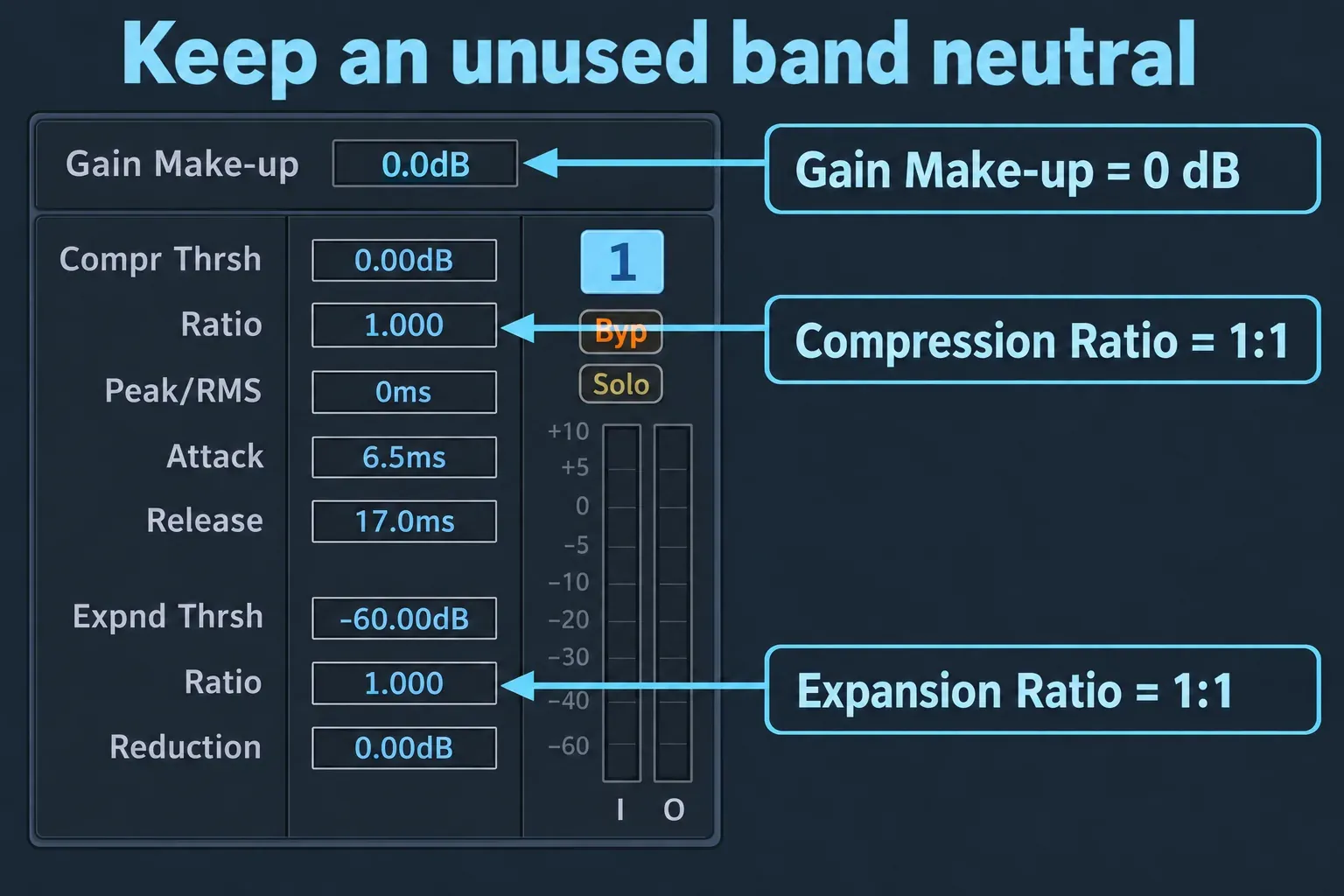
- Start with neutral dynamics. Keep the bands enabled, turn Auto Gain off, set both ratios in every band to 1:1, and leave Gain Make-up and Expansion Reduction at 0 dB. Apple explicitly identifies a compression ratio of 1:1 as no compression. The neutral expansion ratio and zero reduction keep expansion out of this setup. Change the dynamics only in the band that needs work. Mike Senior’s advice to use the minimum number of processing bands is a useful discipline, but Apple lists band On/Off and Bypass separately: do not treat an On/Off button as a dynamics bypass.
- Place the crossovers. Drag the band edges, then use Solo to hear one band at a time. Robjohns and White warn that a crossover in the middle of the vocal range can damage the vocal sound, especially when the bands on either side get very different settings. Wrap the problem range without cutting through the main body of the sound.
- Set Threshold and Ratio. Apple says the most useful combinations are a low threshold with a low ratio, or a high threshold with a high ratio. Robjohns and White describe the same two strategies: set the threshold where you’d say “enough already” and use a firmer ratio to catch peaks, or set a low threshold (they mention -30 to -40 dB) with a ratio below about 1.2:1 so a little compression touches almost everything.
- Choose Peak or RMS. The Peak/RMS value runs from Peak at its minimum (0 ms) toward RMS at its maximum. Apple says RMS measures power over time and works much more musically, and recommends the centered position as a basic setting for most applications. Raise Lookahead when the Peak/RMS values go higher.
- Shape Attack and Release per band. Low frequencies tend to hang on longer than high ones. For a three-band setup Robjohns and White suggest starting the bass band with roughly twice the mid-band release and the high band with roughly half of it, then listening for pumping.
- Add make-up gain, then level-match. Adjust each processed band’s horizontal bar after its dynamics are behaving. Keep Auto Gain off for this comparison and use Out to match output level before you trust bypass. Extra loudness can disguise a worse balance.
- Check in context. Turn Solo off, play the full passage, and compare the band’s Byp control before bypassing the entire plug-in. If the processing fixes one moment but damages normal notes around it, ease the settings or leave that band neutral. Add another processing band only for a separate problem you can hear.
Starting points for four common jobs
These come from Mike Senior’s 2020 Sound On Sound article on mixing with multiband compression. They’re his habits. They don’t come from Apple, and they aren’t rules.
Sharp pick noise or cymbal stick spikes
Top band. Set the crossover too high and part of each transient gets past. Set it too low and pumping reaches the main body of the sound. Very fast attack and fast release, ratios upward of 5:1, and 12 dB or more of reduction in extreme cases.
Evening out vocal brightness
Top band, with the crossover around 10 kHz so it stays above most sibilance. Ratio around 2:1, roughly 6 dB of reduction to begin with, then make-up gain to restore the brightness. Use fast time constants.
Proximity-effect bass on a singer who moves
Low band controlling the region below about 300 Hz. Ratio around 3:1 with a short release. Set the attack to 50 ms or more so the vocal doesn’t sound squashed.
Room resonance on bass instruments
Low band below about 100 Hz. He points to a resonance near 70 Hz in typical small rooms. Control the notes that excite the resonance. Senior gives no numbers for this one.
Two cautions before you copy anything. One of Senior’s screenshots uses FabFilter Pro-MB, a different plug-in, and Apple’s Multipressor pages don’t list its crossover slopes. Senior asks for slopes of at least 18 dB per octave when two narrow bands chase harshness, so audition by ear instead of assuming Multipressor behaves the same way. And notice that almost all his settings use one band.
When Multipressor is the wrong tool
- Using every band because they’re there. Senior says this is where he most often sees people come unstuck at mixdown, and notes that factory presets in many plug-ins encourage it.
- One loud word or note. Clip gain or automation is often the cleaner fix, as covered in the Compressor guide. A static tonal problem belongs to Channel EQ.
- Sibilance only. Senior notes that many de-essers are essentially specialized multiband setups, and that an over-sibilant vocal rarely survives set-and-forget processing, so he automates the threshold. Our vocal guide shows how to de-ess only what is distracting.
- Raising a noisy track’s level. Apple notes that raising the overall volume raises the existing noise floor, which is what each band’s downward expansion is for. Robjohns and White make the same point about make-up gain and background noise.
- A full mix without a clear reason. Apple calls Multipressor a mastering tool, but our mastering workflow treats multiband processing as optional surgery. Logic’s analysis-based alternative is Mastering Assistant. If you do use Multipressor on a full pop mix, Robjohns and White suggest starting with the low crossover below the vocal range (120 Hz is their example) and the high crossover no lower than 2.5 kHz, and keeping heavy processing above about 6 kHz if you want more detail and air without disturbing the vocal.
Why it gets louder, thinner or seems to do nothing
It gets louder even with gentle settings. Check Auto Gain, each Gain Make-up field and Out before lowering thresholds again. You may be hearing added level rather than better dynamics.
The blue bars barely move. Check that the chosen band is enabled, Byp is off, Compression Ratio is above 1:1 and the signal crosses its threshold. Then check for make-up gain or Auto Gain masking reduction in the composite Gain Change display.
Quiet notes or tails disappear. Check downward expansion. A very low Expansion Threshold is still a threshold, and it doesn’t disable the expander. Return Expansion Ratio to 1:1 and Reduction to 0 dB while diagnosing compression.
The sound becomes thinner or pumps. Recheck crossovers, make-up gain, ratio and release in context. If the fix keeps moving unrelated material, return to gain automation, EQ or a normal compressor. More bands won’t rescue the wrong tool choice.
Multipressor on Logic Pro for iPad
Apple documents Multipressor in the iPad guide with the same four-band description, and you add it from the same Dynamics menu, in a channel strip’s Audio Effect menu or in the Plug-ins area. The control names differ: Apple’s iPad controls page lists an Xover slider for the crossover, a Response field for Peak/RMS, a Make Up slider, and an AutoGain button. It also says the controls for each band are identical. For the rest of the iPad mixing workflow, see mixing and finishing on iPad.
Multipressor FAQ
Does Logic Pro have a multiband compressor?
Yes. Multipressor is Logic Pro’s multiband compressor, and Apple documents it in both the Mac and iPad guides. Add it from Dynamics > Multipressor. It splits the signal into up to four bands with independent compression and downward expansion.
How many bands does Multipressor have?
Up to four. You do not need to compress all four: keep untouched bands neutral and change the dynamics only where there is a problem. On/Off, Byp and Solo are separate controls, not interchangeable ways to disable compression.
When should I use multiband compression instead of a normal compressor?
When the dynamic problem lives in one frequency range and appears intermittently, such as pick noise, proximity boom, or harshness on certain vowels. Senior explains that EQ cuts strong enough to tame the worst moments leave the rest of the track dull, and a broadband compressor moves unrelated material. If the whole signal needs control, use Compressor.
Is Multipressor the best multiband compressor?
I’d first ask whether its four-band controls can isolate the problem you actually have. If they can, work through that setup before shopping. If you need a specific crossover slope or another processing design, compare documented features. A “better sound” claim without the same task and a level-matched comparison tells you little.
Can I use Multipressor on the master bus?
Apple describes it as a mastering tool, so it’s meant to be usable there. On a full mix every crossover and threshold affects the whole balance, so use as few bands as you can, level-match, and compare bypass. The mastering guide covers where multiband fits in the chain.


