Is the MacBook Air Good for Logic Pro? Test Results, Limits and the Config to Buy
Every MacBook Air with an Apple chip runs Logic Pro. Here are the published Logic Pro test results against the MacBook Pro and the MacBook Neo, what the fanless design costs in long sessions, the configuration to buy and the settings that keep heavy projects playing.

Yes. Every MacBook Air with an Apple chip runs Logic Pro on a compatible macOS version. In Adam Talks Tech’s three M5 Air versus base-M5 MacBook Pro measurements, the Air reached a median 92.3% of the Pro’s throughput, with a range of 85.6% to 100%. Those are three workloads from one publisher. I’d buy the fanless Air when the session fits its real-time processing and memory limits; the tested MacBook Neo reached a median 42.9% of the M5 Air in three separate workloads from that publisher.
For Logic Pro I’d buy the 13-inch M5 Air with 16GB, and pay for 24GB if you play big Kontakt, orchestral or Omnisphere libraries. Below are the test numbers, what the fanless design costs in a long session, how the Air handles low-latency recording, which configuration fits which kind of work, the ports you run out of first and the Logic settings that keep a heavy project playing. The last section covers the sessions where a MacBook Pro earns its extra cost.
How close is a MacBook Air to a MacBook Pro in Logic Pro?
The M5 Air comes close to the base-M5 MacBook Pro in these projects. I divided track counts directly and inverted bounce times to express throughput, so 100% means equal. The first three rows below are three workloads from one publisher. The final row uses an older M4 Air and is separate context, excluded from the M5-only median.
| Logic Pro test | MacBook Air | MacBook Pro | Air as % of Pro |
|---|---|---|---|
| MIDI tracks before audio drops | 120 tracks (M5) | 130 tracks (M5) | 92% |
| Offline bounce, 64 tracks | 30 seconds | 30 seconds | 100% |
| Offline bounce, 500 tracks | 4 min 30 s | 3 min 51 s | 86% |
| DAW Overload template at 512 samples | about 80 tracks (M4, 24GB) | about 95 tracks (M5, 16GB) | 84% |
| M5-only composite: first 3 rows, 1 publisher | median 92.3%, range 85.6% to 100% |
The first three rows come from Adam Talks Tech’s M5 Air versus M5 MacBook Pro comparison, using the base M5 chip in the Pro, not the M5 Pro chip. The separate Mac Musicians and More DAW Overload result compares an M4 Air with a base-M5 MacBook Pro. Keep that generation difference visible; raw track counts from different projects aren’t interchangeable.
The pattern matters more than the median. A short 64-track bounce tied, and the gap opened on the 500-track bounce, which ran 39 seconds longer on the Air. Those projects show a larger gap on the longer bounce; they don’t isolate cooling from the other differences between the machines. Adam Talks Tech’s own verdict was that the Pro adds only marginally more speed and that the Air is the better buy for most people, and these numbers back it.
One update to keep in mind: Apple has since moved the base 14-inch MacBook Pro to an M6 chip, so the 92.3% M5-only median describes the previous base-M5 Pro, not the M6 model in the current lineup.
Does the fanless MacBook Air slow down in long sessions?
Yes, under a sustained heavy load. Apple sells the MacBook Air on its silent, fanless design, which is a real advantage when the laptop sits next to a microphone. The cost is heat: with no fan, the chip lowers its power once a heavy load runs long enough.
Notebookcheck measured how much. In its 13-inch M5 Air review, the Air scored 957 points in Cinebench 2024 multi-core against 1172 for the fan-cooled 14-inch M5 MacBook Pro, 18% behind. After a 30-minute loop it still held 820 points at 9 watts, 14% below its first run and about what a fresh M4 Air scores (815). The 15-inch M5 Air showed the same 18% short-run gap and finished the loop only about 10% lower. CPU performance wasn’t reduced on battery in these reviews. Separately, Notebookcheck’s combined CPU/GPU stress test warmed the 13-inch case to slightly more than 40 °C.
The long Logic bounce and the Cinebench loop support a narrower conclusion: the fanless Air can give up throughput under sustained load. For frequent large offline bounces I’d prefer a cooled Mac. Real-time recording depends on the session, buffer, plug-ins and interface, so choose from a representative project rather than a case-temperature reading or a universal track count.
Can a MacBook Air record at low buffer sizes?
Yes. The Mac Musicians and More table runs the same Logic template at a 512-sample buffer and again at 32 samples, both with the Process Buffer Range at Medium and a 48 kHz project. Recent Air chips kept their whole track count at the low setting, while the 2020 M1 MacBook Pro lost half of it.
| Mac | Tracks at 512 samples | Tracks at 32 samples |
|---|---|---|
| M3 MacBook Air, 16GB | about 55 | about 58 |
| M4 MacBook Air, 24GB | about 80 | about 80 |
| M5 MacBook Pro, 16GB | about 95 | about 96 |
| MacBook Neo, 8GB | about 28 | about 28 |
| M1 MacBook Pro, 16GB (2020) | about 54 | about 26 |
Two conditions come with that table. Its author says the results were collected over several years with different Logic and plug-in versions, and that single numbers mean little on their own; they only become useful side by side. The template also doesn’t push RAM, so it measures the processor, not memory.
Apple’s guide to avoiding system overloads gives the routine I recommend: lower the I/O buffer to record, then raise it to mix. On an M4 or M5 Air I’d still track at 64 or 128 samples rather than 32. At 48 kHz those buffers last about 1.3 and 2.7 milliseconds each. Total monitoring latency also includes the input/output path, converters and plug-ins, so check the delay you hear in the actual project. If you record audio rather than software instruments, you can monitor straight from your interface, turn Software Monitoring off and leave the buffer at 256 samples for the whole session. Our sample rate and buffer size guide explains the settings, and fixing latency in Logic Pro covers the delay you hear while recording.
MacBook Air or MacBook Neo for Logic Pro?
The Air. The Neo’s published results are useful for recording and mixing audio with stock plug-ins, but check the app edition before choosing it. The MacBook Neo has run Logic Pro in the published tests below and sits on Apple’s macOS Tahoe compatibility list, but it uses the A18 Pro, a chip first designed for the iPhone, with a fixed 8GB of memory, and the tests put it well behind.
| MacBook Neo | MacBook Air (M5) | |
|---|---|---|
| Chip and CPU | A18 Pro, 6 cores (2 performance, 4 efficiency) | M5, 10 cores (4 super, 6 efficiency) |
| Memory | 8GB, fixed | 16GB, configurable to 24GB or 32GB |
| Memory bandwidth | 60GB/s | 153GB/s |
| Ports | One USB 3 and one USB 2 (480Mb/s), both USB-C | Two Thunderbolt 4, MagSafe 3 |
| External displays | One | Up to two |
| Logic MIDI tracks before audio drops | 56 | 120 |
| Offline bounce, 64 tracks / 500 tracks | 1 min 13 s / 10 min 30 s | 30 s / 4 min 30 s |
The specs come from Apple’s MacBook Neo specs and MacBook Air specs. In Adam Talks Tech’s three Neo versus M5 Air workloads, the 512GB Neo reaches a median 42.9% of the Air’s throughput, with a range of 41.1% to 46.7%; the source also reports less consistent repeated runs on the Neo. The separate DAW Overload comparison is 28 Neo tracks against 80 on an M4 Air, or 35%. It isn’t part of the M5 Air summary.
What the Neo can do is still useful. In MusicRadar’s MacBook Neo review, a mix of around 90 tracks, including buses and aux sends, with about 70 stock plug-ins played cleanly, and the session went to 171 tracks before any errors; past 180 tracks and roughly 140 plug-ins it overloaded. The reviewer used stock plug-ins only and points out that synths and drum instruments cost far more. The OneTwoOneTwo roundup of Neo music tests shows that cost: 64 Logic tracks ran the Neo at around 75% CPU against about 25% on an M5 Pro MacBook Pro, the Neo reached its limit near 150 tracks where the Pro went to about 920, and Serum 2 overloaded it at about 30 tracks against more than 200 on the Pro. The same roundup reports about 20 Kontakt instances using the test’s 3GB sample library without memory swap, and a 28-track mix run from an external SSD through an audio interface without crashes.
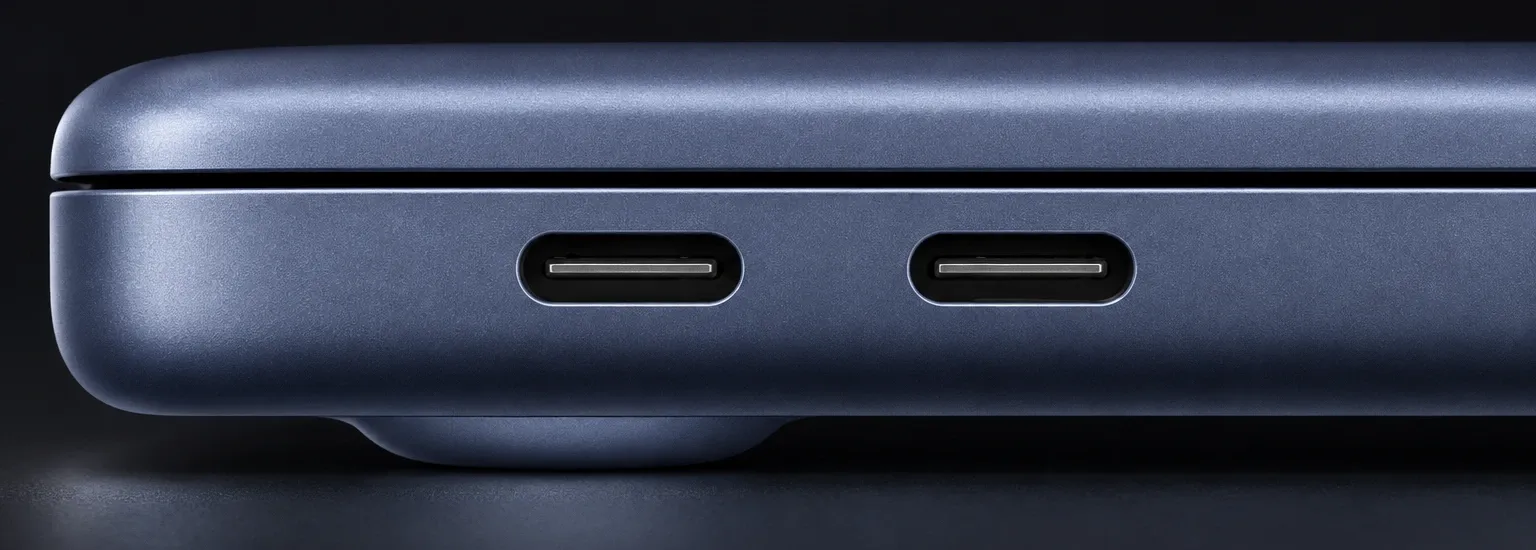
My read: the tested Neo configuration can handle recording and mixing for bands, podcasts and singer-songwriters who stay with Logic’s own plug-ins. If you produce with software instruments, sample libraries or third-party synths, the Air is the one I’d buy, because that is the work where the Neo’s 8GB and six cores run out first. Match each device to its required USB speed: the Neo has one USB 3 port and one USB 2 port, with no Thunderbolt. Plan the interface and external drive together, checking their connection requirements before choosing a hub.
I wouldn’t buy a Neo for a Creator Studio subscription without confirming compatibility with Apple. The subscription app’s Mac compatibility listing specifies macOS 26.1 and an M1 chip or later, which doesn’t describe the Neo’s A18 Pro. The standalone Mac listing states macOS 26.1, while Apple’s Creator Studio support page says Apple silicon. These different requirements need checking for the exact app you intend to install; the performance results above don’t settle that purchase decision.
Which MacBook Air configuration should you buy for Logic Pro?
Start from the 13-inch M5 with 16GB and change only what your sessions need. Current Air models share the 10-core M5 CPU layout. More memory or storage doesn’t add CPU cores, but it can help if RAM capacity or disk access is the session’s bottleneck; cooling and the workload also affect the track limit. The options are on Apple’s MacBook Air specs page: 16GB of unified memory as standard, configurable to 24GB or 32GB, with a 512GB SSD to start.
| Your Logic Pro work | MacBook Air I’d pick | Why |
|---|---|---|
| Recording, editing and mixing audio | 13-inch, 16GB, 512GB | Same 10-core CPU layout; session, buffer, memory and storage still affect capacity |
| Kontakt libraries, orchestral templates, Omnisphere | 13-inch or 15-inch, 24GB | Sampled instruments load into memory, and 16GB fills up faster than expected |
| Keeping the laptop four or five years with growing projects | 24GB | Memory is soldered, so it can’t be added later |
| Long sessions without an external display | 15-inch | More room for the Tracks area and Mixer, and slightly steadier under a 30-minute load |
| Very large libraries loaded at once | 32GB and an external SSD | 32GB is the Air’s ceiling |
The memory advice matches Internet Tattoo’s M5 Air guide for producers: the M5 Air handles the vast majority of production work, 16GB can fill up quickly with Kontakt, orchestral templates or Omnisphere, and 24GB is the smarter choice if you’ll keep the machine four or five years. It also names the other limit: u-he Diva, Xfer Serum, Arturia Pigments and Omnisphere push processors hard at high voice counts or quality settings. More RAM won’t remove a CPU bottleneck. Freeze heavy tracks when the drive has headroom, or render them to audio when you need to reduce real-time processing.
I’d spend on memory first if an external SSD fits your workflow. Apple’s overload guide recommends dedicated external storage for high-track-count projects and Sampler samples. If you work on the move without an external drive, price a 1TB or larger internal SSD against the space your projects and libraries actually need. Our Logic Pro RAM guide covers memory by project type.
What can you plug into a MacBook Air for Logic Pro?
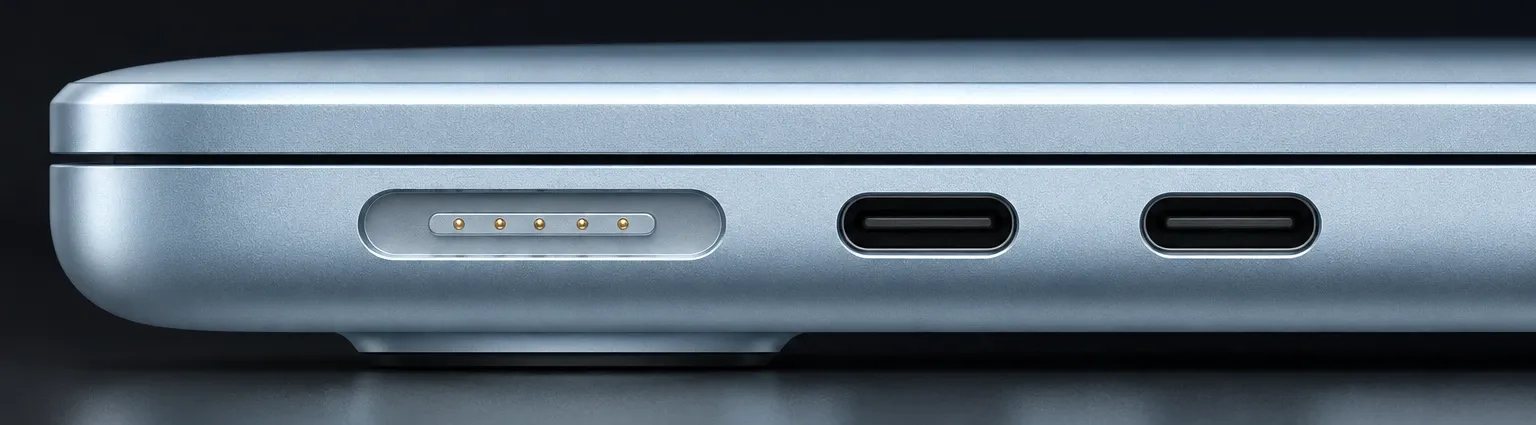
There are two Thunderbolt ports for direct connections; a compatible hub or dock can expand them. The M5 Air has two Thunderbolt 4 ports, a MagSafe 3 charging port and a headphone jack with support for high-impedance headphones, and it drives up to two external displays. MusicRadar’s M4 Air review named the catch: once the external drive and the audio interface are plugged in, there’s no room left for MIDI keyboards, so anyone with more gear needs a USB hub.
The layout I’d use: charge through MagSafe, connect the audio interface directly to one Thunderbolt port, and use a suitable powered hub or dock on the other for the sample SSD and controllers. Check that the hub, drive and shared bandwidth meet the session’s needs. Check that your interface maker supports a hub connection before you move the interface onto one. The audio interface setup guide walks through selecting the device in Logic, and the best audio interfaces for Logic Pro lists the ones worth pairing with a laptop.
Is an older M1, M2 or M3 MacBook Air still good for Logic Pro?
Yes, for the work it already handles. Apple’s macOS Tahoe compatibility list includes every MacBook Air from the M1 of 2020 through the M5, and Logic Pro needs a Mac with Apple silicon, so none of them is locked out. Logic Pro 13.0 asks for macOS 26.1 or later, and the full list is on our Logic Pro system requirements page.
In the DAW Overload table, the M4 Air reaches about 80 tracks against about 55 on the M3 Air, a 45% increase. Those are the listed 24GB M4 and 16GB M3 configurations, collected with the software-version limits noted above; the numbers don’t isolate the cause of the gain. Notebookcheck’s Cinebench multi-core scores show the smaller step after that: 601 for an M3 Air, 815 for an M4 Air and 957 for the M5. Further back, MusicRadar’s 2022 M2 Air review reached 100 tracks of a Logic benchmark project on a 24GB M2 Air, against 92 for an M1 Mac mini.
Internet Tattoo calls the move from an M2 or M3 to the M5 incremental and advises against it, and I agree for audio work. If your M2 or M3 Air plays your sessions after the settings in the next section, keep it. If synth-heavy sessions overload it every week, the M4 and M5 are a real step up. When buying used, I’d avoid 8GB models if you play sample libraries.
Which Logic Pro settings get more out of a MacBook Air?
The ones in Apple’s overload guide, in this order. They help on any Mac, but they matter more on a laptop that can’t raise its fan speed.
- Quit other apps while Logic runs, except your audio interface’s control or mixer software.
- Turn on the Performance Meter: choose Custom from the Display Mode menu in the control bar, then double-click the CPU or HD meter. It shows whether the processor or the drive is the bottleneck.
- Lower the I/O buffer to record and raise it to mix, under Logic Pro > Settings > Audio > Devices.
- Set Process Buffer Range to Large if its extra latency suits the task. Turn Sample Accurate Automation off only if the project has no automation or doesn’t need sample-accurate changes; otherwise choose the option covering the parameters you automate.
- Put reverbs and delays on sends instead of on every track, and try lighter reverbs such as SilverVerb and PlatinumVerb.
- Select an empty track during playback. A selected software instrument track or track stack header adds CPU load.
- Freeze tracks with a lot of plug-ins. If overloads line up with peaks on the Drive I/O meter, don’t freeze software instrument tracks, because frozen instrument tracks add load to the drive.
- Lower the voice count of software instruments to the number the part needs.
- Keep high-track-count projects and Sampler libraries on a dedicated external USB-C SSD.
The full diagnostic path, including Sampler virtual memory and processing threads, is in our Logic Pro system overload guide. For freezing, how to freeze tracks in Logic Pro covers the steps, and Track Protect versus Freeze explains which one to reach for.
When is a MacBook Pro the better buy for Logic Pro?
When your sessions already overload an Air after those settings, when long bounces are a daily job, or when you need more than 32GB of memory or more ports. The base 14-inch MacBook Pro now uses the M6 chip, and the step above it is the M5 Pro and M5 Max models.
| MacBook Air (M5) | MacBook Pro 14-inch (M6) | |
|---|---|---|
| CPU | 10 cores (4 super, 6 efficiency) | 12 cores (2 super, 4 performance, 6 efficiency) |
| Memory | 16GB, 24GB or 32GB at 153GB/s | 16GB at 153GB/s, or 24GB or 32GB at 170GB/s |
| Storage to start | 512GB | 1TB |
| Ports | Two Thunderbolt 4, MagSafe 3, headphone jack | Three Thunderbolt 4, HDMI, SDXC card slot, MagSafe 3, headphone jack |
| Logic test result | 92.3% of the base-M5 MacBook Pro (3 workloads, 1 publisher) | No M6 result in this M5-only comparison |
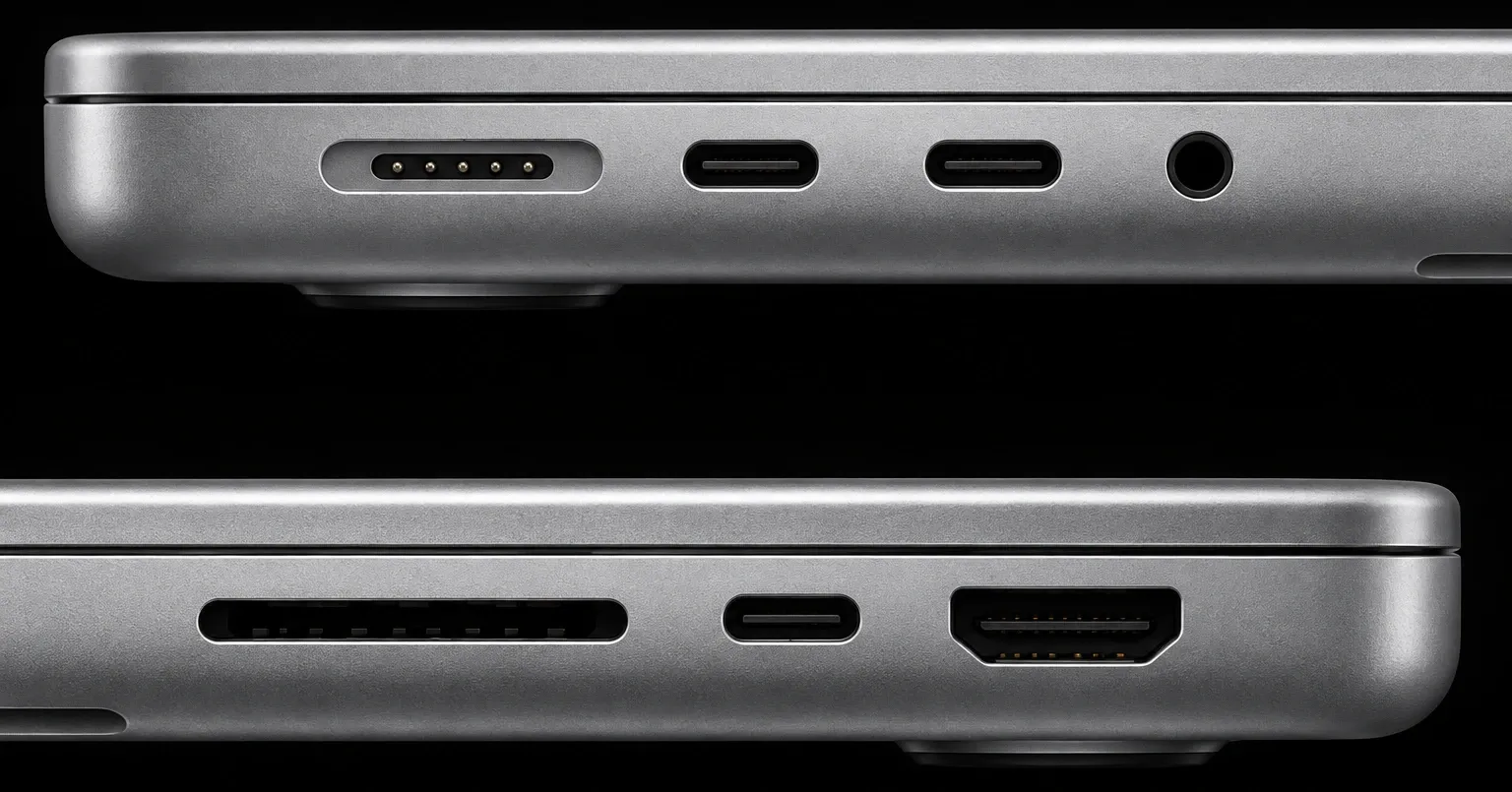
The table uses Apple’s MacBook Pro tech specs. The memory ceiling is the clearest dividing line: the base Pro also stops at 32GB, so a template that needs 48GB or more means an M5 Pro, which goes to 64GB, or an M5 Max, which goes to 128GB. The extra Thunderbolt port and HDMI also spare you the hub when a desk setup has an interface, a drive, a display and a controller. For the full lineup, including the Mac mini and Mac Studio for a fixed studio, see our guide to the best Mac for Logic Pro.
If none of those apply, the Air is the better Logic laptop for the money. Against the previous base-M5 Pro, its median throughput gap was 7.7% across the three workloads, and the short bounce tied. Its fanless design also keeps laptop fan noise out of the room.
MacBook Air for Logic Pro FAQ
Is 8GB enough for Logic Pro?
For recording and mixing audio, yes: the 8GB MacBook Neo played a mix of about 90 tracks, including buses and aux sends, with 70 stock plug-ins in MusicRadar’s review and ran about 20 Kontakt instances using the test’s 3GB sample library without memory swap in OneTwoOneTwo’s roundup. That library result does not establish a limit for other Kontakt instruments or templates. For sample libraries and orchestral templates I’d want at least 16GB, which is where every current MacBook Air starts.
Does the MacBook Air overheat with Logic Pro?
The fanless Air reduces sustained performance as it warms. In Notebookcheck’s 30-minute Cinebench loop, the 13-inch M5 Air kept about 86% of its first-run score. The case-temperature result of slightly more than 40 °C came from its separate combined CPU/GPU stress test. For Logic, watch the Performance Meter and check the actual project at the intended recording buffer. A temperature result doesn’t establish whether another session will play without dropouts.
Is the 15-inch MacBook Air better for Logic Pro?
Primarily for the screen. It has the same M5 chip and the same 18% short-run gap to the MacBook Pro, and it held slightly better over a 30-minute load, about 10% down against 14% for the 13-inch. Buy it if you mix on the laptop screen for hours; pick the 13-inch if you carry it or plug into a display.
Can a MacBook Air run Logic Pro with an audio interface?
Yes. Connect the interface to one of the two Thunderbolt 4 ports, charge through MagSafe to keep the other port free, and select the interface in Logic Pro > Settings > Audio > Devices. Our interface connection guide has the full steps.
How many tracks can a MacBook Air handle in Logic Pro?
It depends on what is on them. In published tests, an M5 Air ran 120 MIDI tracks before audio drops, an M4 Air ran about 80 tracks of Serum and Diva in the DAW Overload template, and a 24GB M2 Air reached 100 tracks of a Logic benchmark project. Audio tracks with stock plug-ins cost far less: even the slower MacBook Neo played 171 of them.
Can an Intel MacBook Air run Logic Pro?
Not the current version. Apple’s Logic Pro tech specs list a Mac with Apple silicon as a requirement. Our system requirements page covers the options for Intel Macs under can an Intel Mac run Logic Pro.


