Logic Pro Templates: Project, Mixing and Multitracks
Build a clean Logic Pro project or mixing template, use it in new and existing sessions, and find legal multitracks for mixing practice.

This guide covers project templates in Logic Pro for Mac. Menu names were checked against Apple's Logic Pro 12.3 documentation.
To save a Logic Pro template, prepare your tracks and routing, then choose File > Save As Template. To use it, choose File > New and open My Templates. Work on a separate copy if you are starting from a finished song.
A project template stores a starting setup for a new session. A mixing template is a project template organized for mixing. Raw multitracks are different: they contain recordings to mix, not a ready-made Logic setup.
Below are the steps for building your own template, checking a downloaded one, and importing its tracks into a song you have already started. The practice downloads later in the guide are WAV recordings, not Logic project templates.
Template, mixing template or multitrack?
Project template: saves the tracks, routing, channel strips, project settings and screensets you want in new sessions. Check I/O and plug-in dependencies before recording.
Mixing template: a project template built around your mix buses, sends and meters. Adjust processing for each song and check for routing conflicts.
Logic project download: a song or educational session to study. Check for missing audio, required plug-ins and permission to reuse the material.
Raw multitracks: individual recordings for editing and mixing. Files from an aligned set share a start point; follow the supplied notes and license.
Stems: premixed groups, such as drums or vocals. They offer less control over individual recordings than raw multitracks. Remixing or publishing them requires the appropriate permission.
How to create a reusable Logic Pro template
Start from a clean project or reuse a setup that works. If you reuse a song, choose File > Save a Copy As first, then open that copy and confirm its name before removing anything. Keep the original session untouched.
- Choose one job for the template: recording a band, writing with instruments, or mixing imported audio. Keep only the tracks you normally need for that job.
- Set the project sample rate and metronome. Check track input and output assignments against your interface. For scoring work, check the frame rate too; do not assume all hardware settings travel with a template.
- Create the repeated structure. Add named tracks, Track Stacks, buses, sends, metering, reference routing and print paths. Our Buses, Sends and Aux guide explains the signal flow before you freeze it into a template.
- Remove the old song’s audio and MIDI regions, Live Loops cells, take folders, automation and song-specific markers from the copy. Remove processors that were only correcting that recording. Check hidden tracks and alternatives for material you do not want in the template.
- Test every input, send, bus and output you plan to reuse. Save, close and reopen the working copy. Resolve missing samples and plug-in warnings, then remove any test recordings before saving the empty template.
- Choose File > Save As Template. Name it by job and, if useful, put related templates in a folder. Open File > New, choose My Templates and confirm that selecting it creates a fresh project.
Why does an empty template still contain audio?
Removing a region from the Tracks area does not necessarily remove its audio file from the project. In your working copy, open the Project Audio Browser, select the unwanted audio-file entries and press Delete. Apple distinguishes this from deleting the files from disk: Audio File > Delete File(s) moves files to the Trash when the project closes and can affect other projects. Do not use that command merely to prepare a blank template. Save a new template and test it before discarding any working copy.
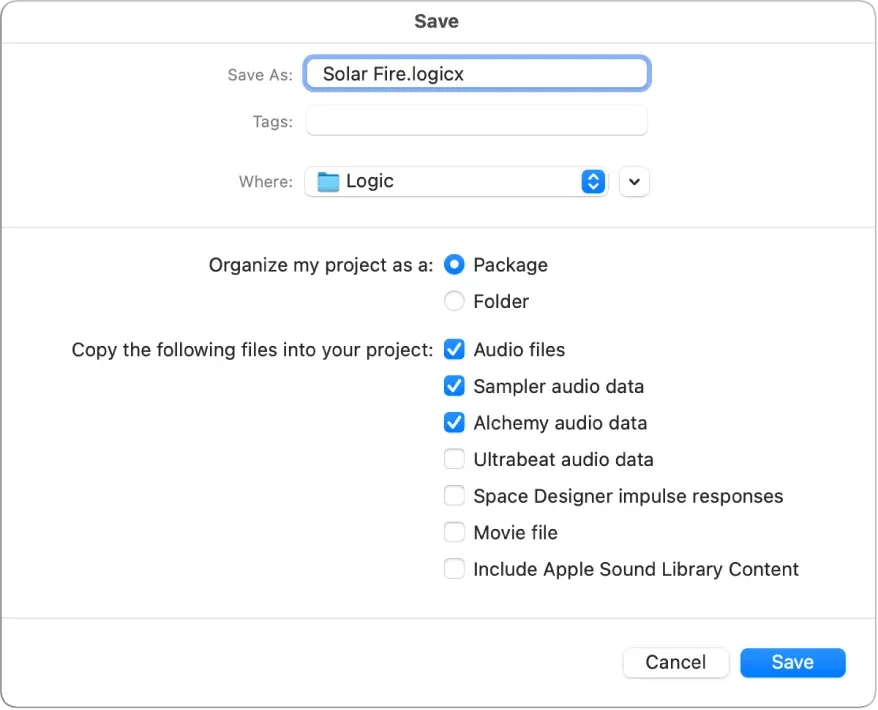
The image above is the project Save dialog, not the Save As Template dialog. Apple's saving guide explains which assets a project package or folder can copy. Check external samples and impulse responses before moving a template to another Mac; a saved project does not include installed third-party plug-ins or their licenses.
Name templates by job, interface and version
A title such as Mix Template Final 7 will become meaningless. A name such as Band Recording - 16 Inputs - Logic 12 tells you what it expects. Include the interface or I/O layout when hardware routing is part of the template, and create a new version when you make a structural change. Do not silently overwrite the only known-good copy before a paid session.
Choose a default template at startup
Open Logic Pro > Settings > General > Project Handling. Set Startup Action to Select a Template if you want to choose each time. For the same starting setup on every launch, choose Create New Project Using Default Template and use the Default Template button to select it.
What belongs in a good mixing template?
Start with a layout you can navigate quickly. Add more buses or effects when you have a use for them, rather than loading a large collection into every session.
- Track families: sensible names, colors and optional stacks for drums, bass, guitars, keys, vocals and effects.
- Core buses: only groups you use often enough to recognize instantly. Check that bus numbers do not collide with imported routing.
- Shared effects: keep a small selection of reverbs and delays if you use them regularly. Start with the sends bypassed, then enable and adjust them while listening. A send level of 0 dB is not the same as an off send.
- Reference path: route reference audio so it can bypass mix-bus processing when that is the comparison you need.
- Metering: place trusted meters where they read the intended signal. Monitoring correction must not be printed into a bounce.
- Print path: label the final route clearly and test what is included before a deadline.
A saved EQ or compressor can be a useful starting sound, but check it against the new recording. A threshold that suited one vocal may cause much more gain reduction on a louder take. Use the Logic Pro mixing workflow to make those decisions in context.
Before opening a downloaded Logic Pro template
A .logicx file isn't a self-contained promise that every sound and processor travels with it. Ask these questions before you reorganize your system around someone else's session:
- Which Logic and macOS versions were used? Apple warns that a project saved in a newer Logic version may no longer open in an earlier version.
- Does it use stock tools only? Get the exact third-party plug-in list, including product generation. Owning a newer or similarly named plug-in does not guarantee session recall.
- Are samples included and licensed? A project can reference audio, sampler files and impulse responses stored elsewhere. The creator may not have permission to redistribute a commercial library.
- What I/O does it expect? Disable or remap outputs that target hardware you do not own. Lower monitor volume before testing unfamiliar routing.
- What are the usage terms? A free download can still restrict redistribution, client work, public portfolio use or derivative releases.
- Is the download just a project? A Logic template should not require an unknown installer, browser extension or system optimizer. Do not run unrelated executable packages to obtain a session file.
Duplicate the downloaded project before opening it, lower your monitor or headphone output volume, and read every missing-file warning. If an Audio Unit is absent, follow the supported AU installation workflow. If it's installed but Logic rejected or can't find it, use the Plug-in Manager troubleshooting guide. Do not install old, unverified builds merely to reproduce one template.
How to reuse a template in an existing Logic project
A saved template creates a new project. When the arrangement is already underway, Logic's selective import is the cleaner tool:
- Save and back up the active project.
- Choose File > Import > Logic Projects, or open All Files in the Browser.
- Select the source project, then click Import or double-click the file to open Track Import. If your source exists only as a template, create a new project from it and save that project first.
- Choose the tracks and columns you need. Leave Content, Cells and Automation unchecked if you only want the setup. Sends imports destinations as well as send settings. I/O alone does not import a software instrument; select Plug-ins for that.
- Review Keep Bus Number. Leaving it off lets Logic assign unused buses when existing numbers conflict; keeping numbers can preserve a deliberate routing scheme but may collide with the active project.
- Click Add to create new tracks, then check every imported route. Replace changes the selected track instead and only works with a single source row selected; use it only when that replacement is intentional.
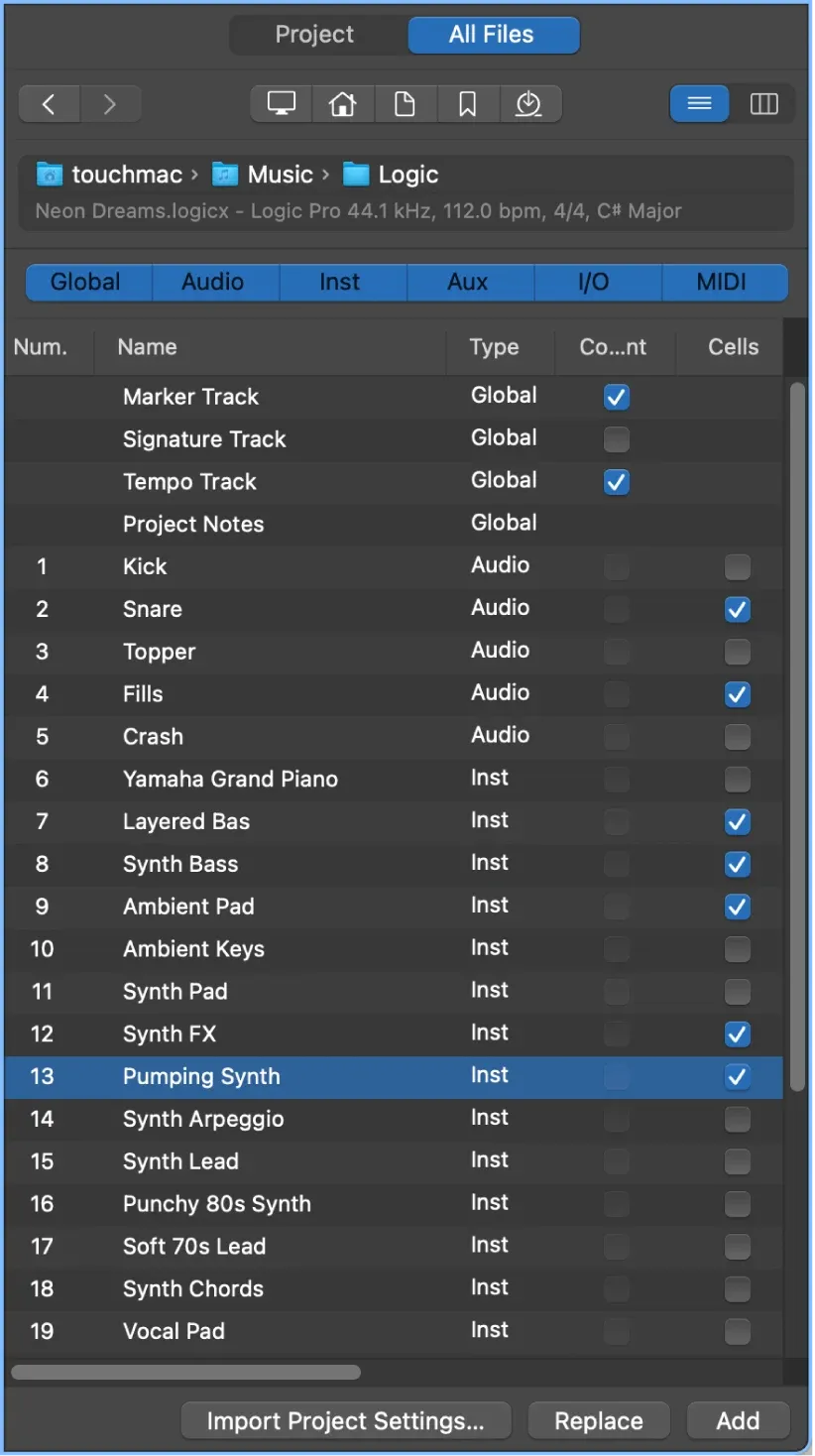
Apple's Track Import guide also documents a separate command for project-wide settings: File > Project Settings > Import Project Settings. Choose only the settings you need. Importing track routing does not mean you should replace the active song’s recording, metronome or other project settings.
Looking for a free Logic project template?
Liquid Mastering’s free mixing-template page offers an example of group buses and auxiliary effects. Its download uses a form. LXGENDS’ vocal template is described as a stock-plug-in recording project with vocal tracks and buses; the creator says processing and I/O need adjustment. These are examples to inspect, not files we have tested in the current Logic release. Check availability, requirements and usage terms before downloading.
Free multitracks for Logic Pro mixing practice
For mixing practice, raw WAV multitracks let you work with individual recordings in a clean Logic project. They are not template downloads and do not include a ready-made mixer layout.
Cambridge Music Technology
The Mixing Secrets Free Multitrack Download Library offers practice recordings across many genres. Listings distinguish full multitracks, edited excerpts and unmastered mixes. Choose a full multitrack when you want separate recordings rather than a stereo mix; follow the project notes for alignment.
Cambridge describes these resources as educational and requires permission from the copyright holders for commercial use. Off-site downloads have separate terms. Read the library’s usage FAQ before posting a portfolio mix or entering a competition; a practice download is not a blanket license to publish the recording.
Telefunken Live From The Lab
Telefunken Live From The Lab provides labelled 24-bit/48 kHz WAV recordings from live sessions. The mic lists and room channels make the sessions particularly useful for balancing live drums, bleed and multiple microphones.
Read Telefunken’s download conditions before sharing a mix: the files are for home-studio and educational use, commercial reuse is prohibited, and non-commercial reuse requires attribution. Check the conditions on the session you download as well.
Import raw multitracks into a clean Logic project
- Create an empty project at the source files' sample rate when known.
- Unzip the download and inspect the included notes, tempo information and license.
- Drag the WAVs from one aligned multitrack set into the Tracks area at the same start position. Follow the supplied notes if the files use another alignment method.
- Choose Create new tracks in the multiple-file import dialog, rather than placing every file on one track.
- To preserve the original performance, check that the imported audio regions have Smart Tempo set to Off in the Region inspector. Listen from the start and later in the song to confirm alignment before editing.
- Save the Logic project separately from the untouched download.
Keep the original leading silence until you have checked alignment, and avoid normalizing files individually if you want to preserve their relative recorded levels. The Bounce in Place versus Export guide explains which command produces the file you intend.
Apple’s Smart Tempo guide explains why Keep Project Tempo alone is not enough: audio with Smart Tempo enabled can still conform to the project tempo. Set the audio regions to Off when you want their original timing.
Keep templates small, tested and recoverable
Review a template when Logic, macOS, the audio interface or an essential plug-in changes. Open it, pass signal through every important route, save a disposable project and reopen it. Keep the previous template until the new version has survived real work.
For projects that must travel, consolidate or copy the required assets and verify the copy on the destination Mac. Our Logic Pro project handoff checklist covers collaborator delivery. The project backup guide covers recoverable copies. Neither job is solved by Save As Template alone.
Logic Pro template FAQ
How do I save a template in Logic Pro?
Prepare the project, remove song-specific content, then choose File > Save As Template and enter a clear name. Logic shows user-created templates under My Templates in the Project Chooser.
Where are my Logic Pro templates?
Open File > New and select My Templates in the Project Chooser. Use Logic's own chooser and Save As Template commands instead of moving template files manually unless you have a documented recovery reason.
Can I apply a Logic Pro template to an existing project?
A template starts a new project. In an existing song, use File > Import > Logic Projects to import selected track data from a saved source project. Project-wide settings have a separate command: File > Project Settings > Import Project Settings. Back up the active song before either operation.
Why does a downloaded Logic template have missing plug-ins?
A required Audio Unit may be absent, unlicensed, incompatible or failing validation on your Mac. Check the exact plug-in list and Logic’s warning before replacing anything. Keep a copy of the original project; a stock substitute will not necessarily recreate the same sound.
Are free multitracks royalty-free?
Not automatically. Cambridge Music Technology and Telefunken provide practice multitracks under their own educational and non-commercial terms. Read the exact license for each source before posting a mix, using it in a portfolio or releasing any derivative work.
What should a Logic Pro mixing template include?
Include stable naming, colors, routing, mix buses, a small set of sends, metering and print or reference paths that you use repeatedly. Leave song-specific EQ, compression, automation and loudness decisions unset until you hear the actual material.
Once your new template opens without missing files and its routing works, save a separate project for your next song. The Create Music guides cover instruments, patterns and arrangement when you are ready to write.


