Best Audio Recording Software for Mac
The best Mac recorder depends on the job: Voice Memos or QuickTime for notes, Audacity or Ocenaudio for one mic, Piezo or Audio Hijack for calls, Audio Hijack or BlackHole for the sound your Mac plays, and GarageBand, Logic Pro or REAPER for music, with review scores, prices and settings.

The best audio recording software for a Mac depends on what you record. For a quick voice note, use Voice Memos or QuickTime Player, which come with macOS. To record and edit one microphone for free, use Audacity or Ocenaudio. For calls, podcasts and the sound your Mac plays, use Rogue Amoeba’s Piezo or Audio Hijack, or the free BlackHole driver. For music with several mics, start in free GarageBand and move to Logic Pro or REAPER when you need more.
I’d pick by job rather than by review score, because Voice Memos and QuickTime record from a microphone or other input and have no built-in direct system-audio capture, while several microphones need a compatible multichannel input device and the right channel setup. Below are the quick picks with prices and macOS support, the review scores and one published load test, then each job in turn, the settings that matter and my picks.
Which Mac recording app fits your job?
Eleven apps cover almost every recording job on a Mac. Prices are US-dollar list prices; local taxes may apply. The last column is the limit that usually decides between two of them.
| App | Best for | Price | macOS | The limit that matters |
|---|---|---|---|---|
| Voice Memos | Voice notes, interviews | Free, built in | Comes with macOS | Mic or input; no built-in direct system-audio capture |
| QuickTime Player | Uncompressed voice takes | Free, built in | Comes with macOS | Mic or input; system audio needs a virtual input |
| Audacity 4.0.2 | Recording and editing one mic | Free, open source | Tested on macOS 14 and 15 | Multichannel capture needs a compatible device; the arm64 build has no plug-ins |
| Ocenaudio 3.22.2 | Quick edits, audio from video | Free | macOS 14.4 or later | Can’t match a professional DAW |
| Piezo 1.9.10 | Calls from FaceTime, Zoom and other VoIP apps | $29 | macOS 14.4 to 27 | Trial adds noise after 10 minutes |
| Audio Hijack 4.6.0 | Podcasts, app audio, system audio | $69 | macOS 14.4 to 27 | Trial adds noise after 10 minutes |
| Loopback 2.5.1 | Routing app audio and devices into a DAW | $99 | macOS 14.5 to 27 | Builds a virtual device; you record in another app |
| BlackHole | Mac sound into any recorder | Free, donations welcome | macOS 10.10 or later | Needs a Multi-Output Device so you can still hear it |
| GarageBand 10.4.14 | First songs, demos, several mics | Free | macOS 15.6 or later | Records from one audio device at a time |
| Logic Pro 13.0 | Full music production | $199.99, or Creator Studio at $12.99 a month or $129 a year | macOS 26.1 or later for Logic Pro 13.0 | Apple silicon only; one audio device at a time |
| REAPER 7.86 | Multitrack recording on a budget | $60 or $225 | macOS 10.5 to 26.x | No large ready-made instrument or loop library |
If you’re unsure which row you’re in, ask where the sound comes from. A microphone points you to the editors and DAWs. The Mac’s own sound, from a browser, a call or a video, needs Audio Hijack, BlackHole or a screen recording, because Voice Memos and QuickTime have no built-in direct system-audio capture. BlackHole supplies a virtual input to a recorder instead. I’d settle that question before comparing prices, since it rules out half the table.
What do the test results say?
Editorial reviews barely separate these apps. Seven scores from MusicRadar, PCMag and TechRadar cover five of them. The median is 4.5 out of 5, the mean 4.36 and the range 4 to 4.5. The four 2026 reviews alone give a median of 4.25 with the same range. TechRadar’s three scores date from 2022, and PCMag ran its 2026 Audacity, Logic Pro and REAPER reviews on an M4 Max Mac Studio with a Focusrite Scarlett 6i6 interface.
| App | Review scores | What the reviewer flagged |
|---|---|---|
| Audacity | 4.0 PCMag (March 2026), 4.5 TechRadar (2022) | May overwhelm beginners |
| Ocenaudio | 4.5 TechRadar (2022) | As accessible as they come, but can’t match a professional DAW |
| GarageBand | 4.5 TechRadar (2022, version 10.4.7) | No Live Loops view on the Mac |
| Logic Pro | 4.5 MusicRadar, 4.5 PCMag (both January 2026) | “Still an instant recommendation” |
| REAPER | 4.0 PCMag (May 2026) | Fast and light on memory, but a nonintuitive interface |
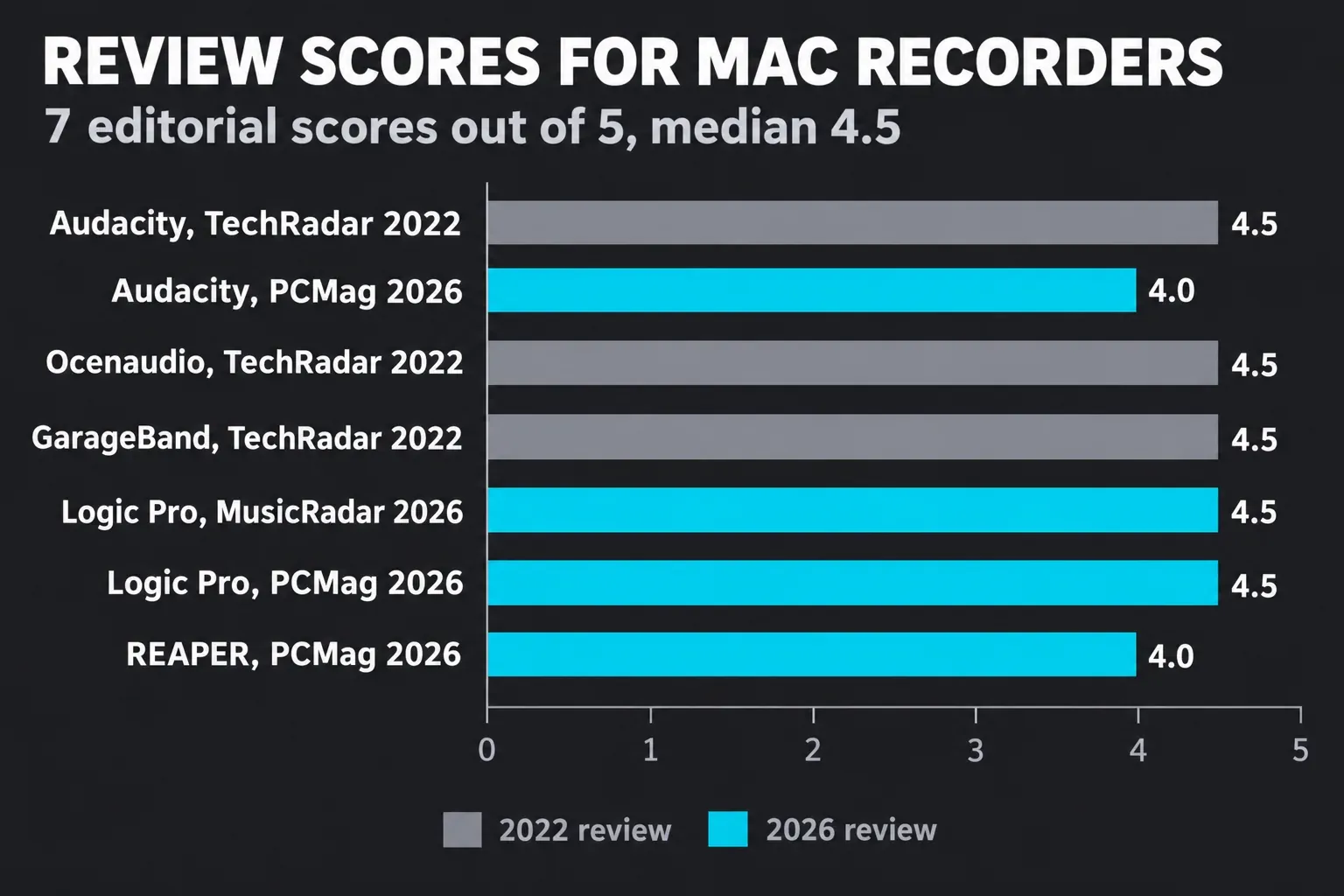
The scored reviews cover only those five. For Piezo, Audio Hijack, Loopback, BlackHole and the built-in apps, the deciding facts are what each one records and what it costs, which the sections below lay out.
For raw load, the clearest published test puts REAPER and Logic Pro 12 on the same Mac. In Audio News Room’s MacBook Neo stress test, published March 31, 2026 and built on YouTuber James Zhan’s method, a 100-track, 143-plugin mix ran at a 512-sample buffer on the A18 Pro, a six-core chip with two performance cores and 8GB of memory. REAPER played the session at around 35% CPU with roughly 3GB of RAM in use. Logic Pro 12 played the same session, rebuilt from scratch, cleanly too, though only the two performance cores carried the audio load. REAPER rendered the project in 2:50 and Logic in 2:56, 6 seconds, or 3.5%, longer than REAPER. An M1 Max MacBook Pro rendered it in about 2:00 in REAPER and 2:30 in Logic, 25% longer than REAPER.
That’s one test series on one mix, and I read it for direction: REAPER spreads the work across more of the chip, while Logic still finishes the same session. That one project does not establish sound quality or stability for every recording setup. I’d choose by the source you need to capture, the editing workflow and the device route in the first table. Audacity and Ocenaudio cover one mic for free, GarageBand covers songs for free, and Logic Pro earns its price once you need comping, punch modes and its larger toolset. REAPER is the pick when CPU headroom or an Intel Mac matters more than built-in instruments.
What is the fastest way to record a voice note on a Mac?
Open Voice Memos and click Record. Apple’s Voice Memos recording guide says it records from the built-in microphone, a supported headset or an external mic, and a stereo recording needs a stereo input such as a stereo mic. Before you record anything that matters, choose Voice Memos > Settings and set Audio Quality to Lossless. Apple’s Voice Memos settings page describes Compressed as lower quality with smaller files and Lossless as high quality with larger files.
QuickTime Player gives you a few more controls:
- Choose File > New Audio Recording.
- Open the recording options and choose a Microphone, if you have more than one.
- Choose a Quality. Apple’s QuickTime audio recording page lists High as 44100 Hz AAC and Maximum as 44100 Hz uncompressed linear PCM 24-bit AIFF-C, which can use a lot of storage.
- Click to record. To pause, Option-click; click again to resume.
- Choose File > Save to name the recording.
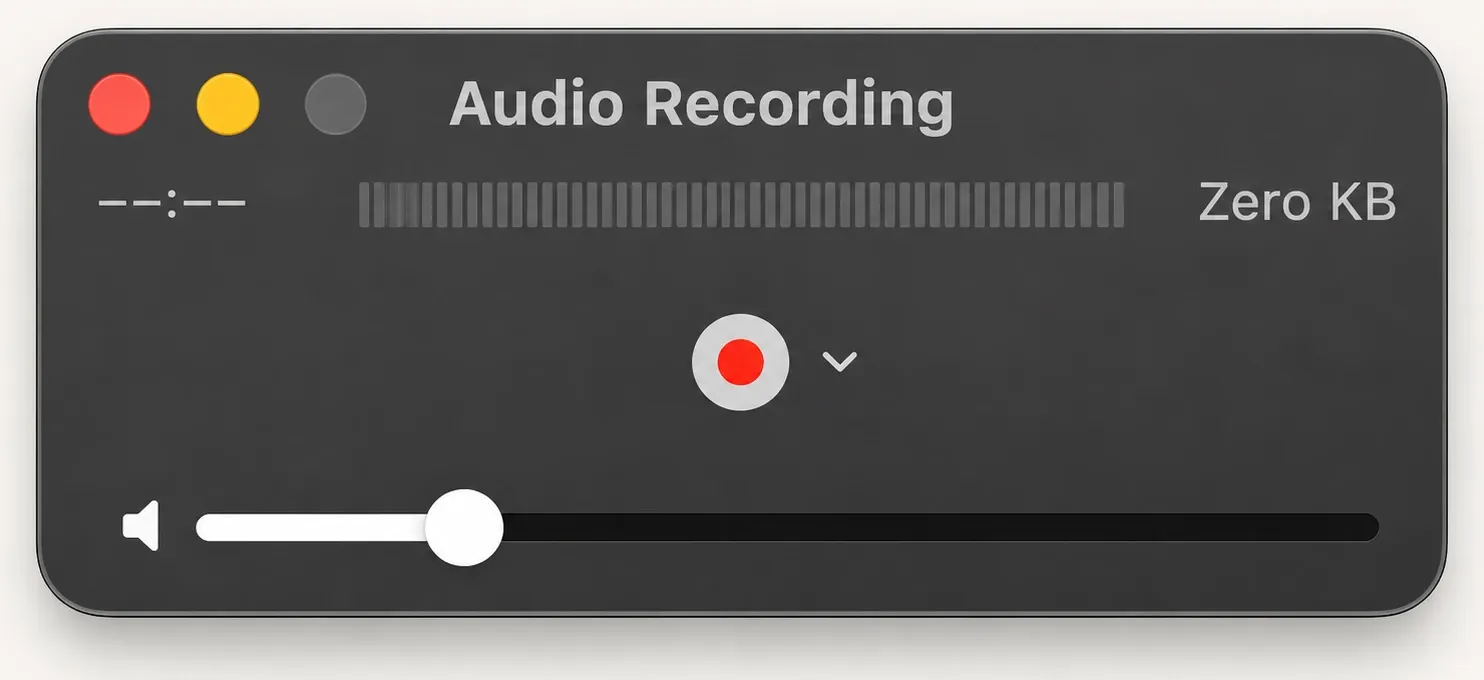
Neither app has a built-in direct system-audio capture option. QuickTime can record that sound when a virtual device such as BlackHole supplies it as an input. I’d use Voice Memos for notes and interviews you’ll only listen back to, and QuickTime on Maximum when the file goes into an editor, because an uncompressed take doesn’t lose quality a second time when the editor exports it.
What should you use to record and edit one mic?
Audacity is the free default. The Audacity team describes it as a free, open source audio editor and recorder, and its Mac download page lists version 4.0.2 in three builds: Universal, Apple silicon (arm64) and Intel (x86_64). The arm64 build has no plug-in support, so I’d install the Universal build unless you never use effects plug-ins. Audacity says it’s tested on macOS 14 and 15 and may work on releases back to 10.11 El Capitan.
Audacity can record multiple input channels in one instance when the device and host expose them. Choose the multichannel interface as the recording device and select the required recording-channel count, then make a short channel-identification recording before the session. Several separate USB mics are a device-routing problem, not a limit of one Audacity copy. PCMag’s March 2026 review scored it 4.0, while TechRadar gave it 4.5 in 2022 and warned it may overwhelm beginners.
For the setup, Audacity’s microphone recording guide says an XLR mic goes into an XLR-USB audio interface, mono is typically the best choice, and normal speech should sit at -18 to -12 dB. Pick the interface under Audio Setup > Recording Devices.
Ocenaudio is the lighter option. Its download page lists version 3.22.2 as a free download for macOS 14.4 or later on Intel and Apple silicon. TechRadar’s Ocenaudio review called it as accessible as they come, ready to record or import many formats including MP4, while noting it can’t match a professional DAW. I’d pick Ocenaudio for quick edits of one voice or for pulling audio out of a video clip, and Audacity when you want plug-ins and its deeper toolset.
What records calls and podcasts best?
For calls, Piezo is the simplest tool. Rogue Amoeba’s Piezo page lists version 1.9.10 for macOS 14.4 to 27 and says it records from FaceTime, Zoom and other VoIP apps, saving the audio to distinct channels for easy editing. It costs $29, and the trial terms overlay noise on recordings longer than 10 minutes, so test with short clips.
Audio Hijack 4.6.0, for macOS 14.4 to macOS 27, is the podcast tool. One session can take any app, the System Audio source, and microphones, mixers and other input devices. It costs $69, and its trial adds noise after 10 minutes of capture. Loopback 2.5.1 (macOS 14.5 to 27, $99) solves a different problem: the Loopback page points out that GarageBand, Logic and Ableton Live record from one audio device at a time, and Loopback combines several devices into one virtual device you record from. Its trial adds noise after 20 minutes. On the Audio Hijack store page, Audio Hijack and Loopback cost $134 together, and the Ultimate Podcast Bundle adds Farrago and Fission for $199.
I’d buy Piezo only if you record calls and nothing else, because it does that one job in a click. For a podcast with guests, a mic and Mac audio, Audio Hijack is worth the extra $40, and I’d add Loopback when its application-routing features are needed inside another recorder. For several physical input devices, try macOS’s free Aggregate Device route first. If you record the show in Logic, my guide to recording a podcast in Logic Pro covers the session setup.
How do you record the sound your Mac plays?
There are three routes. On macOS 27, press Shift-Command-5, click Options in the toolbar and choose Include System Audio. Apple’s screen recording page says this records system audio with the screen recording in macOS 27 Golden Gate or later, so you get a video with sound rather than an audio file. Audio Hijack’s System Audio source captures all the audio heard on your Mac at once and records it to an audio file.
BlackHole is the free route. The BlackHole README describes a virtual audio loopback driver with zero additional latency, builds from 2 to 256 channels, support for Intel and Apple silicon on macOS 10.10 and newer, and no kernel extensions. The BlackHole download page asks for a donation and includes an “I can’t afford to donate” option. To record what the Mac plays with it:
- Install the 2-channel build. With Homebrew, run
brew install blackhole-2ch. - In Audio MIDI Setup, create a Multi-Output Device with BlackHole and your headphones or speakers so you can keep listening. Use a physical two-channel output as the clock device and enable Drift Correction for the other devices, following BlackHole’s setup guide.
- Under Audio Devices, right-click the Multi-Output Device and choose Use This Device For Sound Output.
- In your recorder or DAW, set the input device to BlackHole and the track input to channels 1-2.
- Play the audio and record.
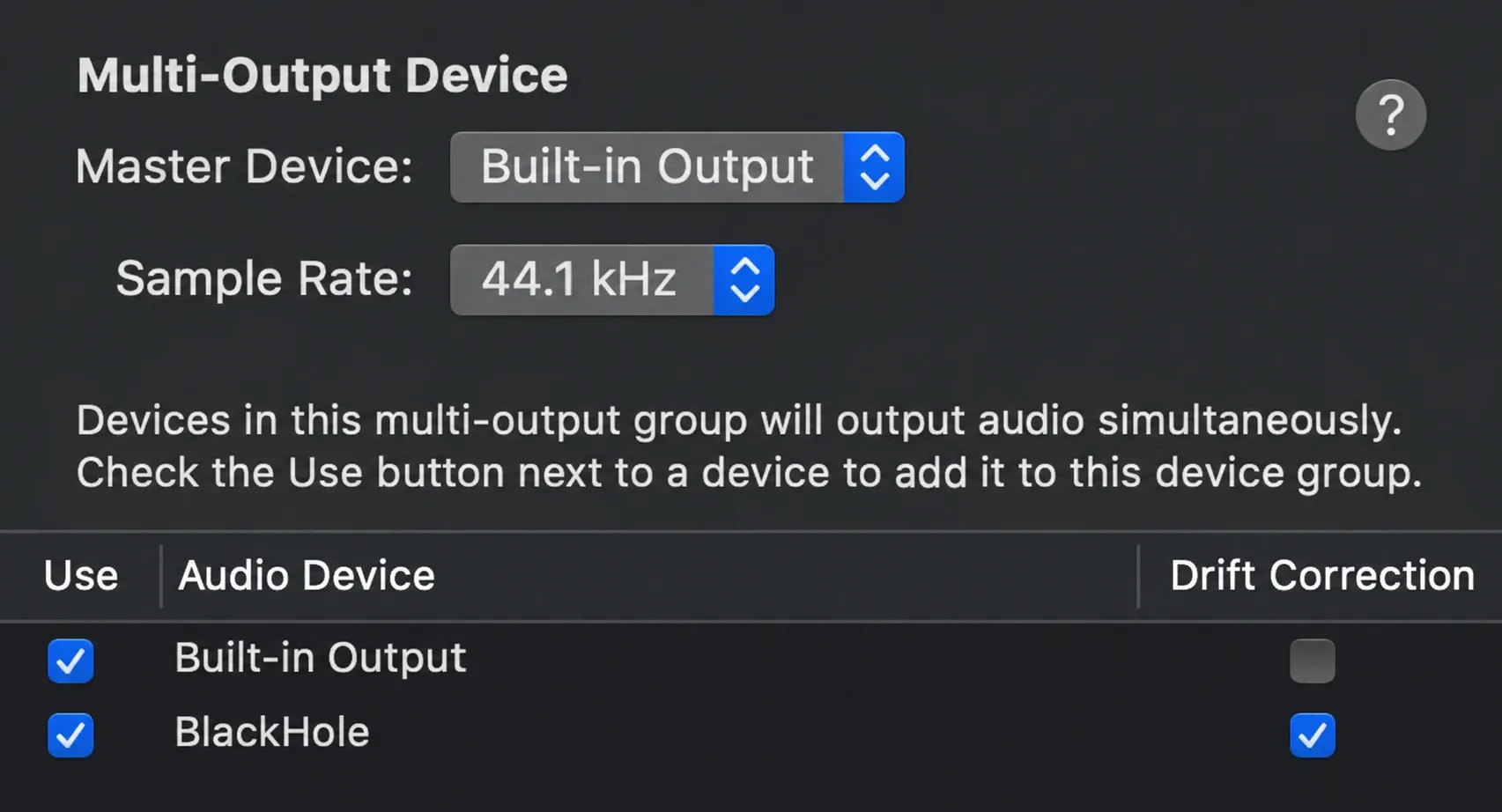
Skip Audacity’s desktop audio guide on this point: it still says macOS has no built-in desktop audio recording and sends you to Soundflower, which the same page notes isn’t compatible with Apple silicon. I’d use the macOS 27 screen recording only when you want the picture too, Audio Hijack when you record Mac audio every week, and BlackHole when the recording happens in GarageBand, Logic or Audacity and you don’t want to pay. My BlackHole guide for Logic Pro walks through the full routing.
What should you use to record music with several mics?
GarageBand first. The Mac App Store listing shows GarageBand 10.4.14 as free with macOS 15.6 or later. Press R or click Record and, as Apple’s GarageBand recording page says, the take appears as a new audio region. For several mics at once:
- Choose GarageBand > Settings (Command-comma), click Audio/MIDI and pick your interface as the Input Device. If microphone permission is off, click Allow Access to open System Settings > Privacy & Security > Microphone, enable GarageBand and restart it.
- Show the Record Enable buttons with Track > Configure Track Header (Option-T), as Apple’s multiple-track recording page describes.
- Arm each track, set its input and record.
- For repeated takes, turn on the cycle area. After the second cycle pass, GarageBand creates a take folder on the track.
TechRadar’s GarageBand review scored version 10.4.7 at 4.5 in 2022; its reasons to avoid were “GarageBand for Mac still has no Live Loops view” and “Mixer and levels indicators need to be improved with plug-ins.”
Logic Pro 13.0 costs $199.99 once, or comes in Apple Creator Studio at $12.99 a month or $129 a year after a 30-day free trial. It needs a Mac with Apple silicon, and my Logic Pro free trial guide covers how the trial works. Apple’s Logic Pro page still prints macOS 15.6 or later while the App Store listing and Apple’s Creator Studio requirements ask for macOS 26.1 or later, so I’d plan on macOS 26.1 if you buy now.
Logic records multiple interface inputs onto separate tracks, stacks takes into take folders with Quick Swipe Comping, and offers Quick Punch-In and Autopunch modes, per Apple’s multiple-input recording page and punch recording page. MusicRadar’s Logic Pro 12 review gave it 4.5 and called it “still an instant recommendation”; PCMag’s review also gave it 4.5, Outstanding. For the details, see recording multiple tracks in Logic Pro, punch-in and cycle recording, and Creator Studio versus buying Logic Pro.
REAPER 7.86, released November 13, 2026, limits simultaneous inputs only by your hardware and handles takes, overdubs, punch-ins and loop recording, according to the REAPER about page. It lists macOS 10.5 to 26.x on Intel and Apple silicon, so check the latest build notes before installing on macOS 27. On the REAPER purchase page, a discounted license is $60 for personal use, for a business whose yearly gross revenue doesn’t exceed $20,000, or for an educational or non-profit organization; a commercial license is $225, and both include upgrades through version 8.99. The 60-day evaluation is fully functional with no registration. PCMag’s REAPER review (4.0, May 4, 2026) praised its useful track comping tools and an extremely light memory footprint, and flagged a nonintuitive interface. Its “no built-in instruments” con is too broad: REAPER includes basic instruments such as ReaSynth and ReaSamplOMatic5000, but no large ready-made sound library.
GarageBand and Logic select one Core Audio input device at a time. To combine compatible interfaces or an interface and a USB mic, create a free Aggregate Device in Audio MIDI Setup, select the intended devices, choose the clock source and configure drift correction as Apple describes. Select that aggregate input in the DAW, map its channels and check sync at the start and end of a trial recording. Loopback is an alternative when you also need application audio routing. I’d start a music project in GarageBand, then move to Logic for comping and punch modes; the GarageBand comparison shows the differences. REAPER is worth considering for current Intel support or a workflow that favors its routing and processing options; the REAPER comparison covers that choice.
Which recording settings should you use?
Three settings decide whether a take is usable: channels, level and format.
- Channels. Record one mic as mono. Audacity’s microphone guide says most mics are mono and mono is typically the best choice; my guide to mono vs stereo tracks covers the exceptions.
- Level. Aim for speech at -18 to -12 dB. If you can’t get there, my guide to a quiet mic in Logic Pro walks through the fixes.
- Format. Apple’s Logic Pro recording settings page calls WAVE (BWF) the most compatible file type and recommends CAF for half-day or longer recordings. 16-bit files have a dynamic range of 96 dB; 24-bit files are 50 percent larger with 144 dB; 32-bit float files are 33 percent larger than 24-bit, and they can preserve floating-point headroom within a supported software recording path. Lowering region gain cannot recover overload already created in an ordinary hardware input or ADC. Apple also says to match the recording bit depth to your audio device. My AIFF vs WAV guide compares the formats.
I’d record at 24-bit with conservative physical input gain, or choose 32-bit float for its software headroom when the recording path supports it. Theoretical file range does not equal an interface’s usable dynamic range, and a float file does not rescue an ordinary ADC that clipped on a loud singer. Set gain for the loudest passage either way. Uncompressed size is sample rate times bytes per sample times channels times seconds, so you can plan disk space ahead:
| Recording | Per minute | Per hour |
|---|---|---|
| 44.1 kHz, 16-bit, stereo | 10.58 MB | 635 MB |
| 44.1 kHz, 24-bit, mono | 7.94 MB | 476 MB |
| 48 kHz, 24-bit, mono | 8.64 MB | 518 MB |
| 48 kHz, 24-bit, stereo | 17.28 MB | 1,037 MB |
| 48 kHz, 32-bit float, stereo | 23.04 MB | 1,382 MB |
| Eight mono tracks at 48 kHz, 24-bit | 69.12 MB | 4.15 GB |
The table counts a megabyte as a million bytes and ignores file headers. At the same sample rate, channel count and duration, 24-bit audio is 1.5 times the size of 16-bit audio, and 32-bit float is about 1.33 times the size of 24-bit audio. Those ratios match Apple’s 50 and 33 percent increases.
Latency is the setting you hear while recording. Apple’s Logic Pro audio device settings say a smaller I/O buffer means less latency while you monitor and more strain on the processor: record at the lowest size that doesn’t introduce clicks, pops and crackles, and choose the largest buffer when mixing. At 48 kHz one buffer of 64 samples lasts 1.33 ms, 128 samples 2.67 ms and 256 samples 5.33 ms. The delay you hear is longer, because the input and output buffers and the converters all add to it, and Logic’s Resulting Latency display shows the roundtrip and output figures for the buffer you pick. For first setup, see connecting an audio interface to Logic Pro; if Logic doesn’t list it, my guide to an audio interface not showing up covers the fixes.
Which one would I pick?
- Quick note or interview: Voice Memos on Lossless, because it’s already on the Mac and takes one setting.
- One mic for a voiceover or solo podcast: Audacity, Universal build, because it’s free, keeps plug-in support and scores 4 to 4.5 in reviews.
- Calls only: Piezo at $29, because each side of the call lands on its own channel.
- Podcast with guests and Mac audio: Audio Hijack at $69, because one session takes the mic, the call app and system audio.
- Mac sound into a DAW for free: BlackHole with a Multi-Output Device.
- Songs: GarageBand first, Logic Pro when you outgrow it, and REAPER on an Intel Mac or when CPU headroom matters most.
If you’re choosing a DAW for more than recording, my best DAW for Mac guide and best free DAW guide compare the full feature sets, and the recording and editing hub collects the rest of the recording guides.
Mac audio recording FAQ
Does a Mac have a built-in audio recorder?
Yes, two. Voice Memos records from the built-in mic, a supported headset or an external mic, and QuickTime Player makes audio-only recordings with File > New Audio Recording. On macOS 27, screen recording can also include system audio, but it saves a video.
Can QuickTime record internal audio?
QuickTime has no built-in direct system-audio capture for audio-only recordings. It can record system sound supplied through a virtual input such as BlackHole; choose that device in its Microphone options. For the sound your Mac plays, use Audio Hijack’s System Audio source, BlackHole with a Multi-Output Device, or a macOS 27 screen recording with Include System Audio turned on.
Is Audacity good on a Mac?
Yes, for editing and recording from a suitable input device, including several channels from a compatible multichannel interface. PCMag scored it 4.0 in March 2026 and TechRadar 4.5 in 2022. Choose the device and channel count before recording, then check that each microphone reaches the intended channel. The Universal build is the choice in this version comparison if you need plug-in support.
Is GarageBand good enough for recording?
For songs, demos and podcasts on one interface, yes. It’s free, records several armed tracks at once and builds take folders when you cycle. It records from one audio device at a time, so combine compatible physical devices with a macOS Aggregate Device and check clocking and sync. Use Loopback when application routing is also needed. Logic Pro adds Quick Swipe Comping and punch modes.
What is the best free audio recording software for Mac?
Audacity for one mic and editing, GarageBand for music, and BlackHole for recording the Mac’s own sound into either of them. Ocenaudio is the simpler free editor if Audacity feels like too much. REAPER’s 60-day evaluation is fully functional, but a license costs $60 after that.


